
How to Password-Protect (and Unlock) a PDF Without Uploading It Anywhere
Summary
Most tools want a sensitive PDF and its password sent to a server. How to protect or unlock one in your browser, so neither ever leaves your device.
There is a strange contradiction at the heart of most "password protect PDF online" tools: to add security to a file, you first have to do the least secure thing possible with it, upload the document and the password you are about to lock it with to someone else's server. For a restaurant menu, fine. For a contract, a bank statement, or a scanned passport, that is exactly the file you least want sitting in a stranger's upload queue.
It does not have to work that way. ImagePDF.Tools adds or removes PDF password protection entirely inside your browser, the file and the password never leave your device. This guide explains why the upload model is the real risk, how the browser-based alternative works, and how to verify any tool's behavior yourself in about thirty seconds.
The Problem With "Encrypt My PDF Online" Tools
Adobe, Smallpdf, iLovePDF, and most of the smaller sites that rank for this query all work the same way: you drop your PDF into the browser, it is uploaded to their servers, the encryption is applied there, and the protected file is sent back to you. That means two sensitive things travel to a third party at once, the document you are trying to protect, and the password you are protecting it with.
None of these companies are necessarily doing anything wrong with your file. But the structure asks you to trust a retention policy you did not write, on the single category of document, one you cared enough about to encrypt, where that trust matters most. If you would not email the file as a plain attachment, uploading it to an online encryptor is not meaningfully different at the moment of upload.
The password problem is the part most guides skip. When you type a password into an upload-based tool, that password is transmitted to the server that performs the encryption. A tool that never uploads the file also never has to receive the password.
The Browser-Based Alternative: How It Works
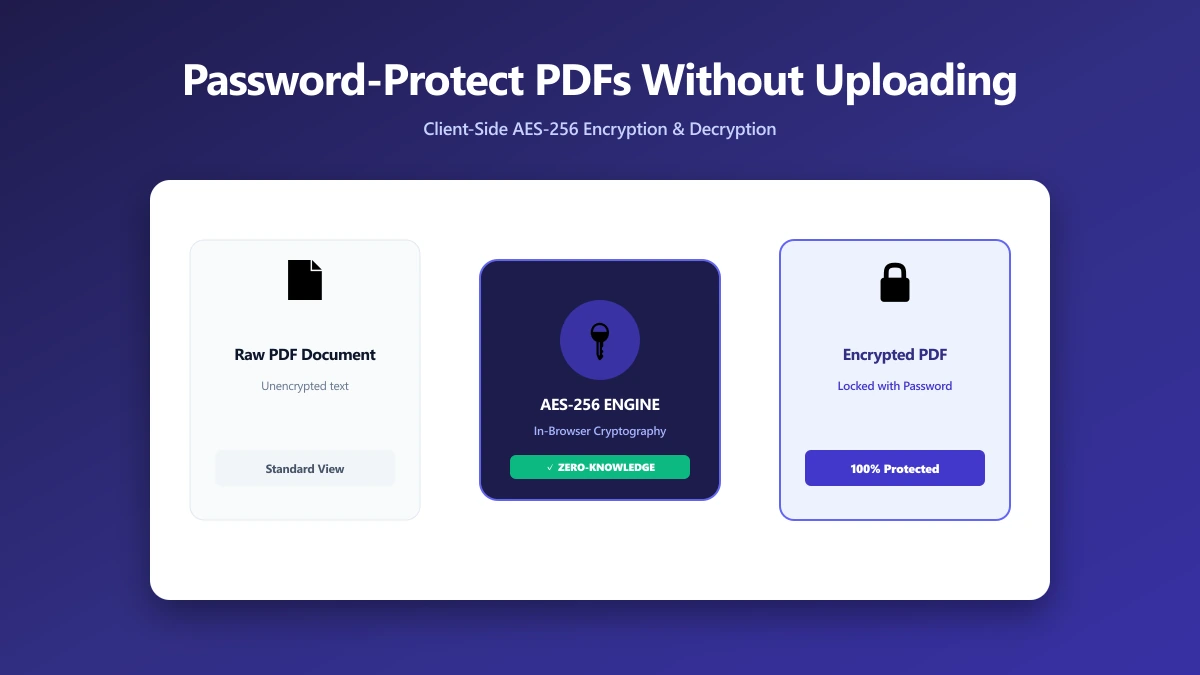
Modern browsers can read, modify, and re-save a PDF without any server involvement, using JavaScript and WebAssembly running inside the page. When you use ImagePDF.Tools to protect a PDF, the entire operation, opening the file, applying the password, and writing the new encrypted file, happens on your own machine. The document is never transmitted, so there is no server copy, no retention window, and no password sitting in anyone's logs.
The output is a standard password-protected PDF that opens in Adobe Acrobat, Preview, Chrome, or any other reader, prompting for the password exactly as you would expect. Removing protection works the same way, in reverse: unlocking a PDF you already know the password to happens locally, so the decrypted file never leaves your device either.
How to Password-Protect a PDF in Your Browser
- 1.Open the Protect PDF tool and drop your PDF onto it, or click to browse. The file loads instantly because it is not being uploaded.
- 2.Enter the password you want to set, then confirm it. Choose something strong, this is the only thing standing between your document and anyone who gets a copy of the file.
- 3.Click Protect PDF. The encrypted file is generated on your device in a second or two.
- 4.Save the protected PDF. Test it by reopening it, your reader should now prompt for the password before showing any content.
How to Unlock a PDF You Have the Password For
If you have a PDF that is password-protected and you know the password, but you are tired of typing it every time you open the file, you can remove the protection locally:
- 1.Open the Unlock PDF tool and add your protected file.
- 2.Enter the current password. This is used on your device to decrypt the file, it is never sent anywhere.
- 3.Click to unlock, then save the result, a normal PDF with no password prompt.
Removing a password only works when you already know it. A browser tool cannot break or bypass a password you do not have, and any site claiming to "recover" an unknown PDF password for you is one you should be especially wary of uploading a file to.
Verify It Yourself in 30 Seconds
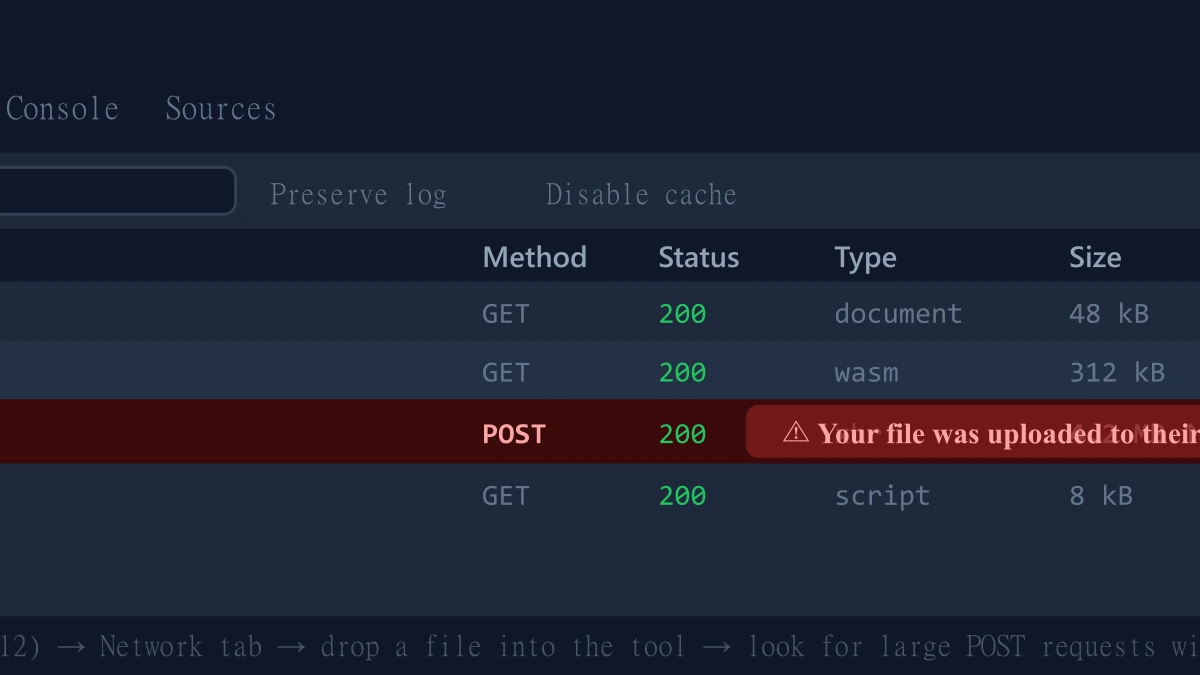
You never have to take a privacy claim on faith. Every browser ships with a tool that shows you exactly what any website sends over the network:
- 1.Open the tool and press F12 to open DevTools, then click the Network tab.
- 2.Tick "Preserve log" so nothing clears as you go.
- 3.Add a test PDF and run the protect or unlock operation.
- 4.Watch the request list. On an upload-based tool you will see a large outbound
POSTrequest roughly the size of your file. On ImagePDF.Tools you will not, because the file is never sent.
This is the same test we recommend in our guide on how to check if an online file converter is safe, and it works for any file tool, not just ours.
When an Upload-Based Encryptor Is Fine
To be fair: if the PDF is not sensitive, or you need a server-side feature a browser cannot provide, certificate-based encryption for enterprise document management, say, an established upload tool is a reasonable choice. The point is not that every online tool is dangerous. It is that for the specific job of putting a password on a private document, there is a way to do it that removes the risk entirely, so why not use it? The same logic we lay out for compressing sensitive PDFs applies just as cleanly to encrypting them.
The Bottom Line
Password-protecting a PDF is supposed to make it safer. Doing it through a tool that uploads both the file and the password to a server quietly undercuts that goal at the exact moment you are trying to achieve it. ImagePDF.Tools does the same job, add a password, remove a password, entirely in your browser, for free, with nothing ever uploaded, and gives you a standard PDF that works everywhere.
Try it now: protect a PDF or unlock one, then open DevTools and confirm for yourself that nothing was sent.
Frequently asked questions
Can I password-protect a PDF without uploading it to a server?
Is it safe to password-protect a PDF with an online tool?
How do I remove a password from a PDF I can open?
Will a browser-encrypted PDF open in Adobe Acrobat and other readers?
Does ImagePDF.Tools cost anything to protect or unlock a PDF?
Sources & references
This article was researched and written by Nikola, drawing on the following primary sources and documentation:
More in Privacy & Security
How to Remove Hidden Metadata, GPS Location, and Author Info From PDF and Images
How to Lock PDF Form Fields Permanently After Signing (Flattening Guide)
How to Fix "At Least One Signature Has Problems" Error in Adobe Acrobat