
Compress an Image to Under 200 KB
or drop files here
200 KB is a forgiving limit: enough for a detailed document scan or a reasonably large photograph without obvious compression artefacts. Drop your image in and it is compressed to fit.
Can every image reach 200 KB?
Most photographs and document scans reach 200 KB with no visible change at all. This is the range where compression stops being a compromise and simply removes detail nobody was going to look at.
Document portal uploads
A common per file limit where the portal expects a scan rather than a thumbnail.
Web and blog images
A sensible ceiling for images on a page, where total weight affects load time.
Email attachments
Small enough that a set of images stays well inside any mail server limit.
Pixels first, then quality.
File size follows from pixel count. Squeezing a 4000 pixel wide photo down to a small target asks the encoder to describe twelve million pixels in a few kilobytes, and it will, badly. Reduce the dimensions first and the same target becomes easy.
Crop away what is not the subject
Paper around a signature, desk around a document, background around a face. Empty space costs pixels like anything else.
Resize to what is needed
Up to about 1600 px on the long edge for a photograph, more for flat document scans.
Then compress to the limit
Quality comes down until the file is under 200 KB, and stops there. Aim just under the limit rather than far below it: unused bytes are quality discarded for nothing.
Need a different size?
Pick the limit you actually have to meet, or set any figure you like on the main compressor.
Questions answered.
Will 200 KB look noticeably compressed?
Can I get a multi-page scan under 200 KB?
Does resizing still help at this size?
How does it hit an exact size?
Should I resize before compressing?
Is my image uploaded anywhere?
What if the target cannot be reached?
More tools you might need.
Related Guides & Tutorials
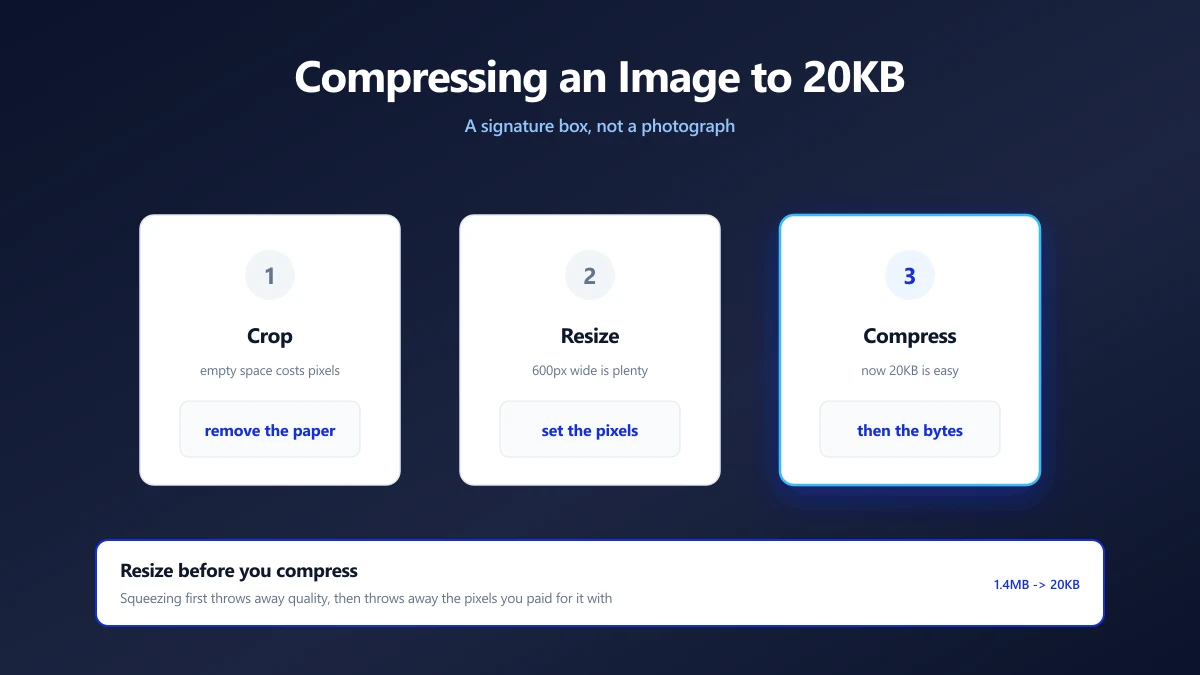
How to Compress an Image to 20KB (Signatures and Thumbnails)
20KB is a signature box, not a photograph. What actually fits, the dimensions that get you there, and why scanning at 600 DPI is working against you.
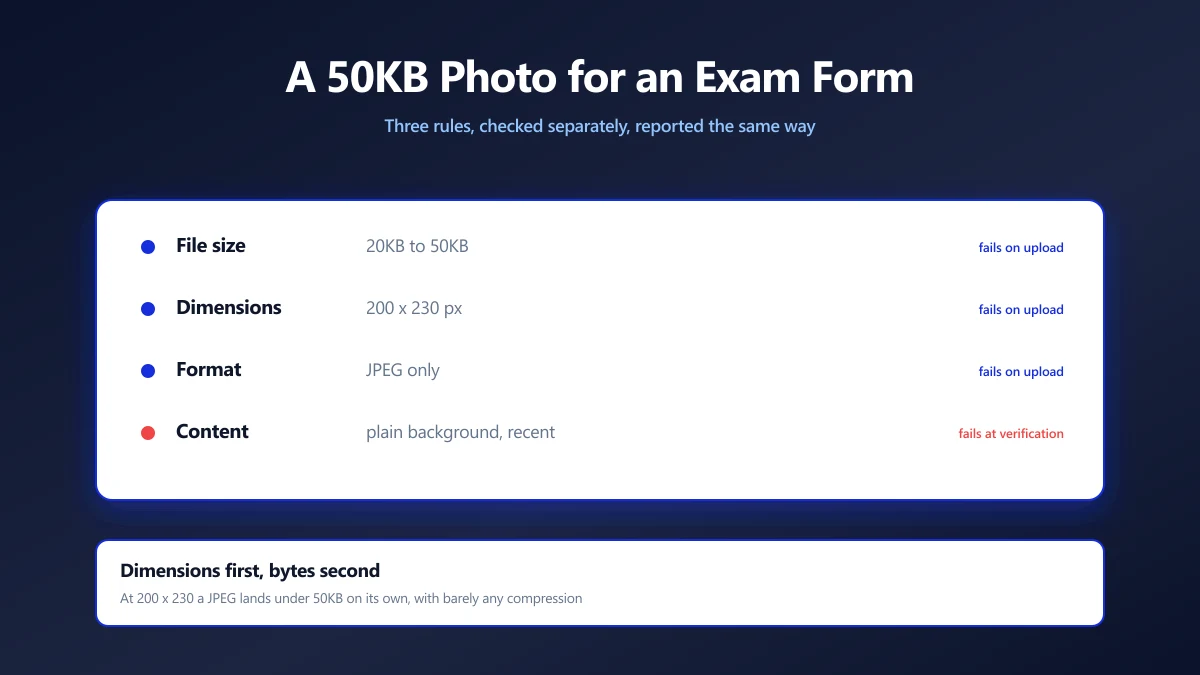
How to Compress a Photo to 50KB for an Exam Form
Exam portals want a photo under 50KB at a fixed pixel size, and reject it for reasons they never explain. Here is how to satisfy both rules at once.
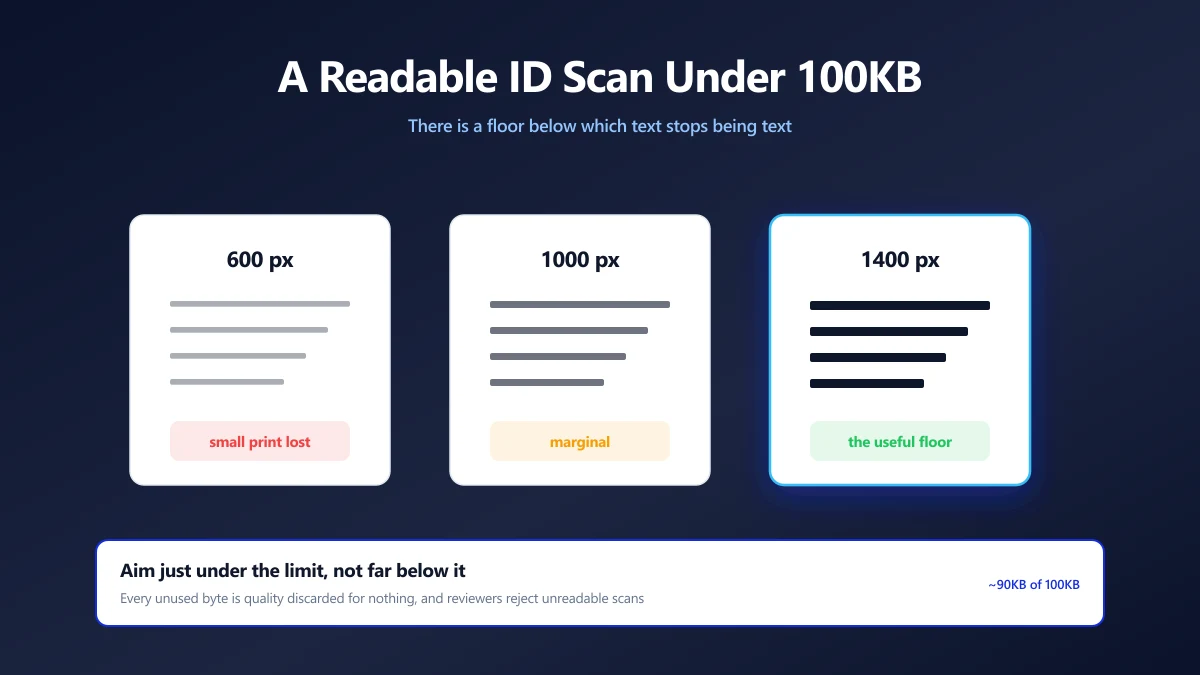
How to Compress an ID Document Scan to 100KB and Keep It Readable
KYC portals want your ID under 100KB, then reject it as unreadable. The resolution floor that keeps text legible, and how to compress down to it.