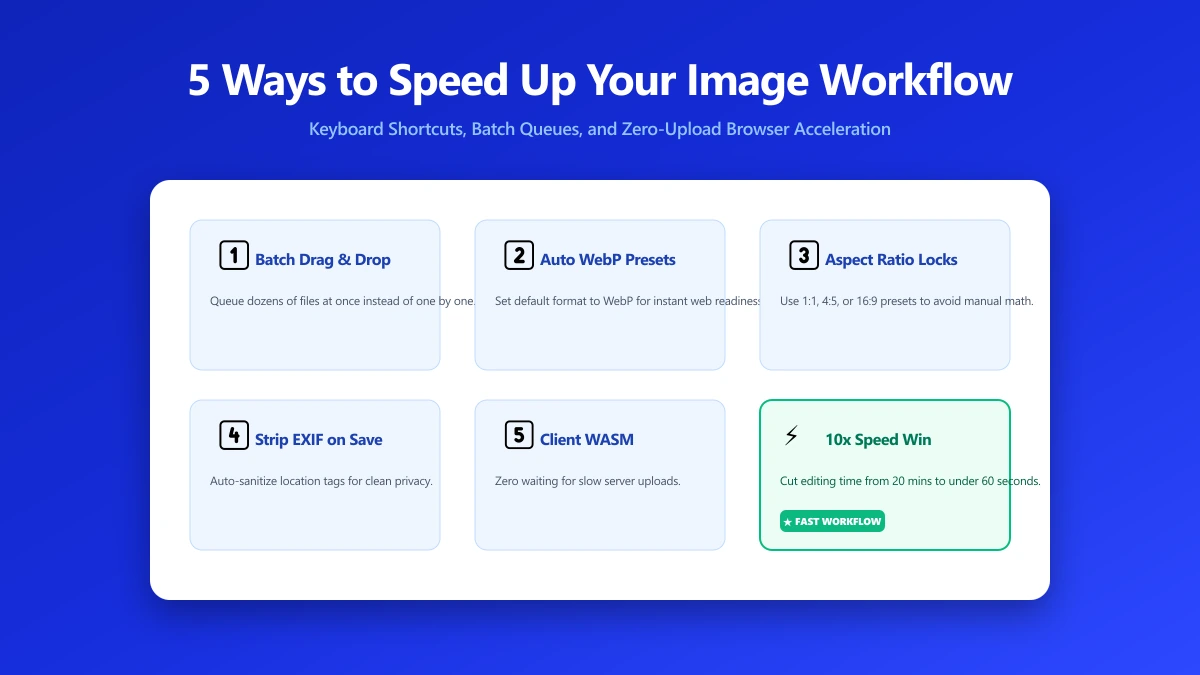
5 Ways to Speed Up Your Image Editing Workflow
Summary
Resize, compress, convert, and strip metadata, image prep compounds across a project. Five habits that cut this mechanical work from hours to seconds.
Image prep is one of those tasks that sounds quick until you account for how often you do it. Resize, compress, convert, strip metadata, do that for fifty product photos or a week's worth of blog post images and you've spent four hours on mechanical, zero-creative work. The actual editing took twenty minutes.
The right habits and tool choices collapse that overhead. Not by cutting corners on quality, the output is the same or better, but by eliminating redundant steps, removing intermediate saves, and building defaults that don't require manual correction every time.
Here are five specific changes that make the biggest difference across any image-heavy workflow, whether you're preparing product photos for an e-commerce store, creating blog post assets, or getting social media content ready for scheduling.
1. Compress After Every Export, Not as an Afterthought
Most designers and photographers export at quality 90–100 "just to be safe" and plan to deal with file size later. The problem is that "later" almost never happens, or it happens after the image has already been uploaded somewhere and needs to be replaced, which is more work than compressing upfront.
The correct default is quality 80 for JPEG and 75–80 for WebP. At these quality levels, the output is visually indistinguishable from quality 95+ at any normal screen viewing distance, you would need to pixel-peep at 200% zoom on a calibrated monitor to see a difference. But the file size is 40–60% smaller.
Set quality 80 as your default export setting in whatever tool you use: Lightroom, Photoshop, Figma, Sketch, Canva, or a browser tool. You will never notice the difference visually, but every person who loads your page, receives your email, or browses your CMS will benefit from the reduced transfer size.
For images that will be re-edited later (layered PSDs, design source files), keep quality 100 or use lossless PNG. The quality 80 default is for final exports that go to a website, email, or upload, not for working files.
2. Resize Before You Compress (Order Matters)
Many people compress first, then resize. This is backwards. Compressing a large image and then throwing away 90% of the pixels (by resizing down) wastes the compression pass. The correct order is always: resize to the largest display size first, then compress.
Why? Because compressing a smaller image produces a smaller output than compressing a large image to the same quality level. Fewer pixels means less data to encode, which means the compression algorithm produces a smaller file. A 4000px image compressed to quality 80 and then resized to 1200px is larger than a 1200px image compressed to quality 80 directly. Resize first, always.
| Destination | Max width | Notes |
|---|---|---|
| Blog post hero | 1600px | Covers 1200px content column at 1.33× retina |
| Blog post inline | 1200px | Rarely displayed wider than 800px |
| E-commerce product main | 2048px | Square; platforms generate thumbnails from this |
| Social media post | 1200px | Covers all platforms at 1×, 2400px for 2× retina |
| Email image | 600px | Most email clients render in a 600px column |
| Hero banner | 1920px | Match standard full-width viewport width |
| Card / thumbnail | 2× display size | If displayed at 300px, provide 600px source |
3. Strip EXIF Metadata Before Every Public Upload
EXIF metadata is embedded in every JPEG and many PNGs captured by a camera or phone. It contains the GPS coordinates of where the photo was taken, the device model and serial number, the shooting timestamp, the camera settings, and sometimes the photographer's name. None of this information is useful to website visitors or social media followers, but all of it is publicly accessible to anyone who downloads the image.
Stripping EXIF before upload is a five-second step that also reduces file size by 10–50 KB per image. Use imagepdf.tools/remove-metadata, drag in the image, click Strip, save. The image is processed entirely in your browser; the file is never uploaded.
- ●Privacy: GPS coordinates are the most sensitive. A product photo taken at your home studio, a portrait taken at a private address, or any image taken at a location you'd prefer to keep private, EXIF makes that location publicly accessible to anyone who downloads the image.
- ●File size: EXIF blocks range from 5 KB to 50 KB depending on the camera and embedded thumbnail. Stripping saves modest bytes but compounds across a large image library.
- ●Professionalism: Published images with EXIF intact disclose your equipment, software version, and editing history. For client deliverables and commercial publishing, stripped images are the standard.
4. Switch to WebP for All Web-Destined Images
JPEG has been the default format for photographs since the mid-1990s. It's well-supported, universally understood, and "good enough." But WebP at quality 75–80 produces files 25–35% smaller than JPEG at quality 80 with comparable visual quality. Browser support is 97%+, which means only a small fraction of users on very old browsers receive anything other than WebP.
For a typical blog post with five images at 200 KB each in JPEG, switching to WebP reduces that to roughly 140 KB each, a 30% total page weight reduction that costs you nothing in quality and takes one extra step in the workflow. Convert to WebP here, in-browser, no upload.
Keep JPEG for: email attachments (WebP is not universally supported in email clients), images for platforms with limited format support (some CMS systems still block WebP), and any file that will be edited again (JPEG is more universally editable). Use WebP for everything going onto a website or web app.
5. Build a Tool Chain, Not a Multi-Tab Workflow
The single biggest time waster in most image workflows is the save → re-upload cycle. Compress an image → save to disk → open new tab → upload to crop tool → crop → save again → open new tab → upload to resize tool. Three upload cycles for one image. Multiply by fifty images and you've spent twenty minutes on mechanical clicking.
The fix is chaining tools so the output of one operation feeds directly into the next without an intermediate save. At imagepdf.tools, after compressing an image you can click "Open in Crop tool" and the compressed result loads in the cropper immediately, no intermediate file, no re-upload. After cropping, pass the result to the resizer. After resizing, strip the metadata.
If you use command-line tools or build scripts, a tool chain might look like:
# Single-command workflow: resize → compress → strip EXIF
# Uses ImageMagick + ExifTool

# Resize to 1200px wide, maintain aspect ratio
convert input.jpg -resize 1200x -quality 80 resized.jpg

# Strip all EXIF metadata in place
exiftool -all= resized.jpg

# Or using Sharp (Node.js), resize + compress + strip in one pass
sharp('input.jpg')
  .resize(1200)
  .jpeg({ quality: 80, mozjpeg: true })  # mozjpeg strips EXIF by default
  .toFile('output.jpg');
The Bonus Habit: Standardise Your Naming Convention
File naming is the invisible time sink. Searching through "image_final_v3_USE_THIS_ONE.jpg" wastes thirty seconds per search and compounds across a project. A consistent naming convention eliminates that overhead.
A simple convention: {project}-{content}-{width}w.{ext}. For example: blog-hero-webp-guide-1600w.webp, product-widget-black-2048w.jpg. The width in the filename tells you immediately whether the image needs resizing without opening it. The format in the name prevents confusion between JPEG and WebP versions of the same image.
The Bottom Line
The five habits in order of impact: (1) compress at quality 80 by default, (2) resize before compressing, (3) strip EXIF before public upload, (4) use WebP for web images, (5) chain tools to avoid re-upload cycles. Apply all five and image prep goes from an hourly time sink to a two-minute checkpoint on every project. Start with compressing your images here, in-browser, no upload, no account.
Frequently asked questions
What is the fastest way to compress multiple images at once?
Should I compress images before or after uploading to a CMS?
How much time does optimising images actually save?
Is it safe to strip all EXIF data from images?
Can I automate my image workflow without coding skills?
Sources & references
This article was researched and written by Nikola, drawing on the following primary sources and documentation:
Ready to try it?
All tools run entirely in your browser, no uploads, no account required.
Compress Image