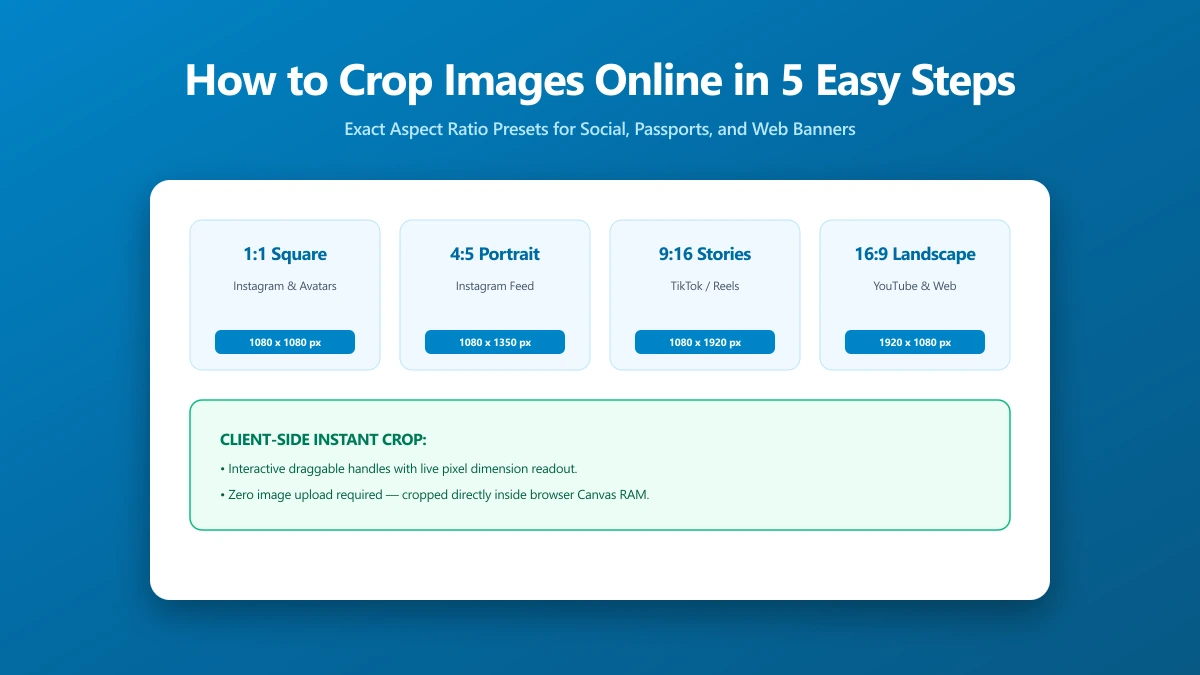
How to Crop Images Online in 5 Easy Steps
Summary
Cropping removes distracting edges, tightens composition, and sizes to exact social ratios. All in-browser, no upload, no sign-in, no software to install.
You have a great photo but it has dead space at the edges, a distracting element in the corner, or the wrong proportions for where you're posting it. Cropping fixes all three in seconds. It's the most basic image edit, and also one of the most impactful, a tighter frame changes the entire feel of a photo.
The problem is that most people's first instinct is to open Photoshop, Preview, or Paint, apps that either aren't installed, require a subscription, or involve a save workflow that generates a new file you then have to find. Online cropping tools handle this faster: drag your image in, adjust the handles, and the result downloads immediately. No installation, no account, no intermediate file to manage.
This guide covers the exact steps to crop an image in your browser, which aspect ratio to use for every major platform, and how to combine cropping with compression for the smallest possible output.
Step-by-Step: How to Crop an Image Online
- 1.Go to imagepdf.tools/crop-image.
- 2.Click Choose Image or drag your file onto the page. JPEG, PNG, and WebP are all supported. Maximum file size: 25 MB.
- 3.The image appears in the crop canvas. Drag the corner and edge handles to select the area you want to keep. Everything outside the selection will be removed.
- 4.To lock a specific aspect ratio, 1:1 for Instagram, 16:9 for YouTube thumbnails, select the preset from the ratio menu above the canvas. The selection resizes proportionally.
- 5.Click Crop & Save. The cropped image saves instantly to your device. No server upload occurs, all processing runs in your browser.
Hold Shift while dragging the selection to constrain it to a square at any size, useful for profile photos, product thumbnails, and favicons that must be square.
Which Aspect Ratio Should You Use?
| Platform | Recommended ratio | Optimal pixel dimensions | Notes |
|---|---|---|---|
| Instagram post (square) | 1:1 | 1080 × 1080 px | Works for feed and profile grid |
| Instagram landscape | 1.91:1 | 1080 × 566 px | Maximum width for feed posts |
| Instagram portrait | 4:5 | 1080 × 1350 px | Most screen real estate in feed |
| Twitter / X post image | 16:9 | 1200 × 675 px | Shows without cropping in timeline |
| Twitter / X header | 3:1 | 1500 × 500 px | Profile page banner |
| YouTube thumbnail | 16:9 | 1280 × 720 px | Required minimum for HD thumbnails |
| Facebook cover | 2.7:1 | 820 × 312 px | Displays slightly differently on mobile |
| LinkedIn banner | 4:1 | 1584 × 396 px | Profile background image |
| LinkedIn post image | 1.91:1 | 1200 × 627 px | Standard link post preview |
| Open Graph / meta image | 1.91:1 | 1200 × 630 px | Used by most social platforms when sharing URLs |
Freeform vs. Fixed Aspect Ratio Cropping
Freeform cropping lets you drag each handle independently. Use this when you want to remove a distracting element or awkward edge without needing exact dimensions, for example, cutting a person out of a background or removing a watermark from a stock photo.
Fixed aspect ratio cropping locks the proportions so the selection moves as a unit. Use this when the destination platform requires a specific ratio, Instagram's 1:1, YouTube's 16:9, or an Open Graph image at 1.91:1. The crop area scales while maintaining the locked ratio, preventing distorted output.
Does Cropping Reduce File Size?
Yes, significantly. Cropping removes pixels, and fewer pixels means a smaller encoded file. A 5000×4000 photo cropped to 2500×2500 will typically be 50–70% smaller depending on the content in the retained region. If the cropped-out area contained high-frequency detail (texture, foliage, patterns), the savings can be even larger because those areas contribute heavily to compressed file size.
For the smallest possible output, always crop first and then compress. Compressing a smaller image is more efficient than compressing a large image and hoping the cropped region was already well-optimised. Use the image compressor after cropping for the best results.
Cropping vs. Resizing: What Is the Difference?
Cropping removes content from the edges of the image, the pixel dimensions change because pixels are discarded, but the remaining pixels are displayed at the same scale. Resizing scales the entire image up or down, all pixels are retained but resampled to fit the new dimensions. To prepare an image for a specific platform, you typically need both: crop to the correct aspect ratio, then resize to the correct pixel dimensions (if needed), then compress for the web.
Common Cropping Use Cases
- ●Profile photos: Crop to 1:1 (square), then resize to 400×400px. Most platforms scale the photo down; the square format ensures no automatic cropping by the platform removes important content.
- ●Product thumbnails: Crop to square and center the product. Consistent square crops on a product grid look professional and prevent layout shifts from varying image ratios.
- ●Blog header images: Crop to 16:9 or the exact width/height used by your CMS template. This ensures the image fills the container exactly without any CSS background-position artifacts.
- ●Social media sharing: Crop to 1.91:1 (Open Graph) so that when your URL is shared, the preview image shows the full composition without any automatic cropping by the social platform.
- ●Removing distractions: Tighten the frame to remove dead space, off-center subjects, or background elements that pull attention away from the focal point.
The Bottom Line
Cropping is the fastest way to make a photo look deliberate rather than accidental. Use the aspect ratio table above to pick the right proportions for your destination platform, then combine cropping with compression for the smallest and fastest output. Crop your image here, everything runs in your browser, nothing is uploaded.
Frequently asked questions
Does cropping an image reduce its quality?
Can I crop a PNG image without losing the transparent background?
What is the best aspect ratio for Instagram photos?
Can I crop multiple images at once to the same dimensions?
Is my image uploaded to a server when I crop it?
Sources & references
This article was researched and written by Nikola, drawing on the following primary sources and documentation: