Lazy Loading Images: The One-Line Fix That Backfires on LCP
Summary
loading="lazy" on your hero image is one of the most common LCP killers. Here's exactly why it happens, how to find it, and how to fix the damage.
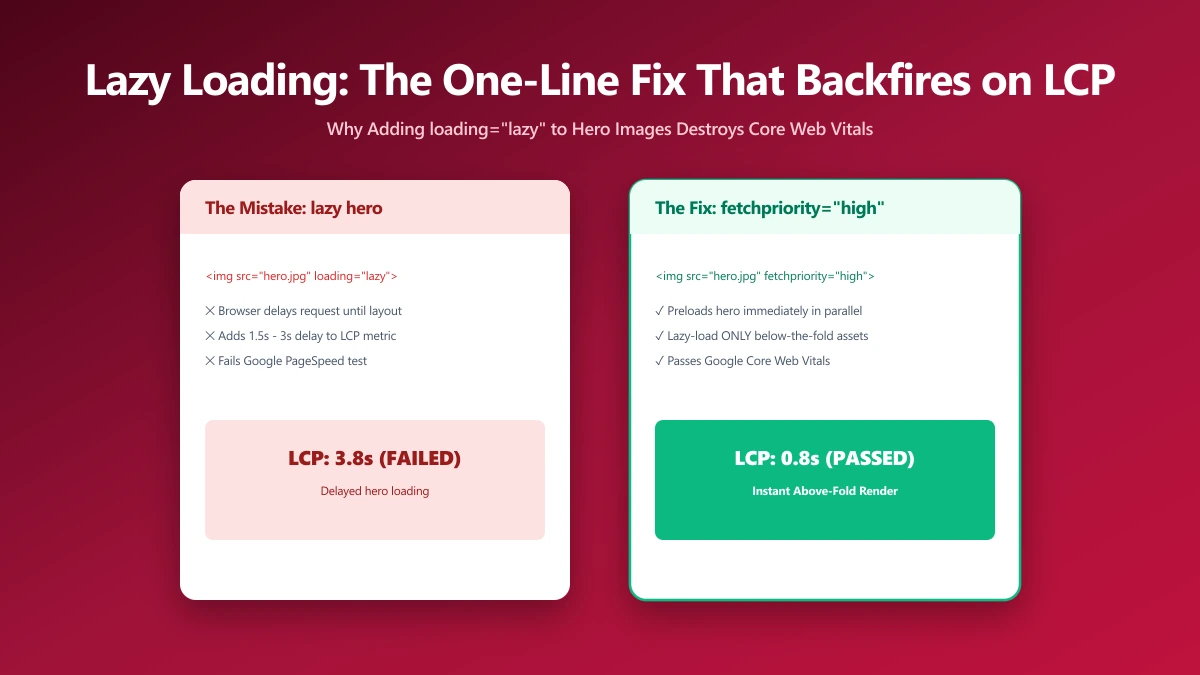
The snippet is everywhere in blog posts and performance checklists: "add loading="lazy" to all your images." It's presented as a one-line performance win with no downside. In practice, applying it to every image, including the hero banner, is one of the fastest ways to fail Largest Contentful Paint (LCP) and get a red score in PageSpeed Insights.
The browser delay introduced by lazy loading a hero image is typically 200–800ms on a real page load. That's not a rounding error, it's often the difference between a good LCP score (under 2.5s) and a needs-improvement score (2.5–4s). The fix is understanding which images to lazy-load and which to not, not blanket application of the attribute.
What loading="lazy" Actually Does to the Network Request
Native lazy loading (loading="lazy") instructs the browser to defer the image's network request until the image is within a threshold distance from the viewport. The threshold varies by connection speed: roughly 1000–1500px on fast connections, less on slow ones. The browser's preload scanner, which reads ahead of HTML parsing to discover and start downloading resources early, skips lazy-loaded images entirely.
For genuinely off-screen images, this is the correct behavior. The browser only fetches what the user is about to see, reducing the initial network payload and freeing bandwidth for critical resources. For any image that is visible on page load, however, lazy loading is actively harmful.
The LCP Trap: How a One-Line Attribute Breaks Your Score
LCP is the time when the largest visible content element becomes fully rendered. For most pages, that's the hero image. LCP is measured from navigation start to when that element is painted. Here's what happens when the hero image has loading="lazy":
- 1.Browser parses HTML → sees hero image with loading="lazy" → does NOT start fetching it
- 2.Browser continues parsing, discovers and fetches CSS and JavaScript
- 3.JavaScript executes, layout is calculated
- 4.Browser now has a viewport and calculates that the hero image is in view
- 5.Browser starts fetching the hero image
- 6.Image downloads and paints
The hero image request starts after steps 2–4, adding 200–800ms of avoidable delay. Without lazy loading, the preload scanner would have started the request during step 1, overlapping with CSS and JavaScript downloads.
Never add loading="lazy" to your LCP image. PageSpeed Insights will flag this with the message "Largest Contentful Paint image was lazily loaded." The hero banner, above-fold product photo, or any image visible without scrolling should use eager loading (the default) or be explicitly excluded from any lazy-loading scripts.
Correct Attribute Configuration by Image Position
| Image position | loading | fetchpriority | decoding | Why |
|---|---|---|---|---|
| LCP / hero (above fold) | eager (omit attribute) | high | sync | Fetch immediately, high priority, sync decode for guaranteed paint timing |
| Above fold, not LCP | eager (omit attribute) | auto (omit) | async | Load eagerly; don't delay with lazy |
| First scroll (partially visible) | eager (omit attribute) | auto (omit) | async | Preload scanner discovers naturally; lazy adds unnecessary delay |
| Well below fold | lazy | auto (omit) | async | Definite win, user hasn't scrolled there yet |
| Carousel / hidden tab | lazy | low | async | May never be viewed; lowest priority |
<!-- ✅ LCP hero: eager (default), high priority, sync decode -->
<img
  src="hero.webp"
  alt="Product hero"
  width="1200"
  height="630"
  fetchpriority="high"
  decoding="sync"
>
<!-- Omitting loading= is the same as loading="eager", the default -->

<!-- ✅ Below-fold gallery images: lazy, async decode -->
<img
  src="product-detail.webp"
  alt="Product detail"
  width="800"
  height="800"
  loading="lazy"
  decoding="async"
  width="800"
  height="800"
>

<!-- ❌ LCP image with lazy loading, adds 200–800ms to LCP -->
<img src="hero.webp" loading="lazy" alt="Hero">

<!-- ❌ Multiple images with fetchpriority="high", defeats the purpose -->
<img src="hero.webp" fetchpriority="high" alt="">
<img src="banner.webp" fetchpriority="high" alt="">
How to Find Lazy-Loaded LCP Images on Your Site
Two quick diagnostic methods:
- 1.PageSpeed Insights: Run your URL at pagespeed.web.dev. If the LCP image is lazy-loaded, you'll see a specific warning: "Largest Contentful Paint image was lazily loaded." The recommendation will tell you the element and its loading attribute.
- 2.Chrome DevTools: Open DevTools → Performance tab → record a page load → look for the LCP marker. Click it to identify the LCP element. Then inspect that element's HTML to check whether loading="lazy" is present.
Lazy Loading in JavaScript-Heavy Frameworks
Many frameworks and libraries apply lazy loading automatically to all images. React libraries like react-lazyload, Next.js's default Image component, and WordPress lazy load plugins can incorrectly apply lazy loading to above-fold content.
- ●Next.js: The built-in
<Image>component applies lazy loading by default. Setpriority={true}on your LCP image to disable lazy loading and addfetchPriority="high"automatically. - ●WordPress: WordPress 5.5+ adds loading="lazy" to all images by default. To disable for a specific image:
add_filter('wp_lazy_loading_enabled', fn($def, $tag) => $tag === 'img' ? false : $def, 10, 2);Or use theloading="eager"attribute explicitly. - ●Gatsby, Astro, SvelteKit: Each has its own image component defaults, check documentation for how to mark priority images.
The preload Link Tag: Proactive LCP Help
For maximum LCP performance, use a <link rel="preload"> in the <head> to start fetching the LCP image immediately, before the browser even parses the body. Combined with fetchpriority="high", this is the most effective combination for improving LCP.
<head>
  <!-- Preload the LCP image, starts fetching before body parsing -->
  <link
    rel="preload"
    as="image"
    href="hero.webp"
    fetchpriority="high"
  >

  <!-- For responsive images with srcset, include imagesrcset and imagesizes -->
  <link
    rel="preload"
    as="image"
    imagesrcset="hero-400.webp 400w, hero-800.webp 800w, hero-1200.webp 1200w"
    imagesizes="(max-width: 600px) 100vw, 1200px"
    fetchpriority="high"
  >
</head>
What lazy loading Won't Fix
Correct lazy loading is necessary but not sufficient for a good LCP score. Even with perfect lazy loading strategy, an oversized or poorly compressed LCP image will still fail Core Web Vitals. The full LCP optimisation stack:
- ●Step 1: Compress the hero image, target under 150–200 KB for any above-fold image
- ●Step 2: Serve in WebP or AVIF format via
<picture>srcset - ●Step 3: Add
fetchpriority="high"to the hero image - ●Step 4: Add
<link rel="preload">in the head for the hero image - ●Step 5: Apply
loading="lazy"only to genuinely below-fold images - ●Step 6: Set explicit width and height on every image to eliminate layout shift (CLS)
Bottom Line
Lazy loading is a powerful optimisation when applied selectively. Applied uniformly, it actively harms the performance of above-fold content. The rule is simple: the LCP image and any other image visible without scrolling must never have loading="lazy". Everything at least one viewport height below the fold benefits from lazy loading. Start with your hero image: make sure it's well-compressed, eagerly loaded, and has fetchpriority="high". Those three changes together are often worth 500ms or more of LCP improvement.
Frequently asked questions
Does loading="lazy" hurt LCP?
How do I find out which image is my LCP element?
Should I use fetchpriority="high" on all images?
How do I disable lazy loading on the WordPress hero image?
Is lazy loading different in Next.js?
Sources & references
This article was researched and written by Nikola, drawing on the following primary sources and documentation:
Ready to try it?
All tools run entirely in your browser, no uploads, no account required.
Compress Image