
Lossy vs. Lossless Compression: The Difference That Actually Matters
Summary
Lossy trades quality for size; lossless trades size for perfect fidelity. Pick the wrong one and you're wasting bandwidth or permanently degrading your assets.
You need a smaller image. You open your compressor, hit compress, and the size drops 70%. Excellent. Three months later a designer asks for the source file of that icon you compressed. You send the compressed version because that's all you have. They open it and see halos around the edges, blocked colour gradients, blurry curves. What happened? You compressed a lossless asset with a lossy encoder and lost data that cannot be recovered.
Lossy and lossless compression are not interchangeable, they solve fundamentally different problems. Choosing the wrong one either wastes significant bandwidth (lossless on a photograph that could be lossy) or permanently degrades an asset you needed pristine (lossy on a logo or screenshot). The decision takes thirty seconds once you know the logic.
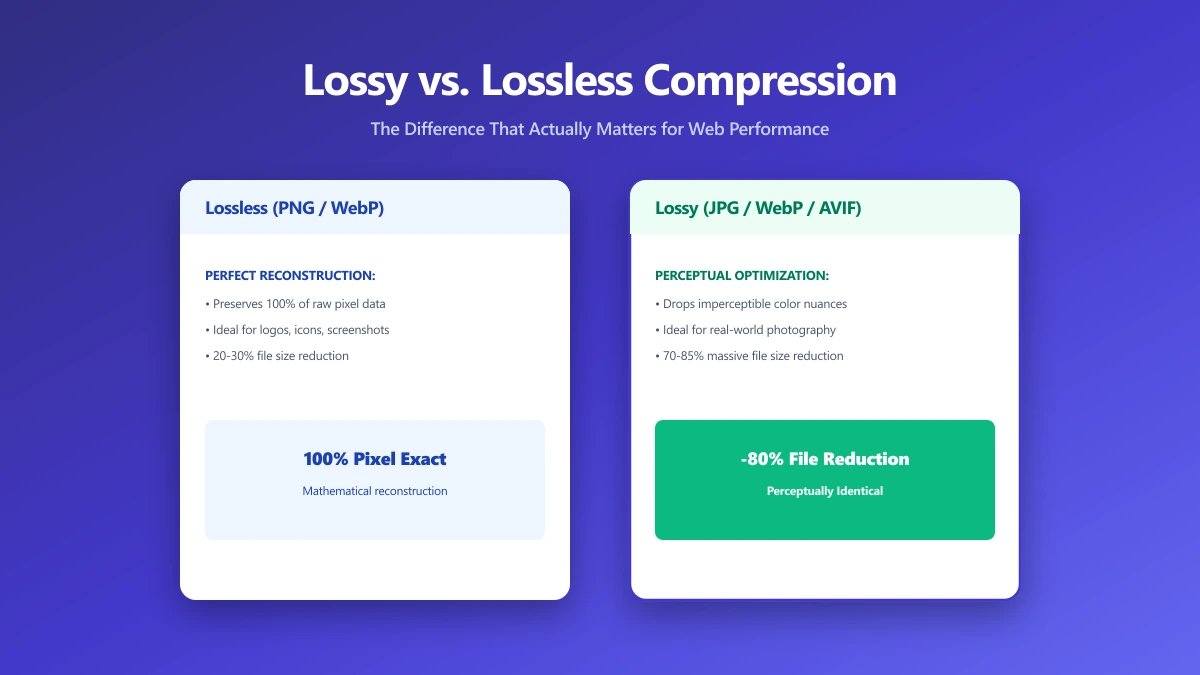
Lossless Compression: Every Pixel Preserved Exactly
Lossless compression uses mathematical algorithms, DEFLATE, LZ77, Huffman coding, or variations, to represent the same pixel data more compactly. The compressed image decompresses to bit-for-bit identical pixel values. No information is ever discarded. What you compressed is exactly what you get back.
The trade-off: lossless compression can only exploit redundancy that exists in the data. A photograph has enormous variation from pixel to pixel, very little redundancy to exploit. A logo with flat areas, solid colours, and crisp edges has enormous redundancy. Lossless compression performs dramatically better on the latter.
- ●PNG: Always lossless. Uses prediction filters + DEFLATE. Excellent for graphics, poor for photographs. Full alpha channel support.
- ●WebP lossless: Lossless mode using a different predictor and entropy coder. Typically 15–25% smaller than PNG for the same content.
- ●TIFF (LZW or ZIP): Professional-grade lossless. Common in photography and print workflows. Not a web format.
- ●GIF: Lossless within its 256-colour indexed palette, but the palette limit is itself lossy for full-colour images. Limited to 256 distinct colours.
Lossy Compression: Discard What the Eye Won't Notice
Lossy compression permanently removes image data. The data removed is chosen based on psychovisual research, properties of human vision that make certain information less perceptible: high-frequency detail (fine texture, sharp edges), subtle colour variation in uniform areas, and colour detail at lower resolution than brightness detail. Once a lossy image is saved, the removed data is gone permanently and cannot be recovered.
The payoff: lossy compression achieves dramatically larger size reductions than lossless for photographs. A 4 MB PNG photograph might compress to 300 KB as a lossy JPEG, an 92% reduction. The same PNG as a lossless WebP might be 2.8 MB. For photographic content, lossy compression is almost always the right choice.
- ●JPEG: Lossy, DCT-based. Excellent for photographs. Visible artifacts at hard edges (screenshots, text). No alpha transparency.
- ●WebP (lossy): Lossy, VP8-based. Better compression ratio than JPEG at equivalent quality. Supports alpha transparency.
- ●AVIF: Lossy (and lossless), AV1-based. Best compression ratio of mainstream web formats. Slower encoding.
- ●Lossy PNG via pngquant: PNG is natively lossless, but pngquant quantises the colour palette to reduce the colour count. The result is a lossless encoding of a reduced-colour version, a form of lossy compression.
Converting a lossless PNG to JPEG is a one-way door. You permanently introduce JPEG artifacts, blocking, ringing, chroma bleeding. If you later need the clean version, you need the original PNG. A JPEG-derived PNG is lossless (exact pixels preserved from the JPEG), but those pixels already contain JPEG artifacts from the conversion.
Generation Loss: The Compounding Problem
Every pass through a lossy encoder adds artifacts. Opening a JPEG at quality 80, making a minor colour adjustment, and saving at quality 80 again produces a file that's worse than the original, even at the identical quality setting. The encoder re-quantises the already-quantised values, compounding the previous generation's artifacts.
// Generation loss demonstration
// Same quality 0.80 applied twice, not the same result

// Pass 1: original file → compressed
const compressed1 = await canvasToBlob(originalFile, 'image/jpeg', 0.80);
// Result: 150 KB, acceptable quality loss

// Pass 2: already-compressed file → re-compressed
const compressed2 = await canvasToBlob(compressed1, 'image/jpeg', 0.80);
// Result: 142 KB, barely smaller, but measurably worse quality
// Artifacts from pass 1 get re-quantised into new, compounded artifacts

// The correct workflow: keep originals in lossless format,
// export to JPEG exactly once as the final delivery step.| Content type | Mode | Format | Reason |
|---|---|---|---|
| Photograph (web) | Lossy | WebP or JPEG | Natural texture masks artifacts; 60–80% size reduction vs PNG |
| Screenshot or UI recording | Lossless | PNG or WebP lossless | Text edges and pixel-exact UI require lossless encoding |
| Logo (vector) | Not applicable | SVG | Vector scales to any size; no pixel compression needed |
| Logo (raster, transparency) | Lossless | PNG or WebP lossless | JPEG has no alpha channel; lossy artifacts destroy sharp logo edges |
| Flat-colour illustration | Test both | WebP (compare modes) | Lossy WebP can match PNG size with better quality on some illustrations |
| Editing source / intermediate | Lossless | TIFF or PNG | Generation loss compounds; keep lossless until final delivery |
| Email attachment (photo) | Lossy | JPEG quality 80 | WebP support in email clients is inconsistent |
| Hero image (web) | Lossy | WebP or AVIF + JPEG fallback | Largest size savings; use |
The Irreversibility Test
Before choosing lossy compression, ask one question: will I ever need this asset at higher quality than the compressed version?
- ●If yes → use lossless, or keep the original alongside the compressed version
- ●If no, and the content is photographic → use lossy; save 60–80% of the file size
- ●If no, and the content has hard edges or text → use lossless; lossy artifacts on text are often worse than the file size cost
Lossless-on-Lossy: The Hidden Problem
Converting a lossy JPEG to a lossless PNG does not restore image quality, it makes a lossless copy of an already-damaged file. The PNG is larger than the JPEG and has the same artifacts. The only reason to convert JPEG to PNG is when the application requires PNG input and you have no better source available.
Similarly, saving a PNG screenshot as a JPEG for web delivery introduces unnecessary ringing and mosquito noise around text edges. The file is smaller, but the text looks noticeably worse on any display above 96 PPI. The size saving is not worth the quality loss for text-heavy content.
Palette Quantisation: Lossy Compression for PNG
PNG is a lossless format, but palette quantisation applies a lossy step before PNG encoding. It reduces the colour count from 16.7 million (24-bit) to 256 or fewer (8-bit indexed), then encodes losslessly. For logos, icons, and flat-colour illustrations, this typically produces files 50–70% smaller than standard PNG-24, with near-invisible quality loss on content with few distinct colours.
Our image compressor uses UPNG.js K-d tree palette quantisation for PNG compression, automatically applying the right algorithm for each format. For JPEG and WebP output, a lossy WASM encoder runs (MozJPEG and libwebp). For PNG output, palette quantisation runs. Use the format selector to choose based on your content type.
Bottom Line
The decision rule is simple: lossy for photographs and photographic content that will never need editing; lossless for graphics with hard edges, text, transparency, or that will be used as editing sources. The format follows from the mode: JPEG or WebP for lossy photography, PNG or WebP lossless for graphics, SVG for vector assets. Getting this right means not compressing screenshots as JPEG (artifacts around text), not saving photographs as PNG (enormous files), and not re-saving JPEG intermediates (generation loss). Choose format and mode by content type, not by habit.
Frequently asked questions
What is the difference between lossy and lossless image compression?
Should I use PNG or JPEG for a screenshot?
Does converting JPEG to PNG improve quality?
What is generation loss and how do I avoid it?
Is palette-quantised PNG lossy or lossless?
Sources & references
This article was researched and written by Nikola, drawing on the following primary sources and documentation:
Ready to try it?
All tools run entirely in your browser, no uploads, no account required.
Compress ImageMore in Technical

How to Repair and Recover Corrupted PDF Files That Won't Open (Recovery Guide)

How to Convert CMYK PDF to sRGB for Web and Social Media Sharing (True Color Guide)

Why Is My Printer Printing PDF Pages in Landscape Instead of Portrait? (Orientation Fix)