
Why Do Vibrant PNG Colors Look Dull and Washed Out When Converted to CMYK? (Color Gamut Guide)
Summary
Why bright RGB colors turn muddy when converted to CMYK for print, how to preview the change before it happens, and which rendering intent, adjustments and inks keep artwork vivid.
Bright screen colors go dull in CMYK because printing ink cannot reach them. Neon green, electric blue, hot pink and bright orange are made by a monitor shining light at you. Cyan, magenta, yellow and black ink can only absorb light from white paper, and no mix of the four gets as bright or as saturated. When you convert, every color outside the printable range (the "gamut") is pulled in to the nearest color the press can actually print. That nearest color is duller.
You cannot convert your way back to the original brightness. What you can control is how the squeeze happens, which colors get adjusted by hand, and whether a few critical colors are printed with special inks instead of CMYK. The steps below cover each one, starting with seeing the problem before it reaches paper.
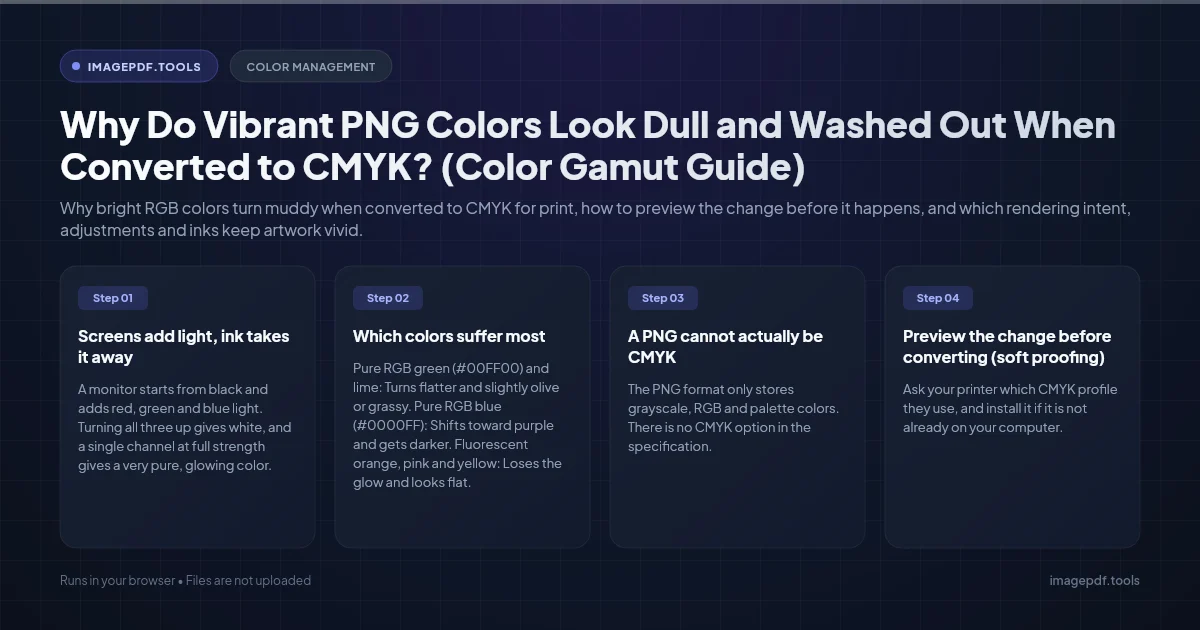
Screens add light, ink takes it away
A monitor starts from black and adds red, green and blue light. Turning all three up gives white, and a single channel at full strength gives a very pure, glowing color. Print starts from white paper and adds inks that each soak up part of the light. More ink means darker, never brighter, and real pigments are never perfectly pure. The result is a smaller range of colors, especially at the bright, saturated edges.
The exact range depends on the press, the inks and the paper. Glossy coated paper holds ink on its surface and shows richer color than uncoated paper, which absorbs ink and softens it. That is why the printer's own color profile matters so much in the steps below.
Which colors suffer most
| Screen color | What usually happens in CMYK | What to try |
|---|---|---|
| Pure RGB green (#00FF00) and lime | Turns flatter and slightly olive or grassy | Rebuild from cyan and yellow, or use a spot green |
| Pure RGB blue (#0000FF) | Shifts toward purple and gets darker | Pick a printable blue from a swatch book with less magenta |
| Fluorescent orange, pink and yellow | Loses the glow and looks flat | Fluorescent spot inks, if the budget allows |
| Bright turquoise and cyan | Holds up fairly well, since cyan ink is close | Usually fine after soft proofing |
| Deep black areas | Look dark gray with black ink alone | Ask the printer for their rich black recipe |
A PNG cannot actually be CMYK
The PNG format only stores grayscale, RGB and palette colors. There is no CMYK option in the specification. So if a tool "converted your PNG to CMYK", it either saved a different format (TIFF, JPEG, PSD or PDF) or showed you a CMYK preview of an RGB file. For print, use the format your printer asks for, which is usually a PDF, TIFF or high quality JPEG.
Also ask whether you need to convert at all. Many printers, especially digital printers, accept RGB files and convert them with a profile tuned to their own machine, which often gives a better result than a generic conversion on your desk.
Preview the change before converting (soft proofing)
Soft proofing shows on screen roughly how the file will print, while the file stays RGB. In Photoshop:
- 1.Ask your printer which CMYK profile they use, and install it if it is not already on your computer.
- 2.Choose View > Proof Setup > Custom and pick that profile as the device to simulate. If you do not know the profile yet, Working CMYK gives a general idea.
- 3.Turn on Simulate Paper Color for a more honest preview. The screen will look dimmer, because paper is not as bright as a backlit display.
- 4.Toggle the preview with View > Proof Colors (
Ctrl + YorCmd + Y). - 5.Turn on View > Gamut Warning (
Shift + Ctrl + YorShift + Cmd + Y) to cover every unprintable pixel with gray.
Illustrator and InDesign have the same Proof Setup and Proof Colors commands in their View menus, so you can check vector artwork and layouts the same way.
Convert with the printer's profile and the right intent
When you do convert, use Edit > Convert to Profile in Photoshop rather than simply switching the mode to CMYK. It shows you the choices that decide how colors are squeezed:
- ●Destination Space: the printer's profile. Common ones include U.S. Web Coated (SWOP) v2, Coated GRACoL 2006 and Coated FOGRA39, but use whatever the printer specifies.
- ●Intent: Perceptual shrinks the whole color range to fit, so the relationships between colors stay smooth. Gradients and photos with many out-of-gamut colors often look best this way, though colors that were already printable can lose a little saturation too.
- ●Intent: Relative Colorimetric keeps printable colors exactly as they are and moves only the out-of-gamut colors to the edge of the gamut. Flat graphics and logos usually keep more punch, but neighboring bright shades can merge into one.
- ●Use Black Point Compensation: leave it on so shadows keep their detail.
The fastest way to choose is to try both intents with the preview checkbox on and keep the one that looks better for this particular image.
Getting some punch back inside CMYK
- ●Adjust after converting. Use Hue/Saturation, Selective Color or Curves on the CMYK version, watching the gamut warning. You are working inside what the press can print, so what you see is closer to what you get.
- ●Choose flat colors from print, not from screen. For logo and brand colors, pick CMYK values from a printed process color guide rather than converting a hex code.
- ●Use contrast. A color looks brighter next to gray, black or white. Muting the colors around a hero color makes it look stronger on paper.
- ●Choose the paper. Coated stock shows noticeably richer color than uncoated stock for the same file.
When CMYK simply is not enough
If a color has to be bright, such as a brand green or a fluorescent poster, print it with an extra ink. Spot colors from the Pantone system are mixed in advance and printed on their own plate, so they can reach colors CMYK cannot. Fluorescent spot inks go further still. Some printers also offer extended gamut printing, which adds orange, green and violet inks to CMYK. All of these cost more, so ask for a quote and use them for the colors that matter most.
Keep your original RGB file. Convert a copy for print, and use the RGB version for websites, social media and email. CMYK images on the web display inconsistently and often look worse than the RGB original.
For that screen copy, keep it as an RGB PNG or WebP and make it lighter for the web with our PNG compressor. It runs in your browser and never touches the print file.
Frequently asked questions
Why does my CMYK file look fine in Photoshop but strange in other apps?
Can I convert the CMYK file back to RGB to get the bright colors back?
Should I send RGB or CMYK files to the printer?
Why did my blue turn purple when printed?
Is rich black the answer to dull black areas?
Sources & references
This article was researched and written by Nikola, drawing on the following primary sources and documentation:
Ready to try it?
All tools run entirely in your browser, no uploads, no account required.
Compress PNGMore in Technical

How to Repair and Recover Corrupted PDF Files That Won't Open (Recovery Guide)

How to Convert CMYK PDF to sRGB for Web and Social Media Sharing (True Color Guide)

Why Is My Printer Printing PDF Pages in Landscape Instead of Portrait? (Orientation Fix)