
How to Compress an Image Without Uploading It (Step by Step)
Summary
How to compress a photo without sending it to a server, using a free browser-based compressor that never transmits your file anywhere.
Most online image compressors work the same way as PDF tools: upload the file, wait for it to process on a server, download the result. If you would rather skip that step entirely, product photos, screenshots of something private, or a photo with location data attached, here is how to compress an image without ever uploading it.
Why Skip the Upload?
Photos often carry more than pixels, EXIF metadata can include the device, timestamp, and sometimes exact GPS coordinates of where the photo was taken. Uploading an image to compress it also uploads that hidden data, unless you strip it first. Skipping the upload removes both concerns at once.
How to Compress an Image Without Uploading It
- 1.Open the Compress Image tool. It loads instantly since nothing is sent anywhere.
- 2.Drop your photo or image onto the page, or click to browse.
- 3.Adjust the quality slider, a live size estimate updates as you drag it.
- 4.Click Compress. Processing happens directly on your device.
- 5.Save the result. The original file was never transmitted anywhere.
How This Actually Works
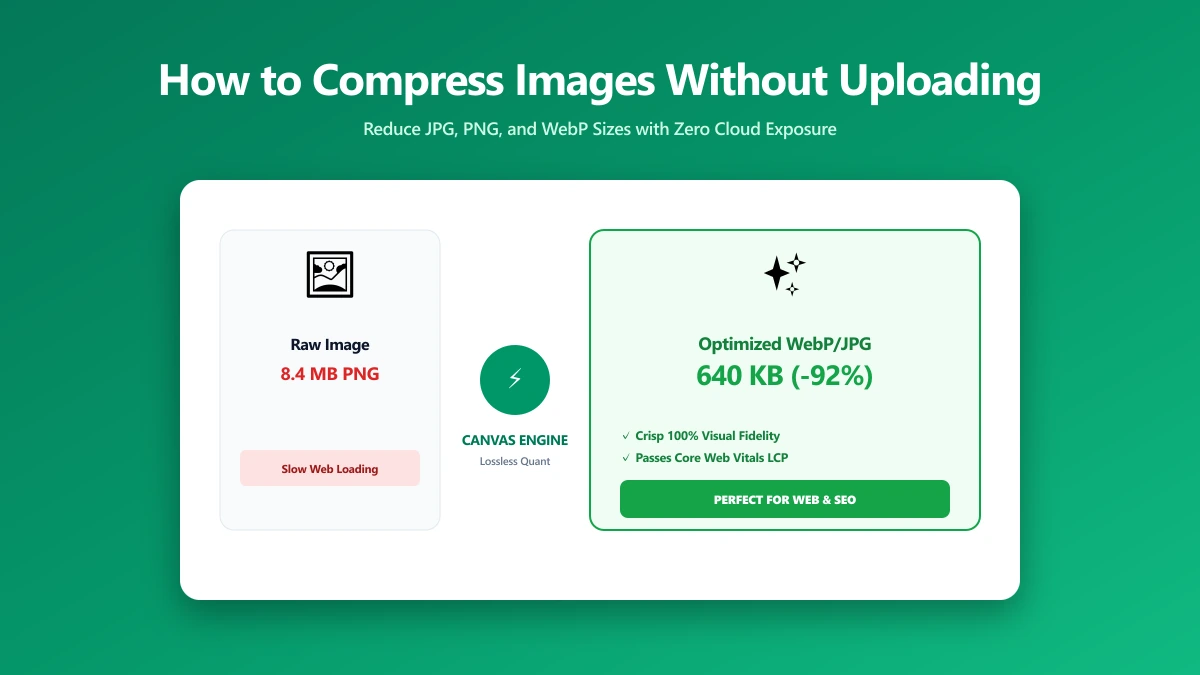
Browsers can decode, recompress, and re-encode images using the Canvas API and WebAssembly, the same lossy compression techniques a server would use, quantisation, quality reduction, running locally instead. ImagePDF.Tools uses this to keep the entire pipeline on your device.
Verify It Yourself
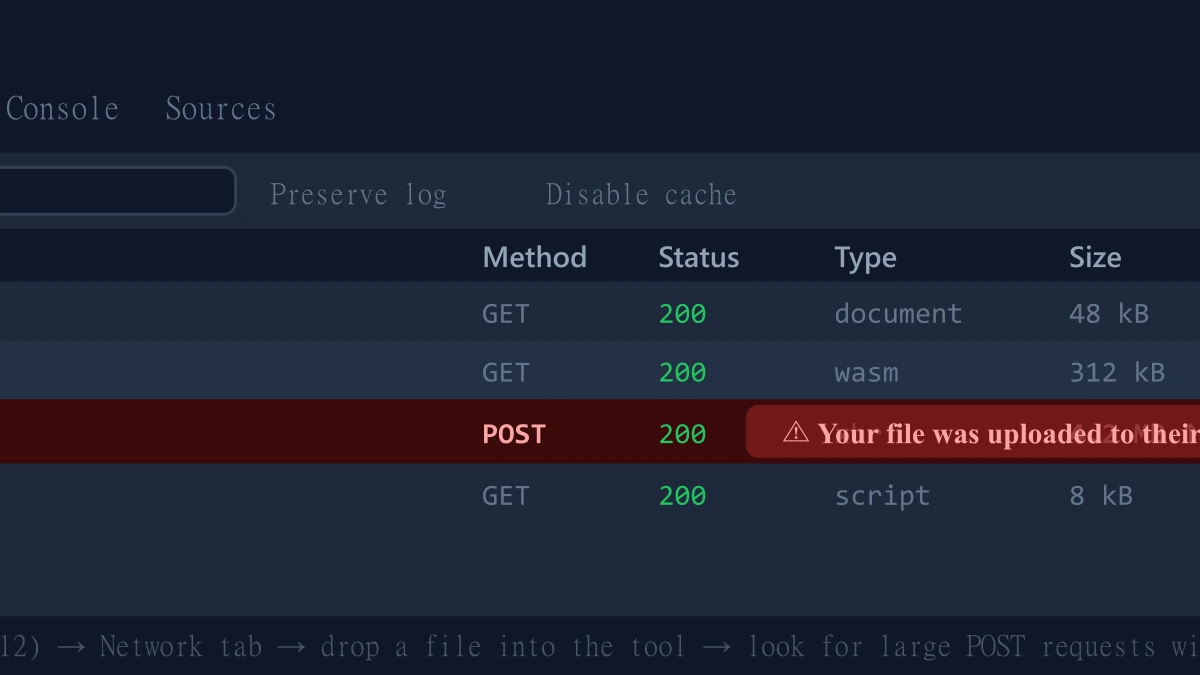
- 1.Open the tool, press F12, and click the Network tab in DevTools.
- 2.Tick "Preserve log" so nothing clears between steps.
- 3.Compress a test image.
- 4.Look for a large outbound
POSTrequest the size of your file, that would be an upload. There is not one.
What About Batches of Photos?
There is no daily cap or per-batch limit, since each image is processed on your own device. Compress a handful of photos or a few hundred, one after another, with no server-imposed ceiling.
The Bottom Line
Compressing an image without uploading it is the default behavior of ImagePDF.Tools, not a special mode. No account, no batch cap, no file ever leaving your device.
Try it now: compress an image, then check DevTools and confirm nothing was uploaded.
Frequently asked questions
Can I compress a photo without uploading it anywhere?
Does compressing an image without uploading also protect my metadata?
Is there a batch limit for compressing images without uploading?
How can I check that an image compressor is not uploading my photos?
Is browser-based image compression free?
Sources & references
This article was researched and written by Nikola, drawing on the following primary sources and documentation:
Ready to try it?
All tools run entirely in your browser, no uploads, no account required.
Compress ImageMore in Productivity
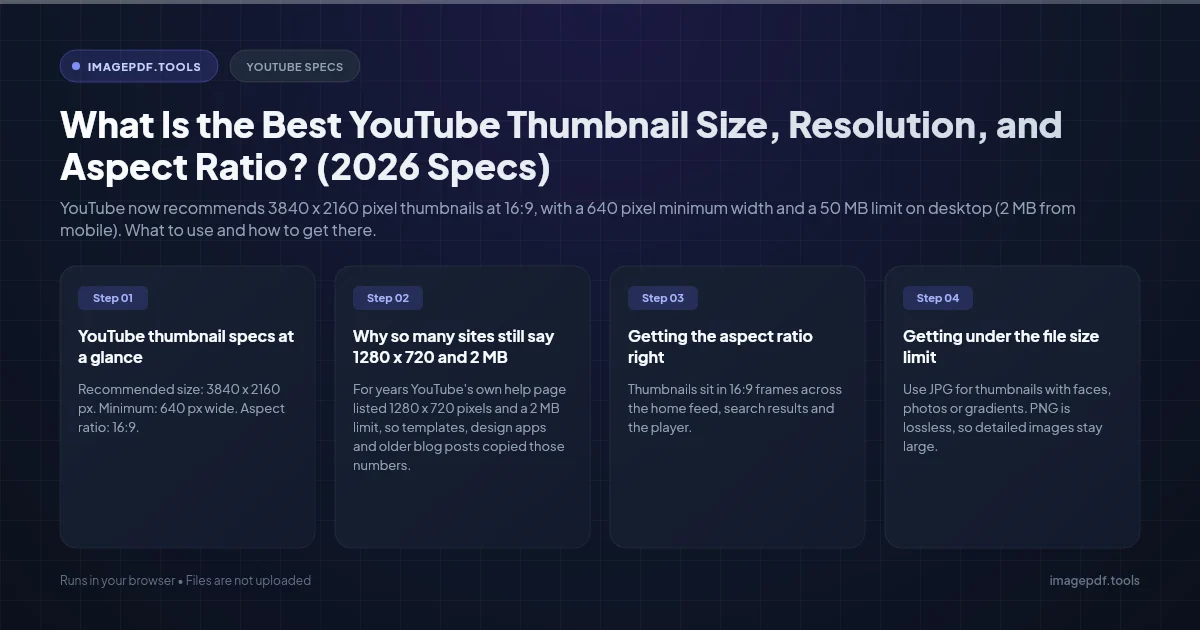
What Is the Best YouTube Thumbnail Size, Resolution, and Aspect Ratio? (2026 Specs)
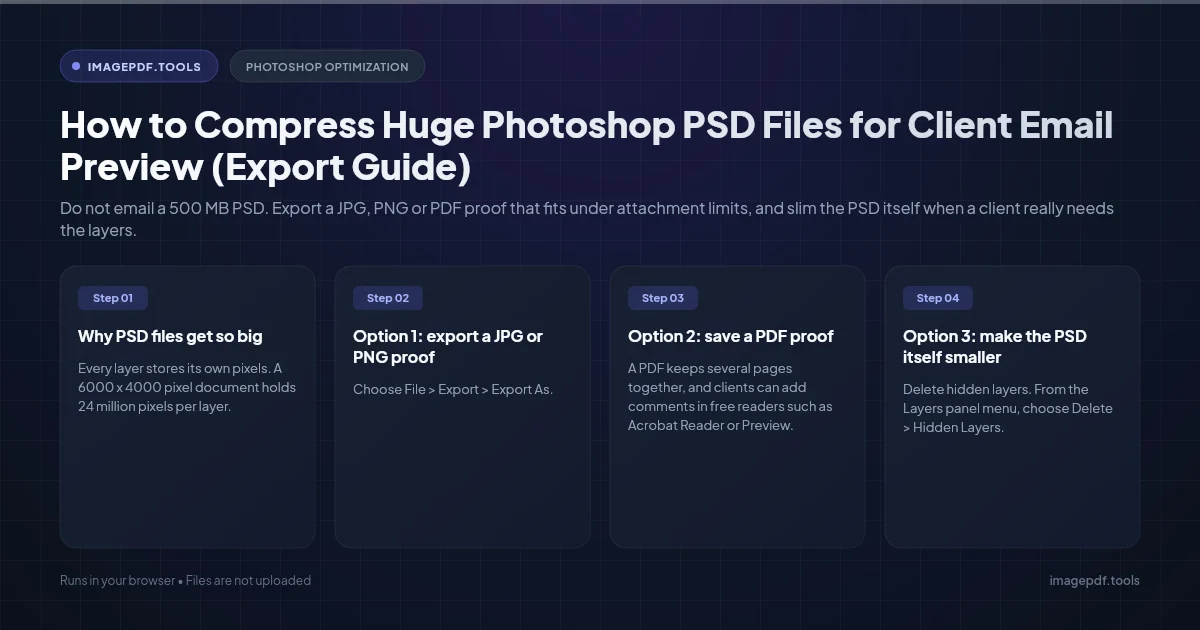
How to Compress Huge Photoshop PSD Files for Client Email Preview (Export Guide)
How to Convert Scanned PNG Receipts to Searchable PDF With OCR (Tax & Expense Guide)