
How to Compress a PDF Without Uploading It (Step by Step)
Summary
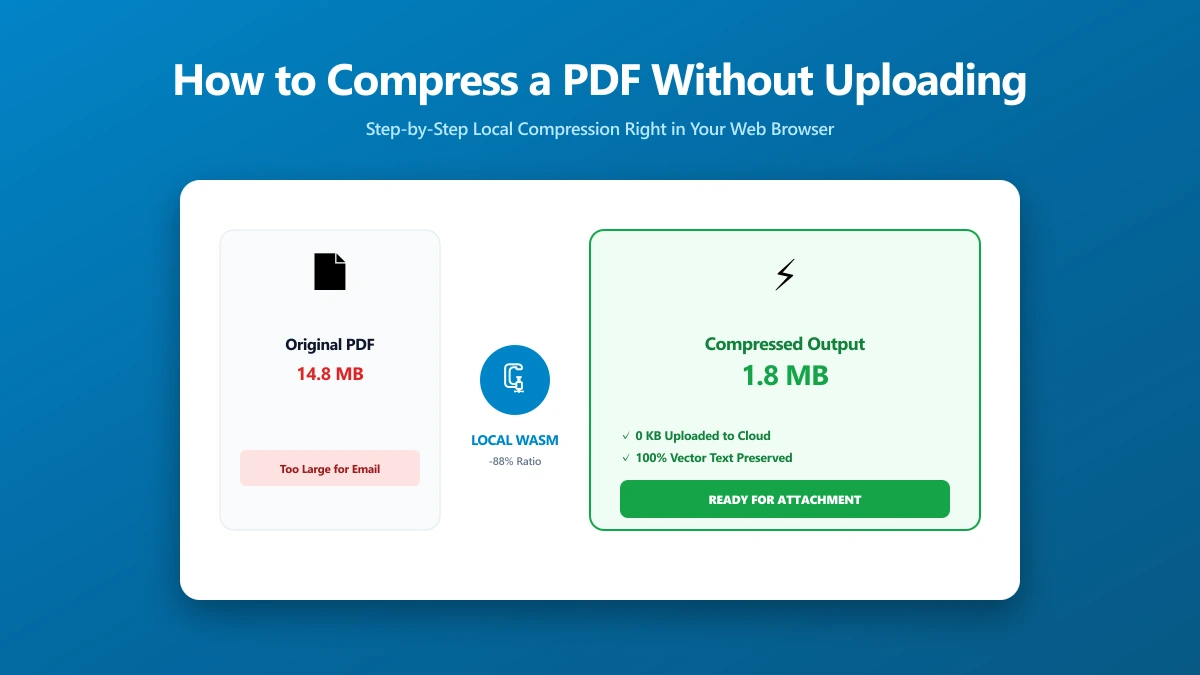
How to compress a PDF without sending it to a server, using a free browser-based tool, plus how to verify for yourself that nothing was uploaded.
Most "compress PDF" tools online work the same way: you upload your file to a server, wait, and download the smaller result. If you would rather not upload the file at all, a contract, a scanned ID, or just a general habit of caution, there is a simple alternative that skips the upload entirely. Here is exactly how.
Why Skip the Upload?
Uploading a PDF to a server means it exists somewhere outside your control, even briefly, before it is deleted. For a public flyer that rarely matters. For anything with a name, a signature, or a number on it, skipping the upload removes the question entirely rather than trusting a retention policy.
How to Compress a PDF Without Uploading It
- 1.Open the Compress PDF tool. It loads instantly because nothing is sent anywhere yet.
- 2.Drop your PDF onto the page, or click to browse. The file is read directly by your browser.
- 3.Choose a compression level, screen, ebook, printer, or a custom quality setting, depending on how small you need the result.
- 4.Click Compress. The whole operation runs on your device, typically in a second or two.
- 5.Save the compressed file. Nothing was ever transmitted, so there is nothing left on a server to worry about.
How This Actually Works
Modern browsers can read, recompress, and rewrite a PDF using JavaScript and WebAssembly, the same category of technology that lets complex applications run entirely client-side. ImagePDF.Tools uses this to perform the whole compression pipeline locally, so your file never becomes network traffic in the first place.
Verify It Yourself
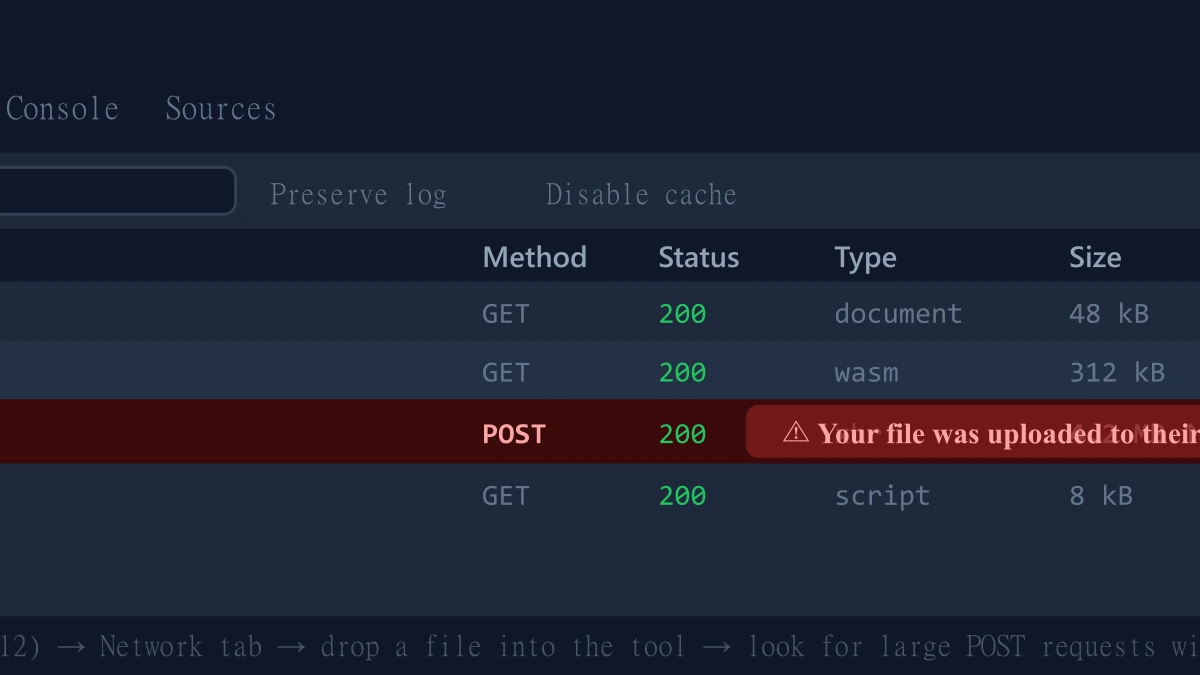
- 1.Open the tool, press F12, and click the Network tab in DevTools.
- 2.Tick "Preserve log" so nothing clears between steps.
- 3.Compress a test PDF.
- 4.Look for a large outbound
POSTrequest the size of your file, that would be an upload. There is not one.
What If I Need to Compress a Lot of PDFs?
There is no daily cap, no hourly limit, and no batch restriction, since each file is processed on your own device rather than a shared server with per-task costs. Compress one file or fifty, one after another, for free.
The Bottom Line
Compressing a PDF without uploading it is not a workaround, it is just how ImagePDF.Tools works by default. No account, no daily limit, no file ever leaving your device.
Try it now: compress a PDF, then check DevTools and confirm nothing was uploaded.
Frequently asked questions
Can I compress a PDF without uploading it anywhere?
Is browser-based PDF compression as good as server-based tools?
Is there a file size limit for compressing without uploading?
How do I know a PDF compressor is not secretly uploading my file?
Is compressing a PDF without uploading free?
Sources & references
This article was researched and written by Nikola, drawing on the following primary sources and documentation:
Ready to try it?
All tools run entirely in your browser, no uploads, no account required.
Compress PDFMore in Productivity
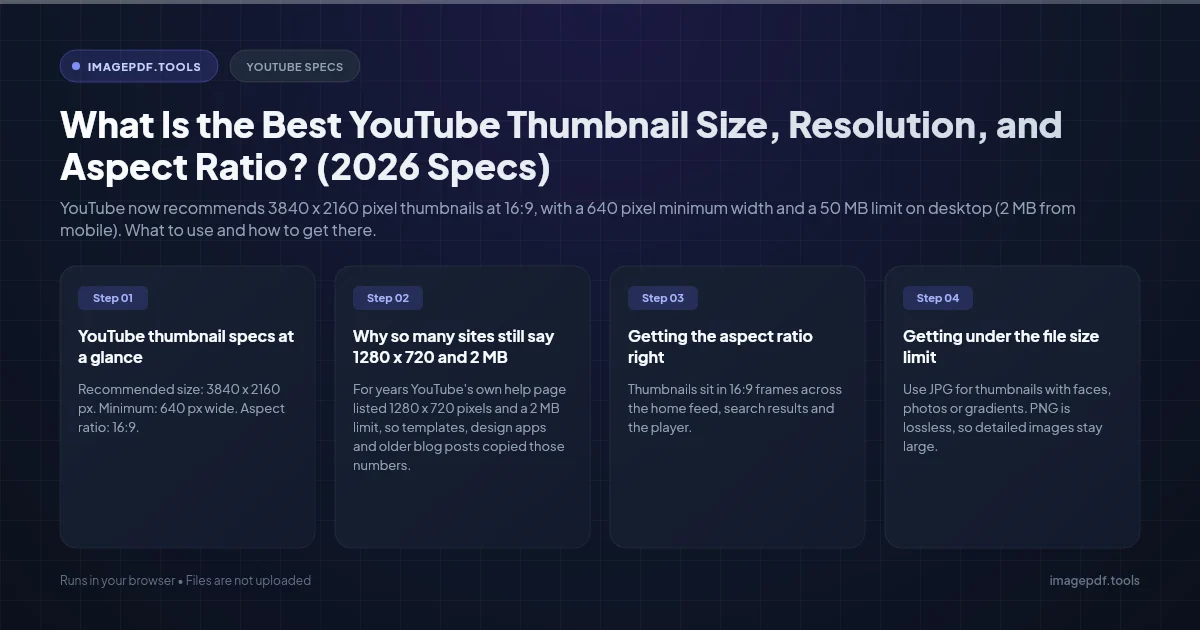
What Is the Best YouTube Thumbnail Size, Resolution, and Aspect Ratio? (2026 Specs)
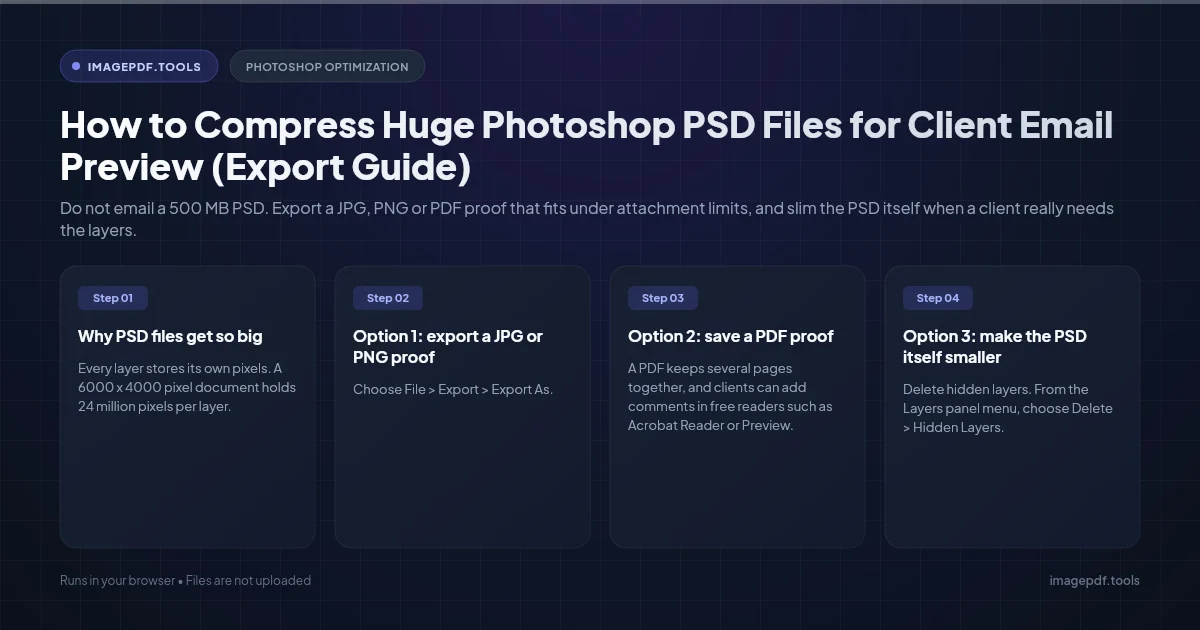
How to Compress Huge Photoshop PSD Files for Client Email Preview (Export Guide)
How to Convert Scanned PNG Receipts to Searchable PDF With OCR (Tax & Expense Guide)