
How to Combine Portrait and Landscape PDF Pages Without Rotating Wrong
Summary
Merge portrait and landscape PDF pages into one document that reads correctly on screen and in print. Fix sideways scans, cut-off spreadsheets and landscape pages that print the wrong way.
A single PDF can hold portrait and landscape pages side by side. Every page keeps its own size and its own rotation, so you do not need to make them match. Combine the files with a tool that copies pages as they are, such as Preview on a Mac, Acrobat, or a browser-based merger, then rotate only the pages that actually show up sideways. Leave real landscape pages wide.
Most "rotated wrong" problems come from three places: scans where the content lies sideways on a portrait page, spreadsheets that were exported in portrait and got squeezed, and print settings that turn landscape pages the wrong way on paper. Each has a different fix.
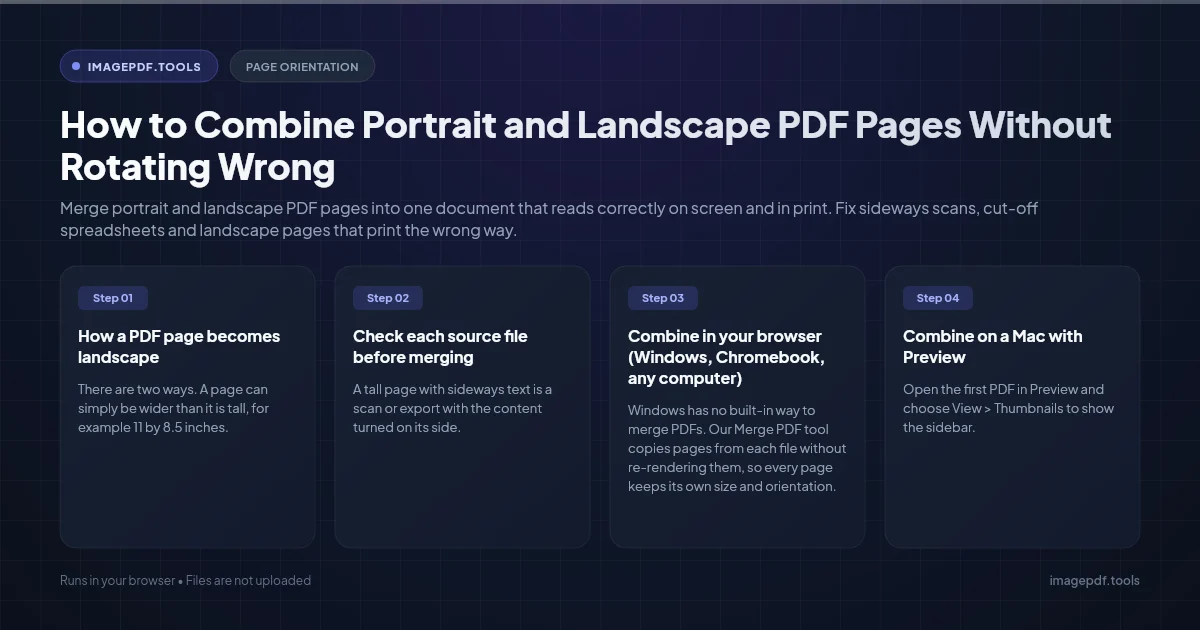
How a PDF page becomes landscape
There are two ways. A page can simply be wider than it is tall, for example 11 by 8.5 inches. Or it can be a tall page with a rotation setting of 90 degrees, which tells the viewer to turn it before displaying it. Both look identical in a normal viewer.
The difference shows up with tools that ignore the rotation setting. Some stamping and editing tools draw page numbers, headers or watermarks on the unrotated page, so the text lands sideways or along the wrong edge of your landscape pages. If that happens after merging, check the result before you send it, and use a tool that accounts for rotation.
Check each source file before merging
- ●A tall page with sideways text is a scan or export with the content turned on its side. It needs a 90 degree rotation, nothing else.
- ●A tall page with a tiny, squeezed table means the spreadsheet or document was exported in portrait. Rotating will not fix it. If you have the source file, set the orientation before exporting: in Word, Layout > Orientation > Landscape (with a section break so only those pages change); in Excel, Page Layout > Orientation > Landscape and set Scale to Fit to 1 page wide.
- ●A wide page that displays wide is already correct. Do not rotate it to match the portrait pages.
Combine in your browser (Windows, Chromebook, any computer)
Windows has no built-in way to merge PDFs. Our Merge PDF tool copies pages from each file without re-rendering them, so every page keeps its own size and orientation.
- 1.Drop all your PDFs onto the tool, portrait and landscape files together.
- 2.Drag the file cards into the order you want.
- 3.If a whole file shows up sideways, click the rotate button on its card. It turns every page of that file 90 degrees clockwise; click again for 180 or 270.
- 4.Click Merge PDFs, check the preview, and save the combined file.
If only one page inside a file is sideways, open the merged result in Organize PDF, where each page has its own rotate control. Everything happens in your browser, so financial statements and contracts are not uploaded.
Combine on a Mac with Preview
- 1.Open the first PDF in Preview and choose View > Thumbnails to show the sidebar.
- 2.Drag the other PDF files from Finder into the thumbnail sidebar, dropping them where they should go.
- 3.Select any sideways thumbnails and choose Tools > Rotate Left or Rotate Right (
Cmd + LorCmd + R). - 4.Choose File > Export as PDF and save under a new name, so the original first file stays untouched.
Combine in Adobe Acrobat Pro
- 1.Open the Combine files tool, add your PDFs, arrange them and click Combine.
- 2.Open Organize Pages to see all pages as thumbnails.
- 3.Select the sideways pages and click the rotate counterclockwise or clockwise button.
- 4.Save the file.
In Acrobat and Reader, View > Rotate View only turns the page on your screen. It is not saved with the file. Use Organize Pages (or the page thumbnails' rotate command) for a rotation that sticks.
From the command line with qpdf
qpdf is free and keeps each page exactly as it was. This merges two files, then turns pages 3 and 7 of the result a quarter turn clockwise:
qpdf --empty --pages report.pdf charts.pdf -- combined.pdf
qpdf combined.pdf fixed.pdf --rotate=+90:3,7
Mixed paper sizes, not just orientations
When you combine Letter pages with A4 pages, or scans of odd sizes, the merged file has pages of several sizes. That is valid, but it can look untidy when scrolling and some printers handle it badly. Our Resize PDF tool can put every page on the same sheet size with the orientation set to Match each page, so wide pages get a wide sheet and tall pages a tall one, with the content scaled to fit.
Printing a document with both orientations
On paper, landscape pages have to be turned to fit a portrait sheet. Let the print dialog do that instead of rotating pages inside the PDF, which would leave them sideways for everyone reading on screen.
- ●Acrobat and Reader: under Page Sizing & Handling, set Orientation to Auto portrait/landscape, or tick Auto-rotate and center in older versions. For mixed paper sizes, tick Choose paper source by PDF page size if your printer has several trays.
- ●Two-sided printing of a mostly portrait document: choose Flip on long edge. The landscape pages are all turned the same way, so a reader rotates the stapled document in the same direction to read each one.
- ●A document that is entirely landscape: choose Flip on short edge, otherwise every back page comes out upside down.
Frequently asked questions
Does rotating PDF pages reduce quality?
Why are my page numbers sideways on the landscape pages?
Why does the landscape page look smaller than the others in my viewer?
Should I rotate landscape pages so the whole PDF is portrait?
Can I fix orientation on my phone?
Sources & references
This article was researched and written by Nikola, drawing on the following primary sources and documentation:
More in Productivity
What Is the Best YouTube Thumbnail Size, Resolution, and Aspect Ratio? (2026 Specs)
How to Compress Huge Photoshop PSD Files for Client Email Preview (Export Guide)
How to Convert Scanned PNG Receipts to Searchable PDF With OCR (Tax & Expense Guide)