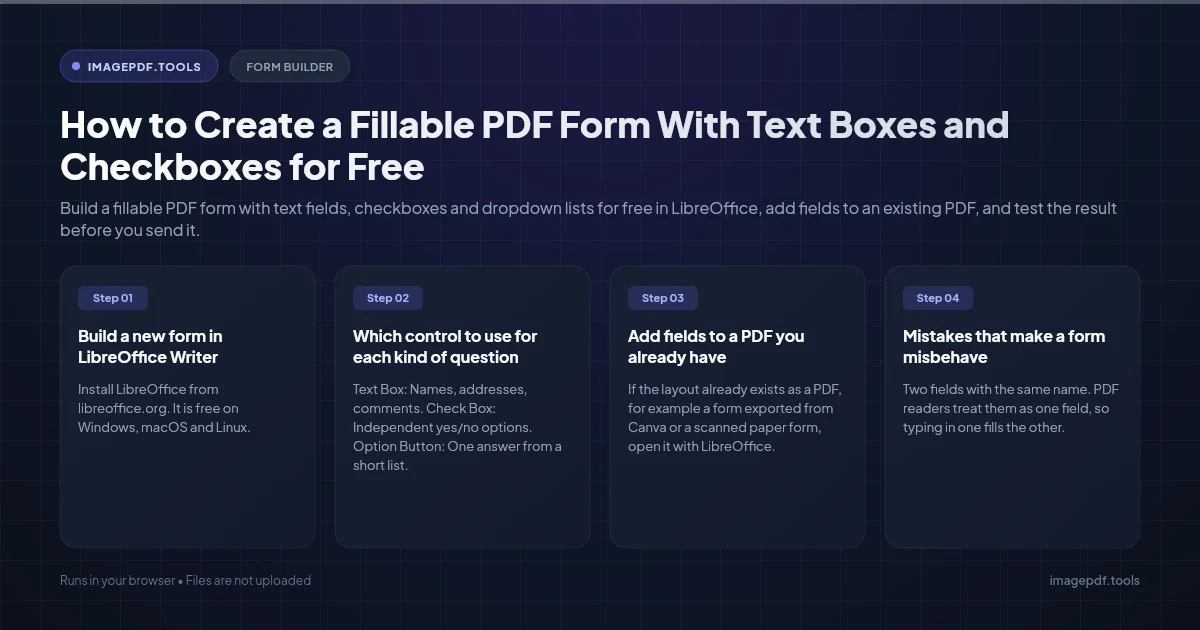
How to Create a Fillable PDF Form With Text Boxes and Checkboxes for Free
Summary
Build a fillable PDF form with text fields, checkboxes and dropdown lists for free in LibreOffice, add fields to an existing PDF, and test the result before you send it.
The most capable free way to make a fillable PDF is LibreOffice. Use Writer to build a new form, or Draw to add fields on top of a PDF you already have. You draw text boxes, checkboxes and dropdown lists with the Form Controls toolbar, then export to PDF with Create PDF form ticked. The result works in Adobe Acrobat Reader, in the PDF viewers built into Chrome, Edge and Firefox, and in most phone apps.
Word, Google Docs and Canva are good for designing the layout, but their PDF exports are flat. Word in particular can hold form fields inside a .docx, yet Microsoft's own community moderators note that converting the document to PDF removes that fill-in ability. Design there if you like, then add the fields in LibreOffice.
Build a new form in LibreOffice Writer
- 1.Install LibreOffice from libreoffice.org. It is free on Windows, macOS and Linux.
- 2.Type your form as a normal document: the title, instructions and labels such as Full name, Email and Department. Leave space after each label for the field.
- 3.Show the controls with View > Toolbars > Form Controls, or use the Form menu. Make sure Design Mode is switched on, otherwise you cannot draw or select fields.
- 4.Pick Text Box and drag a rectangle next to each label that needs a typed answer.
- 5.Pick Check Box and draw one beside each yes/no option. For a set of choices where only one may be picked, use Option Button instead.
- 6.For a dropdown, draw a List Box or Combo Box. A Combo Box also lets the person type their own answer.
- 7.Double-click each control, or right-click it and choose Control Properties. Give it a short, unique Name such as full_name or agree_terms. For checkboxes, clear the Label text if your document already has a label beside the box. For lists, type the choices into List entries.
- 8.Set the order in which the Tab key moves between fields with Activation Order on the Form Design toolbar or in the Form menu.
- 9.Switch Design Mode off and try typing and ticking in the document to check the fields respond.
- 10.Choose File > Export As > Export as PDF. On the General tab, tick Create PDF form, then click Export.
The Submit format setting next to Create PDF form (FDF, PDF, HTML or XML) only matters if you add a push button that sends answers to a web address. For a form people fill in and email back, leave it alone. Also leave Allow duplicate field names off unless you want two fields to share one answer.
Which control to use for each kind of question
| LibreOffice control | Use it for | In the PDF |
|---|---|---|
| Text Box | Names, addresses, comments | Text field; set Multiline in its properties for long answers |
| Check Box | Independent yes/no options | Checkbox that can be ticked and unticked |
| Option Button | One answer from a short list | Radio button; buttons with the same Group name act as one set |
| List Box | One answer from a fixed list | Dropdown or scrolling list |
| Combo Box | A list with an Other option | Dropdown that also accepts typed text |
| Push Button | Submit, reset or print | Button with an action |
Add fields to a PDF you already have
If the layout already exists as a PDF, for example a form exported from Canva or a scanned paper form, open it with LibreOffice. It opens in Draw, where the same Form Controls toolbar works. Draw rectangles over the blank answer lines, name each field, and export with Create PDF form ticked as above.
Draw converts the PDF's text into editable text boxes when it opens the file. If the fonts used in the PDF are not installed on your computer, the wording can shift or wrap differently, so check every page before you export. A scanned form is the easy case, because each page is a single picture and nothing can move.
Adobe Acrobat Pro can detect the blank lines and boxes on a page and add fields automatically through its Prepare Form tool, but it is paid software, available on a free trial. Online form builders also exist, though they require uploading the document to their servers, which matters for HR, medical or customer forms.
Mistakes that make a form misbehave
- ●Two fields with the same name. PDF readers treat them as one field, so typing in one fills the other. Give every field its own name.
- ●Option buttons in different groups. If each radio button has a different Group name, people can select all of them. Put the buttons for one question in the same group.
- ●Boxes too small for the text. Set a font size in the field properties and make the box tall enough. A field with a fixed large font cuts off long answers.
- ●Expecting automatic totals. LibreOffice does not write the calculation scripts that add up a column of numbers in a PDF. That needs Acrobat Pro, or a form where people type the total themselves.
- ●Text in other scripts. Answers in Arabic, Chinese or Hindi depend on the fonts the reader's app can use. Test with real answers if your audience writes in those languages.
Test the form before sending it
- 1.Open the exported PDF in at least two viewers, such as Chrome and Acrobat Reader, and on a phone. Type in every field, tick every box and press Tab to check the order.
- 2.Save a filled copy, reopen it and confirm the answers are still there.
- 3.Load the PDF into Fill PDF Form. It lists every field it finds, page by page, so you can see at a glance whether names are sensible. If it reports no fillable fields, the export did not create any, and Create PDF form was probably unticked.
When filled forms come back, Flatten PDF turns the answers into ordinary page content, so nobody can change them later. Both tools run in your browser without uploading the form.
Keep the .odt or .odg source file. When a question changes, edit the source and export again rather than trying to edit fields inside the PDF.
Frequently asked questions
Can people fill in my form with the free Adobe Acrobat Reader?
Can I turn a Google Docs or Canva design into a fillable form?
Can a fillable PDF make a field required?
How do I add a place for a signature?
Sources & references
This article was researched and written by Nikola, drawing on the following primary sources and documentation:
Ready to try it?
All tools run entirely in your browser, no uploads, no account required.
Fill PDF Form