How to Crop Margins and Remove White Borders From All PDF Pages at Once (Batch Guide)
Summary
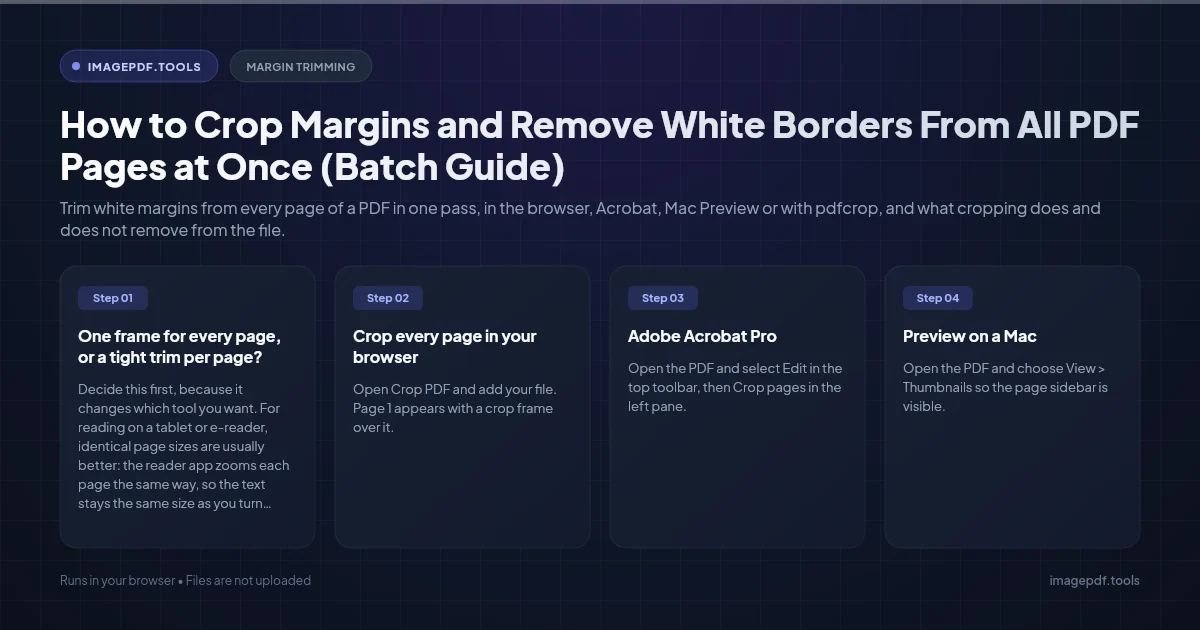
Trim white margins from every page of a PDF in one pass, in the browser, Acrobat, Mac Preview or with pdfcrop, and what cropping does and does not remove from the file.
To trim the margins from every page at once, use a crop tool that applies one frame to the whole document. In the browser, Crop PDF lets you drag a frame on page 1 and apply it to all pages. In Adobe Acrobat Pro, the Set Page Boxes dialog has a Page Range of All and a Remove White Margins option. On a Mac, Preview crops every page if you select all the thumbnails before cropping. When each page needs a different tight trim, a per-page tool such as pdfcrop does that automatically.
All of these hide the margins rather than delete them. The page content outside the frame is still in the file, which matters if you are cropping something out for privacy.
One frame for every page, or a tight trim per page?
Decide this first, because it changes which tool you want. For reading on a tablet or e-reader, identical page sizes are usually better: the reader app zooms each page the same way, so the text stays the same size as you turn pages. Per-page trimming gives the tightest result but leaves pages of slightly different sizes.
| Approach | Tools | Best for | Watch out for |
|---|---|---|---|
| Same frame on all pages | Crop PDF, Acrobat Crop pages, Mac Preview | Reports, papers, slides with a consistent layout | Pages with text nearer the edge get clipped |
| Automatic trim per page | Acrobat Remove White Margins, pdfcrop | Figures and vector pages with varied content | Page sizes end up slightly different |
| Grouped by layout | Briss | Scanned books with left and right pages | Older Java program, more setup |
Crop every page in your browser
- 1.Open Crop PDF and add your file. Page 1 appears with a crop frame over it.
- 2.Drag the edges of the frame in to the text, or type each margin in millimetres. Arrow keys nudge a selected edge by 0.5 mm, or 5 mm with Shift held.
- 3.For a quick start, press Fit to content. It finds the printed area on page 1 and leaves 2 mm around it.
- 4.Under Apply to, keep all pages, or pick Choose pages and type a list such as 2-40 to skip a cover.
- 5.Tick Make the new size permanent only if the file is going to a print shop or an app that ignores normal cropping. It also resets the stored sheet size to the cropped area.
- 6.Save the cropped PDF.
The frame is drawn on page 1 and the same distances are trimmed from every chosen page. If page 1 is a full-bleed cover with a different layout, set the margins by hand from what you know of the body pages, and use Choose pages to leave the cover alone. The file stays on your device the whole time.
Adobe Acrobat Pro
- 1.Open the PDF and select Edit in the top toolbar, then Crop pages in the left pane. In older versions the same dialog is under Tools > Print Production > Set Page Boxes.
- 2.Drag a rectangle around the content and double-click inside it. The Set Page Boxes dialog opens.
- 3.Adjust the margins, or tick Remove White Margins to trim each page to its own content.
- 4.Under Page Range, choose All. The Apply to list lets you limit the crop to odd or even pages, which helps with scanned books.
- 5.Click OK and save.
Preview on a Mac
- 1.Open the PDF and choose View > Thumbnails so the page sidebar is visible.
- 2.Choose Tools > Rectangular Selection and drag around the text block on the page shown.
- 3.Click a thumbnail in the sidebar and press Cmd+A to select all pages.
- 4.Choose Tools > Crop, or press Cmd+K. Preview warns that content outside the selection is only hidden.
- 5.Save, then scroll through the pages to confirm all of them were cropped. Behavior has varied between macOS versions, so check before deleting the original.
Per-page trimming from the command line
pdfcrop is a small script that ships with TeX Live and MiKTeX and needs Ghostscript installed. It measures the printed content on each page and crops that page to fit, with an optional margin in points:
pdfcrop --margins 10 report.pdf report-cropped.pdfIt suits vector documents such as papers and charts. For two-column academic papers you want to read on a small e-reader, k2pdfopt goes further: it cuts the columns apart and reflows them into pages sized for the device. Briss takes a visual approach, overlaying pages with similar layouts so you draw one crop rectangle per group.
Scanned books need extra care
In a scanned book, the binding margin alternates sides and the text block drifts a little from page to page as the book shifts on the glass. A single tight frame clips letters on some pages. Either leave a few millimetres of slack so the frame fits every page, or crop odd and even pages separately, which Acrobat's Apply to setting and Briss both support. Flip through the result at full size before you discard the original scan.
What cropping leaves behind
- ●The cut-off content is still there. Standard cropping changes the visible area, called the CropBox. Anyone can reset it and see the margins again. If those margins hold names, notes or account numbers, use Redact PDF on that content, or flatten the cropped pages into images, instead of relying on the crop.
- ●The file barely shrinks. Hidden content still takes up space. Run Compress PDF afterwards if size is the goal.
- ●Links, bookmarks and text survive. Selectable and searchable text stays that way, and bookmarks still point to their pages.
- ●Some programs ignore the crop. Certain print workflows and layout apps read the full sheet size. That is when a permanent crop, which also changes the sheet size, is worth using.
Frequently asked questions
Can I undo a crop later?
Will cropped PDFs look bigger on my Kindle?
Why does my crop show in one app but not another?
Can I crop a PDF on my phone?
Sources & references
This article was researched and written by Nikola, drawing on the following primary sources and documentation: