
How to Optimize and Compress Animated GIF Files Without Losing Frames (Web Guide)
Summary
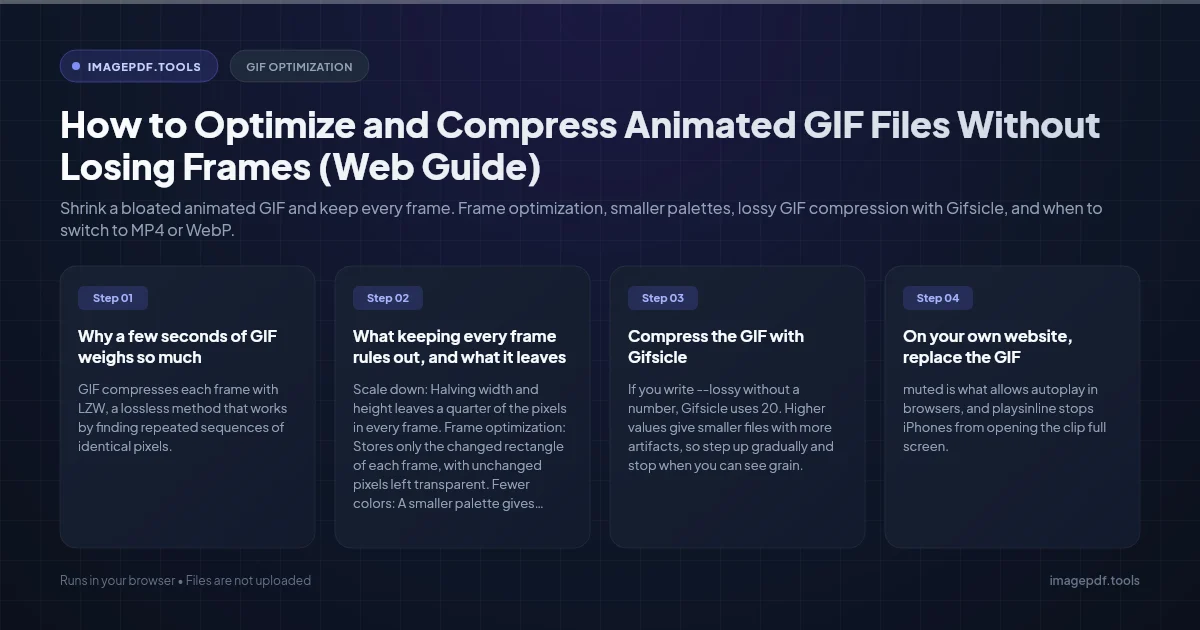
Shrink a bloated animated GIF and keep every frame. Frame optimization, smaller palettes, lossy GIF compression with Gifsicle, and when to switch to MP4 or WebP.
You can usually cut an animated GIF to a fraction of its size and keep every single frame. There are four levers, roughly in order of payoff: make it smaller in pixels, store only the part of each frame that changes, use fewer colors, and allow a little lossy noise. The free command-line tool Gifsicle handles all four in one line:
gifsicle -O3 --lossy=80 --colors 128 --resize-width 480 input.gif -o output.gifIf the animation is going on a web page you control, converting it to an MP4 or WebM video, or to animated WebP, saves far more than any GIF setting can. More on that further down.
Why a few seconds of GIF weighs so much
GIF compresses each frame with LZW, a lossless method that works by finding repeated sequences of identical pixels. Flat interface colors and cartoons compress well. Camera footage, gradients and grainy textures compress badly, because neighboring pixels rarely match exactly.
Each frame is also limited to a palette of at most 256 colors. To fake the missing shades, encoders scatter dots of nearby colors, which is called dithering. It looks better, but it is noise, and noise is what LZW handles worst. Worse still, the dither pattern shifts from frame to frame, so pixels that should be identical between frames are not.
Finally, GIF has no real motion compression. A video codec can record that a block of pixels moved a little to the left. A GIF can only record which pixels changed. The format dates from 1987, and the 1989 revision, GIF89a, added the frame delays and transparency that animation depends on. A ten-second clip at 25 frames per second is 250 separate images stored one after another.
What keeping every frame rules out, and what it leaves
Many online GIF shrinkers quietly drop every second or third frame. The file gets smaller, but motion turns jerky, or the animation plays faster if the delays are not adjusted. If you want all frames kept, leave the frame count alone and work with these instead:
| Lever | What it does | What it costs |
|---|---|---|
| Scale down | Halving width and height leaves a quarter of the pixels in every frame | Fine detail and small text get harder to read |
| Frame optimization | Stores only the changed rectangle of each frame, with unchanged pixels left transparent | Nothing visible, it is lossless |
| Fewer colors | A smaller palette gives LZW longer runs of matching pixels | Banding in gradients, skies and skin tones |
| Lossy GIF | Lets pixels drift slightly in color so LZW finds longer matches | Grain or streaks, more visible at high settings |
| Less dithering | Removes the scattered dots that defeat compression | Visible steps between shades |
Compress the GIF with Gifsicle
Gifsicle runs on Windows, macOS and Linux. On a Mac, install it with brew install gifsicle, and on Debian or Ubuntu with sudo apt install gifsicle. Start with the lossless step:
gifsicle -O3 input.gif -o optimized.gif-O1 stores only the changed portion of each frame, -O2 also uses transparency, and -O3 tries several methods and keeps the best. GIFs exported straight from screen recorders and video editors often store every frame in full, so this step alone can make a real difference. Then add the lossy settings one at a time and compare:
gifsicle -O3 --lossy=60 input.gif -o lossy.gif
gifsicle -O3 --lossy=60 --colors 128 input.gif -o fewer-colors.gif
gifsicle -O3 --lossy=60 --colors 128 --resize-width 480 input.gif -o smaller.gif
If you write --lossy without a number, Gifsicle uses 20. Higher values give smaller files with more artifacts, so step up gradually and stop when you can see grain. --colors takes any value from 2 to 256, and --resize-width keeps the aspect ratio. None of these options change the number of frames or their timing.
Judge the result on the frames with the most motion or the smoothest gradients, at full size. A still opening frame can look perfect while a fast pan halfway through falls apart.
If you are making the GIF from a video
The biggest saving happens when the GIF is created. Building one palette tailored to the clip, rather than a generic one, gives better color in fewer bytes. ffmpeg does this in two passes inside one command, and it keeps the source frame rate:
ffmpeg -i clip.mp4 -vf "scale=480:-1:flags=lanczos,split[a][b];[a]palettegen[p];[b][p]paletteuse=dither=none" clip.gifWith dither=none the file is smaller but gradients show steps. Leave that part out to use ffmpeg's default dithering, then run the result through Gifsicle as above.
In Photoshop
- 1.Open the GIF. The frames appear in the Timeline panel (Window > Timeline).
- 2.Choose File > Export > Save for Web (Legacy) and pick GIF as the format.
- 3.Choose a color reduction method such as Selective or Adaptive, then lower Colors to 128 or 64.
- 4.Reduce Dither or set it to No Dither, and raise Lossy a little at a time.
- 5.Watch the file size in the lower-left corner of the preview, set Looping Options to Forever, and click Save.
On your own website, replace the GIF
For an animation on a page you build, a muted looping video is the better format. In Google's web.dev guide, a 3.7 MB GIF became a 551 KB MP4 and a 341 KB WebM. The markup behaves just like a GIF:
<video autoplay loop muted playsinline>
  <source src="demo.webm" type="video/webm">
  <source src="demo.mp4" type="video/mp4">
</video>
muted is what allows autoplay in browsers, and playsinline stops iPhones from opening the clip full screen. To convert, the same guide uses ffmpeg -i demo.gif -b:v 0 -crf 25 -f mp4 -vcodec libx264 -pix_fmt yuv420p demo.mp4.
When it has to be an image, for example a CMS that only accepts images, animated WebP is the middle ground. Google measured GIFs converted to lossy WebP at 64% smaller on average, and 19% smaller as lossless WebP. Its gif2webp tool does the conversion: gif2webp -lossy -q 75 demo.gif -o demo.webp, or -mixed to let it choose lossy or lossless per frame.
Where a real GIF is still the right choice
Email is the main one. Most email clients will not play video, and some older desktop versions of Outlook for Windows show only the first frame of a GIF. Make that first frame carry the message on its own, and keep email GIFs short and small. Sites that only accept GIF uploads are the other case.
If you also need a still version, such as a poster image for a video or a static fallback, export one frame as PNG or JPG and shrink it with Compress Image. It works in your browser on JPEG, PNG, WebP and SVG files. It does not process animated GIFs, which is a job for the tools above.
Frequently asked questions
Why did my GIF get bigger after I optimized it?
Does lossy GIF compression drop frames or change the speed?
Why do the edges of my transparent GIF look jagged?
Do all browsers play animated WebP?
How do I make a GIF loop forever, or only once?
Sources & references
This article was researched and written by Nikola, drawing on the following primary sources and documentation:
Ready to try it?
All tools run entirely in your browser, no uploads, no account required.
Compress ImageMore in Productivity
What Is the Best YouTube Thumbnail Size, Resolution, and Aspect Ratio? (2026 Specs)
How to Compress Huge Photoshop PSD Files for Client Email Preview (Export Guide)
How to Convert Scanned PNG Receipts to Searchable PDF With OCR (Tax & Expense Guide)