
How to Reorder, Rotate, and Delete Pages in a PDF on iPhone and Android (Free Guide)
Summary
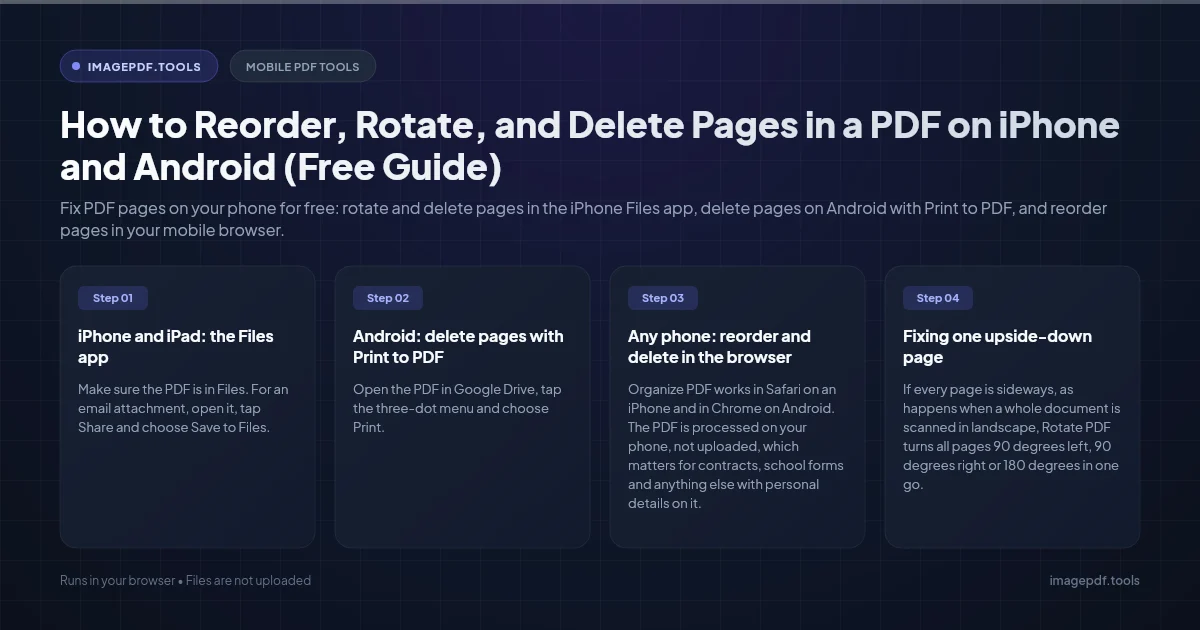
Fix PDF pages on your phone for free: rotate and delete pages in the iPhone Files app, delete pages on Android with Print to PDF, and reorder pages in your mobile browser.
On an iPhone or iPad you do not need an app. Since iOS 15, the built-in Files app can rotate and delete individual pages of a PDF from its thumbnail sidebar. Android has no built-in page editor in Google Drive or the Files app, but you can drop unwanted pages with the system's Print to PDF option, and you can reorder or delete pages in a mobile browser with a web tool, again without installing anything.
Below are the steps for each, what each method cannot do, and the one fix that trips people up most: a single upside-down page in the middle of a scan.
iPhone and iPad: the Files app
- 1.Make sure the PDF is in Files. For an email attachment, open it, tap Share and choose Save to Files.
- 2.Open the PDF in Files, then swipe right from the left edge of the screen. A short swipe opens a sidebar of page thumbnails.
- 3.Tap the three-dot button on the thumbnail of the page you are viewing, or touch and hold the thumbnail of any other page.
- 4.Choose Rotate Left, Rotate Right or Delete. The same menu has Insert Blank Page, Insert from File and Scan Pages if you need to add pages.
- 5.Close the document when you are done. Files saves the changes into that file.
Files edits the original, and a deleted page cannot be brought back once you close the document. Before you start, touch and hold the file in Files and choose Duplicate, then edit the copy.
Moving pages is less dependable. On some iOS versions you can touch and hold a thumbnail and drag it to a new spot in the sidebar; on others the hold only opens the menu. If the page will not move for you, use the browser method further down.
Android: delete pages with Print to PDF
Google Drive's PDF viewer lets you read and search a PDF, and on recent versions annotate it, but it has no option to move, rotate or delete pages. Samsung phones can do some page editing by importing a PDF into Samsung Notes, but the steps vary by model. The method that works on almost any Android phone is printing the pages you want to keep into a new PDF:
- 1.Open the PDF in Google Drive, tap the three-dot menu and choose Print.
- 2.At the top, change the printer to Save as PDF.
- 3.Tap the small arrow to expand the options. Under Pages, change All to a range and type the pages you want to keep, for example 1-2, 4-9 to drop page 3.
- 4.Tap the round PDF button, choose a folder such as Downloads and save.
The result is a brand-new PDF. Text usually stays selectable, but links, bookmarks and fillable form fields are often lost along the way, so use this for simple documents rather than forms.
Any phone: reorder and delete in the browser
Organize PDF works in Safari on an iPhone and in Chrome on Android. The PDF is processed on your phone, not uploaded, which matters for contracts, school forms and anything else with personal details on it.
- 1.Open Organize PDF and tap the drop area to pick your PDF from Files, Downloads or a cloud drive.
- 2.Wait for the page thumbnails to appear. On a phone they are shown three to a row.
- 3.To delete a page, tap it so the red X appears in its top corner, then tap the X.
- 4.To reorder, press a page and drag it to its new position. The numbers under the thumbnails update as you go.
- 5.Tap Save (the button shows the new page count), then Save PDF. The new file is named after the original with -organized on the end, and your original stays untouched.
Fixing one upside-down page
If every page is sideways, as happens when a whole document is scanned in landscape, Rotate PDF turns all pages 90 degrees left, 90 degrees right or 180 degrees in one go. It changes each page's rotation setting rather than re-encoding the content, so nothing loses quality.
A single wrong page is easiest on an iPhone: use Rotate Left or Rotate Right in Files as described above. On Android, split it out and put it back:
- 1.In Split PDF, choose the range option and enter the parts around the bad page. For a 9-page file where page 4 is upside down, type 1-3, 4, 5-9.
- 2.Save the three PDFs it creates.
- 3.Open Merge PDF, add the three parts in order, and tap the rotate button on the single-page part until it is the right way up.
- 4.Save the merged PDF.
Which method to use
| Task | iPhone Files app | Android built-in | Mobile browser |
|---|---|---|---|
| Delete a page | Yes, one page at a time | Print to PDF with a page range | Organize PDF |
| Rotate one page | Yes | No | Split PDF, then rotate in Merge PDF |
| Rotate every page | Page by page | No | Rotate PDF |
| Move pages | Depends on iOS version | No | Organize PDF |
| Keeps the original file | No, edits in place | Yes, saves a new file | Yes, saves a new file |
Before you edit: signed and locked PDFs
- ●Digitally signed PDFs: moving, rotating or deleting a page after a digital signature was applied makes readers report the document as changed since signing. Rearrange pages first, then sign.
- ●Password-protected PDFs: if the file needs a password to open, Organize PDF asks for it before showing the pages. The Files app may refuse to edit a locked file at all.
- ●Crooked scans: rotation only works in quarter turns. A page scanned a few degrees off straight needs straightening (deskewing) in a scanning app, not rotating.
- ●Finding the result: on iPhone, files saved from Safari go to the Downloads folder in Files by default. On Android, check the Downloads folder in the Files app.
Frequently asked questions
Does rotating or deleting pages reduce the quality of the PDF?
I edited the PDF in Files but the email still has the old version. Why?
Can I undo a deleted page?
Do I need to install an app to do this?
Sources & references
This article was researched and written by Nikola, drawing on the following primary sources and documentation:
Ready to try it?
All tools run entirely in your browser, no uploads, no account required.
Organize PDFMore in Productivity
What Is the Best YouTube Thumbnail Size, Resolution, and Aspect Ratio? (2026 Specs)
How to Compress Huge Photoshop PSD Files for Client Email Preview (Export Guide)
How to Convert Scanned PNG Receipts to Searchable PDF With OCR (Tax & Expense Guide)