
How to Submit a Resume That Hiring Managers Won't Delete
Summary
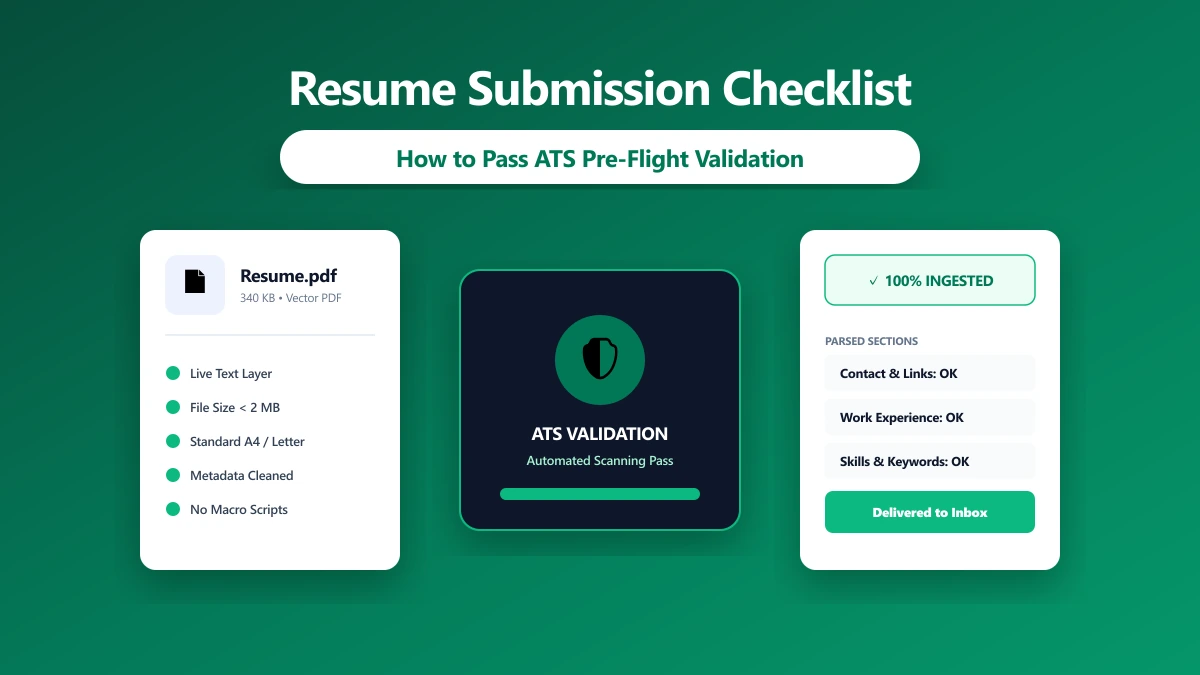
Avoid mechanical failures that get your application deleted. Follow this 6-step check for format, size, and metadata before uploading.
You spent hours drafting the perfect resume. You polished every bullet point, verified every date, and aligned every column. Then, you uploaded the file in thirty seconds to a corporate job portal and assumed your application was complete.
Unfortunately, thousands of carefully drafted resumes are deleted or ignored every day—not because the candidates lack qualifications, but because the files themselves fail simple, technical checks. A file that is too large, in the wrong format, poorly named, or carrying hidden metadata can easily trigger an automatic system rejection or end up in a recruiter\'s digital trash bin.
To ensure your application actually reaches human eyes, you must run a mechanical check before clicking submit. Here is a six-step pre-send checklist that takes less than two minutes and prevents your resume from being discarded.
Why Resumes Get Deleted: The Technical Filters
Hiring pipelines are highly automated. Before a human recruiter reads your work history, your file must pass through several database filters.
If a document fails a mechanical rule (such as exceeding a file size limit or carrying unreadable text), the portal will often silently discard the upload. Some systems display a vague error message; others accept the file but parse it as a blank page. The candidate assumes their resume is in the queue, while the employer sees an empty record.
Older server-side languages (such as legacy PHP, Perl, or old Java enterprise frameworks) still power many corporate application databases. These legacy frameworks often struggle with special characters in filenames. If your file contains brackets, parentheses, ampersands, or accented letters (e.g., resume(draft)@Acme.pdf or résumé-2026.pdf), the upload parser can crash or strip the extension. This results in the file saving on the server as resume_draft_Acme without the .pdf suffix. Without an extension, the recruiter\'s system cannot open the document, rendering the application unreadable.
To avoid this "black hole," you must treat your resume as a technical file that needs verification, not just a text document.
The Danger of Shared Cloud Storage Links (Google Drive, Dropbox, OneDrive)
A common mistake made by applicants is submitting links to shared cloud drives instead of attaching the actual file. They paste links to Google Drive, Dropbox, or OneDrive directly into their cover letter or email application.
While this seems convenient, it presents three severe problems that frequently lead to immediate deletion:
- 1.Security Policy Blocks: Many enterprise firewalls automatically block incoming emails containing links to public storage drives to protect against phishing attacks. Your application may be quarantined before the recruiter even knows it exists.
- 2.Permission Gating: Applicants frequently forget to adjust the sharing permissions to "Anyone with the link can view." When the recruiter clicks the link, they are greeted by a "Request Access" screen. Under time pressure, a recruiter will not request access; they will simply delete the email and move to the next candidate.
- 3.ATS Integration Failures: Application portals are designed to ingest document files, not external links. When you input a URL instead of a file, the tracking database cannot extract your skills, resulting in a blank profile.
Always upload the actual document file. If you must send a portfolio that requires a link, place the link inside the attached PDF rather than using it as a substitute for the file attachment.
The 6-Step Pre-Send Checklist
Run through these six steps in order before uploading your file to any application portal or attaching it to an email.
1. Format Check (PDF Default) -> 2. Filename Check -> 3. Size Check (< 2MB) -> 4. Metadata Clean -> 5. Portal Rule Review -> 6. Test OpenStep 1: Default to PDF (Unless Word is Requested)
PDF embeds your fonts and freezes your layout. What you see on your screen is exactly what the recruiter will see.
Conversely, Word documents (.docx) are designed to be editable. When opened on another computer with different software versions or missing fonts, a Word layout can shift, pushing text to new pages and creating awkward spacing. The Rule: Export to PDF. Use Word only if the posting explicitly demands a .docx file. The Caveat: Export your PDF directly from your editor. Do not print to PDF or scan a physical copy, as this flattens the file into an image that database parsers cannot read.
Step 2: Name the File for the Recruiter
Your filename should identify who you are and what job you want. A folder full of files called resume.pdf or resume-final.pdf is impossible for a recruiter to manage. The Pattern: FirstName-LastName-Resume-Role.pdf Example: John-Smith-Resume-SoftwareEngineer.pdf * Avoid: Spaces, brackets, and version numbers like v2 or draft.
Step 3: Compress the File Under 2MB
Portals enforce strict upload limits to save server space, and most do not declare their limits until your upload fails. A text-only resume is usually under 500KB. However, if your resume contains styled headers, a profile photo, or a scanned signature, the file size can easily exceed 2MB. * The Fix: Shrink your PDF before sending. You can run files through our PDF compressor. It runs locally in your browser, meaning your document is processed on your device\'s CPU and is never sent to a remote server. This keeps your phone number and address secure.
Step 4: Clear Stale Metadata properties
Documents remember their edit history. When you export a file from a word processor, it embeds hidden properties like the author\'s name, their company, and the original directory path.
If you edit your resume on a company laptop or use a friend\'s template, the file properties will carry those names. A recruiter checking the PDF properties will see this information instantly.
For instance, if your file properties title remains 13px]">C:\Users\JohnSmith\Desktop\JobSearch\Resumes\resume-for-Google.docx while you are submitting to a different company, this leak immediately signals careless copy-pasting. * The Fix: Strip the metadata. You can use our [remove metadata tool to clear all hidden author, company, and location tags entirely in your browser before uploading.
Step 5: Read the Specific Posting Rules
Never assume all portals are the same. Government sites (like USAJOBS), university applications, and enterprise platforms have strict rules regarding page counts, file formats, and naming schemes. If a job description says "no cover letters" or "limit resume to two pages," follow that instruction. An automated database will often flag or reject files that do not match these criteria.
Step 6: Run a Test Open
Before sending, save the final file, close your editor, and open the exported PDF from your file explorer. Can you select and highlight the text? If not, a parser cannot read it either. Are the page breaks clean, or did a heading shift to the next page? * Does the file open instantly without errors?
Mechanical Failures vs. Content Failures
To understand what actually happens when you submit a file, compare these common issues:
| Problem Type | Example | Consequence | How to Fix |
|---|---|---|---|
| Mechanical | Uploading a scanned, flat-image PDF. | The tracking database reads the file as empty. Your application is filtered out. | Export directly to PDF from your editor. |
| Mechanical | File size exceeds portal limits (e.g., 3MB). | The portal rejects the upload or crashes during submission. | Compress the PDF under 2MB. |
| Mechanical | Manual rename of extension (e.g., resume.docx renamed to resume.pdf). | The file fails to open and reports a corruption error. | Use a proper exporter or converter. |
| Polish | Naming the file resume_final_v2_updated.pdf. | The recruiter sees the draft labels and perceives you as untidy. | Rename to FirstName-LastName-Resume-Role.pdf. |
| Content | Poor keyword alignment with the job description. | The ATS ranks your resume low in the applicant list. | Tailor your text to the target job description. |
The Threat of Flat Image PDFs
Many candidates create their resumes using graphic design platforms (like Canva or Photoshop) or scan a printed page to PDF.
These graphic design platforms prioritize layout preservation over text data structure. When you export a document, the platform often flattens all text layers into pixels to ensure that your custom font displays correctly on other machines. This creates a "flat image" PDF. While the document looks perfect to a human, it contains zero readable text data for a computer. To an Applicant Tracking System, the file is completely empty.
To verify if your resume is readable: 1. Open your exported PDF in a browser tab or PDF viewer. 2. Try to double-click a word or drag your cursor across a sentence. 3. If you can highlight the text and copy-paste it into a text document, the text is live and readable. 4. If your cursor behaves like it is clicking an image, the file must be re-exported from a text processor.
If you need to convert a Word document containing live text, use our browser-based Word to PDF tool. It preserves the underlying text layer, ensuring the PDF remains searchable and readable for database systems.
Cleaning Hidden Data
Metadata leakage is a real privacy concern when applying for jobs. A PDF contract or resume does not just carry text; it carry identifiers.
If your photo was taken on a phone, the file can contain EXIF data listing the exact camera model, settings, and GPS coordinates of where the photo was taken. Similarly, documents carry the username of the account that created the file.
When you send this file to a company, anyone with basic file access can right-click the file to read this details. To prevent this, always pass your final PDF through a cleaner. Using our local remove metadata tool strips all EXIF, author, and directory path metadata in seconds without uploading the file to a server.
The Bottom Line
You cannot control whether an employer likes your experience, but you can control whether your file actually arrives and opens correctly on their screen.
Follow the pre-send check: Default to PDF, name the file cleanly, compress it under 2MB, clear the metadata, follow the portal rules, and test open your export.
If your resume is ready to submit but the file size is too large, use our local PDF compressor to shrink it safely. It works entirely on your local machine, keeping your personal details secure while ensuring your file is small enough to clear any portal filter.
Frequently asked questions
Why do hiring managers delete resumes without reading them?
Should I send my resume as a PDF or Word document?
.docx or .doc file format.How do I check if my resume PDF is readable by an ATS?
What is the maximum file size for online resume submissions?
Can recruiters see who originally created my resume file?
Is it safe to use free online PDF tools to compress my resume?
Can I submit a Google Drive link to my resume instead of a file?
Sources & references
This article was researched and written by Nikola, drawing on the following primary sources and documentation:
Ready to try it?
All tools run entirely in your browser, no uploads, no account required.
Compress PDFMore in Productivity
What Is the Best YouTube Thumbnail Size, Resolution, and Aspect Ratio? (2026 Specs)
How to Compress Huge Photoshop PSD Files for Client Email Preview (Export Guide)
How to Convert Scanned PNG Receipts to Searchable PDF With OCR (Tax & Expense Guide)