
Image Compression for Photographers: A Guide for People Who Actually Care About Quality
Summary
JPEG quality, colour profiles, generation loss, WebP for portfolios, the complete export guide for photographers who care about colour accuracy and fine detail.
You spend hours on a shoot and days in post-processing getting the tones exactly right. Then you export for the web, the client views it on their monitor, and the image looks flat and muddy, colours shifted, the subtle highlight rolloff you worked on lost in the compression. Export settings are the last step that most photographers treat as an afterthought, and it's the step that decides whether your work survives the trip to the viewer's screen.
This guide covers everything that actually matters at export time: which quality settings produce visible differences and which are overkill, why colour profiles break on the web, what generation loss does to re-saved JPEGs, and how to decide between JPEG and WebP for portfolio delivery. No marketing fluff, specific numbers for specific contexts.
The Generation Loss Problem
JPEG is a lossy format, every encode discards data that cannot be recovered. Every time you open a JPEG and re-save it, you add another generation of compression artifacts, even at quality 95. The loss is cumulative and irreversible. At high quality (90+), two or three re-save cycles are generally invisible. At moderate quality (80), even one unnecessary re-save is wasted degradation.
The rule is absolute: edit from the original RAW or TIFF, and export to JPEG as the final step. Every intermediate edit should stay in a lossless format (PSD, TIFF, DNG). The JPEG is your delivery format, not your working format.
Never use a JPEG downloaded from social media as an editing source. It has already been through at least two lossy passes: your original export and the platform's upload compression (Instagram, Facebook, and X all recompress aggressively). Start from RAW or original TIFF. If a client sends you a JPEG for retouching, export at quality 90+ and note the quality limitation.
Optimal Export Settings for Web Delivery
| Setting | Recommended value | Why |
|---|---|---|
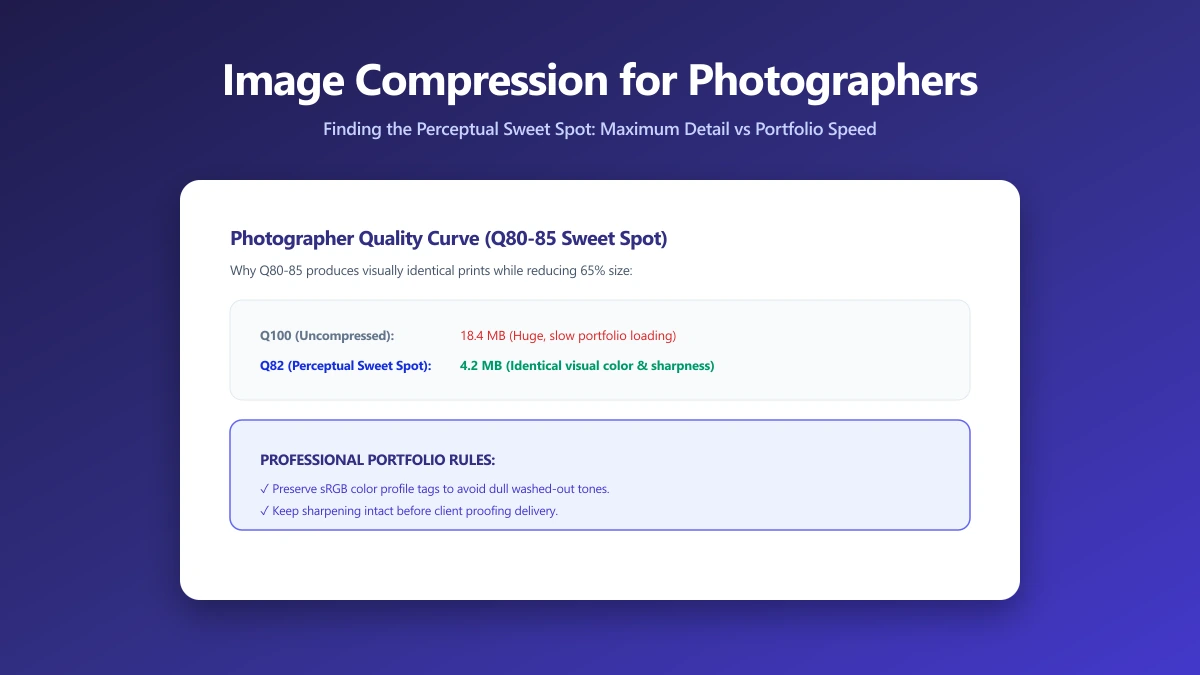
| Quality (JPEG) | 80–85 | Indistinguishable from original at screen resolution; 50–70% size saving vs Q95 |
| Quality (WebP) | 75–78 | Equivalent to JPEG Q85 visually; 25–35% smaller than equivalent JPEG |
| Colour space | sRGB | Adobe RGB and ProPhoto display with washed-out colours in non-colour-managed browsers |
| Resolution (PPI) | 72 PPI | PPI metadata has no effect on screen quality; 300 PPI adds unnecessary metadata |
| Sharpening | Light screen sharpening | Downsampling for web softens images; output sharpening restores perceived crispness |
| Metadata | Strip all or minimum | EXIF contains GPS coordinates; ICC profile optional (sRGB profiles are small) |
Colour Profile: The Most Common Web Export Mistake
Adobe RGB has a wider colour gamut than sRGB, it can represent more saturated greens and cyans. If you shoot RAW and work in Adobe RGB or ProPhoto RGB, your files look excellent in Lightroom and Photoshop, which are colour-managed applications. The problem: most browsers only reliably colour-manage embedded ICC profiles in some formats and contexts.
When an Adobe RGB JPEG is displayed in a browser without proper colour management (which still happens in some contexts and older browser versions), the richer colours are interpreted as sRGB values, and they appear desaturated. Greens look olive, blues look flat, skin tones shift. Converting to sRGB at export eliminates this inconsistency. The colour range difference is real but small enough that sRGB-converted images look vibrant and correct on every display.
JPEG vs. WebP for Portfolio Delivery
WebP at quality 75 produces files roughly 30% smaller than JPEG at quality 85, with equal or better visual fidelity on photographs. WebP browser support reached 97%+ in 2025. For a photography portfolio gallery of 20 images, WebP typically drops total payload from 12 MB to 8 MB, a meaningful improvement in LCP and mobile data usage for clients viewing on phones.
The remaining 3% of browsers without WebP support (mostly very old IE versions) would see no image unless you provide a JPEG fallback via the <picture> element. For a hosted portfolio (Pixieset, Format, SmugMug), the platform handles format negotiation. For self-hosted portfolios, implement the picture element properly.
# Batch convert exported JPEGs to WebP using cwebp (libwebp)
# Quality 78 WebP ≈ JPEG 85 visually; -metadata none strips all EXIF
for f in exports/*.jpg; do
  cwebp -q 78 -metadata none "$f" -o "\${f%.jpg}.webp"
done

# ImageMagick batch, handles mixed JPEG and PNG sources
magick mogrify -format webp -quality 78 -strip exports/*.{jpg,png}

# Sharp (Node.js), for automated pipelines
# sharp('input.jpg').webp({ quality: 78 }).toFile('output.webp')
Lightroom Export Settings
- ●File → Export → File Settings: JPEG, quality 80, sRGB
- ●Image Sizing: Resize to Fit: Long Edge, 2400px for full-res portfolio; 1200px for social; 800px for email galleries
- ●Output Sharpening: Sharpen For: Screen, Amount: Standard
- ●Metadata: Copyright Only (removes GPS, camera details; retains copyright notice)
- ●WebP export: Lightroom Classic added native WebP export in 2022, File Settings → JPEG/TIFF dropdown → WebP
Capture One Export Settings
- ●Output → Export Variants → Variant
- ●Format: JPEG, Quality 80; or WebP (built-in support added in Capture One 23)
- ●ICC Profile: sRGB IEC61966-2.1
- ●Sharpening: Screen preset
- ●Metadata: Include: Copyright, exclude GPS
Client Delivery: Format and Quality by Context
| Delivery context | Format | Quality | Max dimensions | Notes |
|---|---|---|---|---|
| Email preview gallery | JPEG | 75 | 1200px long edge | Keep total attachment under 10 MB |
| Online gallery (Pixieset, Pic-Time) | JPEG | 85–90 | 2400px | Platforms recompress, start with headroom |
| Self-hosted portfolio | WebP + JPEG fallback | 78 / 85 | 2000px | Use |
| Print order delivery | TIFF or JPEG | 95–100 | Full resolution | Never compress below Q90 for print delivery |
| Social media | JPEG | 85 | 1080px | Platforms recompress on upload regardless |
| JPEG | 85 | 1080×1350px | Portrait crops perform best in the feed |
Sharpening: Why and How Much
Downsampling a 24MP RAW to a 2400px web file reduces fine detail perceptibly, a process called softening from downsampling. Output sharpening corrects this by applying a light, targeted sharpening pass after resizing, before export. This is different from creative sharpening applied in processing.
- ●Lightroom Screen preset: Standard amount is appropriate for most web images. Increase to High only for very detailed subjects (architecture, macro).
- ●Photoshop Smart Sharpen: Amount 50%, Radius 0.4px, Remove: Lens Blur, run after resize, on a sharpening layer
- ●Capture One Screen preset: Built-in and calibrated per lens profile, usually no adjustment needed
- ●What not to do: Apply aggressive sharpening before downsampling. It gets lost in the resize and you're sharpening data that doesn't exist in the output.
EXIF and Privacy
EXIF metadata embedded in JPEGs includes: GPS coordinates (location where the photo was taken), camera serial number, lens information, timestamp, and editing software. For publicly published photos, stripping GPS is the minimum privacy step. For street photography and photos of private homes or individuals, consider stripping all metadata.
Our image compressor strips all EXIF metadata by default, compression and privacy protection in one step. If you need to preserve copyright metadata, export from Lightroom with "Copyright Only" selected and then compress the output.
Bottom Line
For portfolio and client delivery web images: JPEG quality 80, sRGB colour space, output sharpening, GPS stripped. For portfolio galleries where you control the HTML: WebP quality 78 with JPEG fallback via <picture> element. Never re-save JPEG intermediates, edit in lossless, export to JPEG once. Quality 90+ is for print intermediates and client deliverables, not web images. Quality 80 is indistinguishable from the original at any screen resolution a client is likely to view your work on.
Frequently asked questions
What JPEG quality should I use for portfolio images?
Should I export photos as JPEG or WebP for my portfolio?
Does re-saving a JPEG at quality 95 cause generation loss?
Why do my photos look desaturated when uploaded to the web?
Does the image compressor strip my EXIF data?
Sources & references
This article was researched and written by Nikola, drawing on the following primary sources and documentation:
Ready to try it?
All tools run entirely in your browser, no uploads, no account required.
Compress ImageMore in Productivity
What Is the Best YouTube Thumbnail Size, Resolution, and Aspect Ratio? (2026 Specs)
How to Compress Huge Photoshop PSD Files for Client Email Preview (Export Guide)
How to Convert Scanned PNG Receipts to Searchable PDF With OCR (Tax & Expense Guide)