
Resume File Format: PDF, Word, or Something Else?
Summary
PDF or Word for resume submissions? See how format choices affect applicant tracking systems (ATS) and recruiter views in 2026.
When you finish editing your resume, you are faced with a final, critical choice: what file format should you use to submit it? The two primary contenders are PDF (.pdf) and Microsoft Word (.docx).
This choice is more than a minor administrative detail. It directly affects whether your resume formatting remains intact when a recruiter opens it, and how easily an Applicant Tracking System (ATS) can parse your career history. Choose the wrong format, and your carefully designed layout can shift, converting a clean one-page resume into an awkward page-and-a-half document.
For the vast majority of job applications, PDF is the safer and more professional default. However, there are specific situations where a Word document is still required. Here is a comprehensive comparison of PDF and Word for resume submissions, how formats interact with tracking systems, and how to make the correct choice for your application.
The Core Battle: Preservation vs. Editability
The difference between PDF and Microsoft Word comes down to a fundamental technical trade-off:
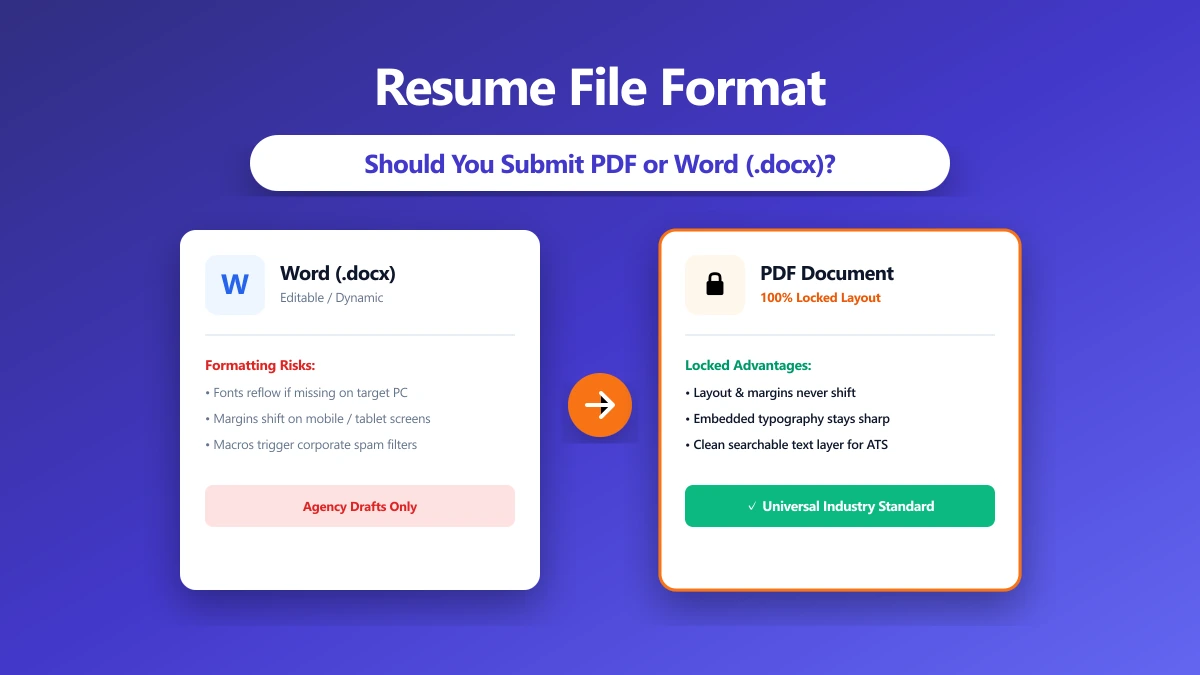
- ●PDF (Portable Document Format) is designed to preserve layout. It locks in fonts, alignments, margins, and column placements. When a recruiter opens a PDF, it will appear exactly as it did on your screen, regardless of whether they are reading it on a PC, a Mac, a phone, or a tablet.
- ●Word (
.docx) is designed to allow editing. Word files do not lock in formatting. Instead, they re-flow the text dynamically based on the reader\'s local system settings. If a recruiter opens your Word resume and does not have the same fonts installed, their software will substitute fonts, shifting lines and disrupting your page breaks.
When PDF Is the Correct Format
For most modern job applications, PDF is the default standard. You should use PDF in the following scenarios:
- 1.Applying Directly to a Company: If you are uploading your file directly to an employer’s careers portal, PDF ensures your resume layout remains clean.
- 2.Emailing a Hiring Manager: When sending your application to a manager via email, you cannot predict what device they will use to open the file. A PDF opens predictably on any operating system, including mobile devices.
- 3.Complex Layouts: If your resume uses columns, sidebars, dividers, or custom fonts, PDF is mandatory to keep these design elements in place.
- 4.No Explicit Format Instruction: If the job description does not specify a file format, default to PDF to ensure formatting consistency.
When Word Is Genuinely Better
While PDF is the safer default, Microsoft Word is not obsolete. In some pipelines, it is the correct choice:
- 1.Working with Recruitment Agencies: External recruiters often reformat your resume onto their own corporate template before presenting you to clients. They also strip your contact details to protect their agency placement fee. An editable Word document saves them from rebuilding your resume by hand.
- 2.Explicit Portal Instructions: Government portals (such as USAJOBS) or older corporate databases sometimes specify
.docxor.docin their file requirements. If an application form explicitly demands Word, follow that instruction. - 3.Older Tracking Systems: While rare, some outdated applicant tracking systems parse Word files slightly more cleanly than PDF text layers.
Technical Security: Email Filters and Macro Risks
Another reason PDF is preferred by modern IT departments is security. Corporate mail servers scan incoming attachments for malicious code. Word documents, particularly older .doc formats or files saved as macro-enabled templates (.docm), can carry VBA macro scripts. These macros are historically used to spread malware.
As a result, many enterprise email systems automatically flag, quarantine, or delete incoming Word documents containing macros or unrecognized scripts before they ever reach the recruiter\'s inbox. PDF files, while technically capable of carrying vulnerabilities, are treated as much lower-risk static documents by security firewalls. Submitting a PDF reduces the risk of your application being blocked by corporate spam filters.
Accessibility: Screen Readers and the Semantic Structure
For candidates with visual impairments, or for hiring departments that utilize screen readers to review documents, file format directly impacts accessibility.
Microsoft Word documents generally offer strong accessibility because they maintain a semantic layout structure by default. However, a properly tagged PDF is equally accessible. When you export a document to PDF from Word or Google Docs, the software translates your heading styles (H1, H2, H3) into document tags. A screen reader uses these tags to navigate the resume in logical reading order.
If you generate your PDF by scanning a paper document, the file lacks these tags and text layers. The screen reader will read the entire document as a single, unlabelled image, making your resume completely inaccessible to visually impaired hiring staff. Always export directly to PDF using text-based software to preserve this semantic tag structure.
Hidden Extensions: Preventing the Double Extension Error
A common source of technical errors during submission is the "double extension" mistake. Many operating systems (both Windows and macOS) hide known file extensions by default. This means a file saved as resume.pdf might display on your screen simply as resume.
If you are not aware of this setting, you might rename the file manually to resume.pdf, resulting in a file whose actual name is resume.pdf.pdf or resume.pdf.docx. When uploaded to a portal, these double-named files can trigger security flags or fail MIME-type checks, causing the upload portal to discard them.
How to Enable Extension Visibility:
- ●On Windows 11: Open File Explorer -> click View on the top menu -> hover over Show -> check File name extensions.
- ●On Windows 10: Open File Explorer -> click the View tab -> check the box for File name extensions.
- ●On macOS: Open Finder -> click Finder in the top menu bar -> select Settings (or Preferences) -> go to the Advanced tab -> check Show all filename extensions.
By making extensions visible, you ensure that you always know the exact format of the file you are uploading.
Resume Format Comparison Matrix
To compare the common document formats side-by-side, refer to this breakdown:
| Format | File Extension | Layout Preservation | ATS Compatibility | Recruiter Preference | Best Use Case |
|---|---|---|---|---|---|
.pdf | Excellent. Looks identical on all devices. | High (if exported with live text). | High. Standard for direct company hires. | Default choice for all direct submissions. | |
| Word | .docx | Poor. Formatting can shift dynamically. | High. Universal standard for text extraction. | Moderate. Preferred mainly by agencies. | When explicitly requested or working with recruiters. |
| Rich Text | .rtf | None. Strips all styling and layout elements. | High. Basic text parsing. | Low. Looks unpolished. | Never, unless specifically requested. |
| Plain Text | .txt | None. Strips all styling and fonts. | High. Basic text parsing. | Low. Unprofessional appearance. | Never, unless formatting is completely irrelevant. |
| Pages | .pages | Poor. Cannot open on Windows systems. | Low. Often fails to parse on web portals. | Low. Annoying for recruiters to open. | Avoid entirely. Export to PDF before sending. |
Formats to Avoid Entirly
Some candidates attempt to use alternative formats to stand out or solve design issues. Avoid these files:
- ●Image Formats (
.png,.jpg): These files flatten your text into pixels. They cannot be read by an ATS, and they cannot be searched by recruiters looking for key skills in a local downloads directory. - ●Google Docs Links: Sharing a live link to a Google Doc requires the recruiter to click out of their application pipeline, open a browser tab, and request access if the sharing settings are wrong. Most recruiters will skip the application rather than request permission.
- ●Apple Pages (
.pages): If you submit a.pagesfile, a recruiter using a Windows PC will be unable to open it. Always export Apple Pages documents to PDF before uploading.
How to Convert Your Resume to PDF Safely
To ensure your file format is clean, export your document directly from your editing software rather than using a print option.
- 1.In Google Docs: Go to File -> Download -> PDF Document (
.pdf). - 2.In Microsoft Word: Go to File -> Save As -> select PDF (
.pdf) from the format dropdown. - 3.Using an Online Converter: If you have a
13px]">.docxfile and want to convert it without opening a word processor, you can use our [Word to PDF tool. It handles the conversion locally in your browser using WebAssembly. This means your personal contact details, address, and phone number are never uploaded to an external server. The converted file is saved directly to your machine.
Verifying Your PDF Formatting
Before submitting your converted PDF, run a quick check to make sure the format transfer succeeded:
- ●Test Text Selection: Open the PDF and try to copy a sentence. If you can select the text, the file has a live text layer and is compatible with applicant tracking systems.
- ●Verify Page Breaks: Ensure no headings have been pushed to a new page, leaving empty space at the bottom of the previous page.
- ●Check the File Size: Ensure the PDF is under 2MB to clear common portal upload limits. If your file is too large due to embedded layouts or photos, compress it locally using our PDF compressor before uploading.
The Bottom Line
Default to PDF unless the job description explicitly asks for a Word document. PDF protects your layout, locks in your design, and is fully compatible with modern applicant tracking systems. Keep a .docx version on your local drive for quick edits, and export a clean PDF for submission.
If your Word resume is complete and ready to convert, run it through our browser-native Word to PDF tool. It converts the format locally on your device\'s CPU, ensuring your contact details remain private while locking in your formatting for the recruiter.
Frequently asked questions
Is it better to send a resume as a PDF or Word document?
Do applicant tracking systems read PDF resumes correctly?
Why do recruitment agencies ask for Word documents instead of PDFs?
How do I convert my resume from Word to PDF?
Can a PDF resume be parsed by an ATS if it has two columns?
Are Word files or PDFs safer from email spam filters?
What should I do if my operating system hides my resume\'s file extension?
resume.pdf.docx) which break upload systems.Sources & references
This article was researched and written by Nikola, drawing on the following primary sources and documentation:
More in Productivity
What Is the Best YouTube Thumbnail Size, Resolution, and Aspect Ratio? (2026 Specs)
How to Compress Huge Photoshop PSD Files for Client Email Preview (Export Guide)
How to Convert Scanned PNG Receipts to Searchable PDF With OCR (Tax & Expense Guide)