
Shopify Image Optimization: What the Platform Does (and Doesn't Do) For You
Summary
Shopify serves WebP and has a CDN, but it won't resize a 14 MB banner or fix your LCP. Here's the checklist that actually moves your PageSpeed score.
Shopify stores are routinely blamed on a "heavy theme" when the real cause is a single collection banner uploaded at 8000×5000 pixels and 14 MB. Shopify serves that file to every visitor's phone, scales it down in-browser, and the visitor waits. The platform does a lot for image delivery, but not everything. Understanding exactly where Shopify's automation ends and your manual work begins is the difference between a 45 and a 90 PageSpeed score.
Most Shopify merchants never touch their image settings after launch. They upload whatever comes out of the camera app or design tool and trust that "Shopify handles it." For a store with ambitions past 50K monthly visitors, that's a mistake with a real revenue cost: Google's research shows a 100ms improvement in page load correlates with a 0.6–1% increase in conversion rate.
What Shopify Does Automatically
Shopify's image infrastructure is genuinely good. Here's what happens without any action from you:
- ●WebP serving: Shopify's CDN (Fastly) automatically serves WebP to browsers that support it, about 97% of all traffic. You upload a JPEG; visitors receive WebP.
- ●Global CDN: Images are served from the nearest Fastly edge node. A visitor in Singapore gets the image from an Asian PoP, not your origin server.
- ●Thumbnail generation: Shopify generates seven standard sizes from your uploaded source (100px, 160px, 240px, 480px, 640px, 1024px, 2048px). Theme code requests the appropriate size.
- ●Lazy loading: Most modern Shopify themes apply
loading="lazy"to product grid images, below-fold images defer loading until the user scrolls. - ●HTTPS delivery: All image URLs use HTTPS automatically; no mixed-content issues.
What Shopify Does NOT Do
This is the part that surprises most merchants:
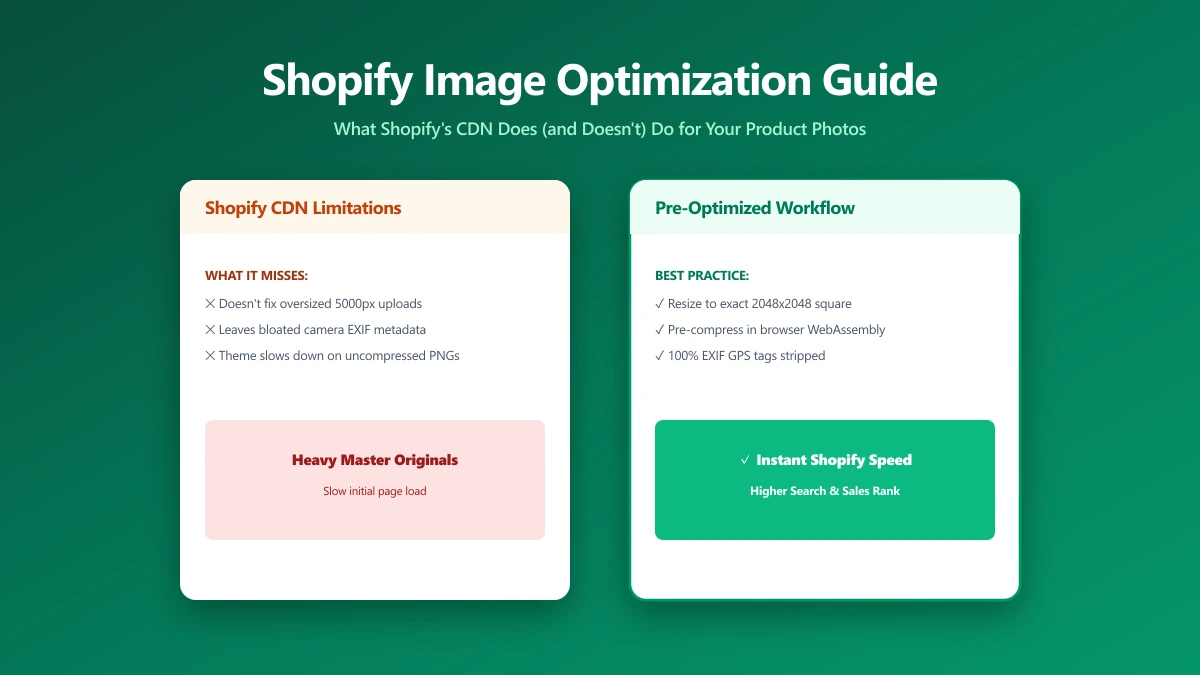
- ●Shopify will not refuse an oversized upload. A 15 MB, 8000×5000px image uploads successfully, is stored in full, and its processing time on the CDN is proportionally longer.
- ●Shopify will not fix a poor quality source. If you upload a blurry, over-compressed JPEG, the CDN serves a blurry image. Quality in = quality out.
- ●Shopify will not add
fetchpriority="high"to your LCP image. This is controlled by theme code. Most themes do not do it, which is a direct LCP regression for every page. - ●Shopify will not strip EXIF metadata. GPS coordinates, device model, shooting timestamp, and software version are preserved on your product images. These add unnecessary file weight and expose data you likely do not want public.
- ●Shopify will not resize your banner to a sensible dimension. You upload a 6000px hero image; Shopify stores it at 6000px and generates thumbnails from it. Uploading at 2048px instead saves storage, reduces processing, and produces identical display quality.
Shopify's largest generated thumbnail is 2048px. Uploading a 6000px source gives you no additional display quality, but the 6000px file is stored in full and processing takes longer. Always upload banners and product images at 2048px or below.
Shopify Images vs. PageSpeed: What Gets Flagged
| PageSpeed Insight | Root cause | Shopify fixes it? | You fix it? |
|---|---|---|---|
| Serve images in modern formats | JPEG source uploaded; CDN serves WebP | Yes (auto) | - |
| Properly size images | Hero uploaded at 4000px, rendered at 800px | No | Yes, resize before upload |
| Eliminate render-blocking resources (LCP) | No fetchpriority="high" on hero | No | Yes, edit theme Liquid |
| Defer offscreen images | lazy missing on some images | Partially (theme-dependent) | Yes, check theme code |
| Efficiently encode images | JPEG quality 95+ at upload | No | Yes, compress to q80 before upload |
| Remove unused metadata | EXIF preserved | No | Yes, strip before upload |
The LCP Problem on Shopify Stores
The LCP element on most Shopify stores is the hero banner or the first product image in the product detail page. LCP is the primary Core Web Vitals metric Google uses for search ranking. Common LCP failures on Shopify:
- ●Banner uploaded at 4000×2000px, even the 2048px thumbnail Shopify generates is large; the source is wasteful
- ●
loading="lazy"on the hero banner, most themes apply lazy loading globally, which delays the most important image on the page - ●No
fetchpriority="high", the browser treats the hero image with the same priority as a product thumbnail below the fold - ●Banner served as 1920px to a 390px phone, Shopify generates a 640px thumbnail but some theme configurations request the 1920px size for mobile too
Theme Liquid Fix: fetchpriority for the Hero Image
{%- comment -%}
  Add to your hero/banner section Liquid file.
  Sets fetchpriority="high" only for the first section (LCP candidate).
{%- endcomment -%}
{%- if section.index == 1 -%}
  {%- assign fetchpriority = "high" -%}
  {%- assign loading = "eager" -%}
{%- else -%}
  {%- assign fetchpriority = "auto" -%}
  {%- assign loading = "lazy" -%}
{%- endif -%}

<img
  src="{{ image | image_url: width: 1920 }}"
  srcset="{{ image | image_url: width: 750 }} 750w,
          {{ image | image_url: width: 1100 }} 1100w,
          {{ image | image_url: width: 1500 }} 1500w,
          {{ image | image_url: width: 1920 }} 1920w"
  sizes="100vw"
  loading="{{ loading }}"
  fetchpriority="{{ fetchpriority }}"
  width="1920" height="600"
  alt="{{ image.alt | escape }}"
>
Practical Shopify Image Upload Checklist
- 1.Banner/hero images: 1920×600px (standard widescreen banner), compressed to under 300 KB before upload. Never upload the raw camera export.
- 2.Product main image: 2048×2048px square (Shopify's thumbnail engine works best with square sources), JPEG quality 80, under 400 KB.
- 3.Product gallery images: Same spec as main, Shopify generates all thumbnail sizes from the same uploaded source.
- 4.Collection page thumbnails: Shopify renders these at ~450px wide. A 1200px source is more than enough; aim for 100–200 KB per image.
- 5.Strip EXIF before upload: Remove GPS, device info, and timestamps. Use imagepdf.tools/remove-metadata, done in-browser, nothing uploaded.
- 6.Check theme Liquid for lazy-loading the hero: Search your theme files for
loading="lazy"and remove it from the first section image.
The Bottom Line
Shopify's CDN and automatic WebP conversion handle delivery perfectly. The bottleneck is always the source file you upload. Compress banner images to under 300 KB and product images to under 400 KB before uploading. Compress your product images here, everything happens in your browser, nothing is uploaded to our servers.
Frequently asked questions
Does Shopify automatically convert images to WebP?
What image dimensions should I use for Shopify product photos?
Why is my Shopify store still slow after optimizing images?
Does Shopify strip EXIF data from uploaded images?
What is the maximum image size I should upload to Shopify?
Sources & references
This article was researched and written by Nikola, drawing on the following primary sources and documentation:
Ready to try it?
All tools run entirely in your browser, no uploads, no account required.
Compress ImageMore in Productivity
What Is the Best YouTube Thumbnail Size, Resolution, and Aspect Ratio? (2026 Specs)
How to Compress Huge Photoshop PSD Files for Client Email Preview (Export Guide)
How to Convert Scanned PNG Receipts to Searchable PDF With OCR (Tax & Expense Guide)