
What Is the Best Image Format and File Size for HTML Email Newsletters? (Inbox Guide)
Summary
Which image formats work in Gmail, Outlook and Apple Mail, why newsletter images should be 1200 px wide with a width attribute, sensible file sizes, and what really triggers Gmail clipping.
Use JPEG for photos, PNG for logos and graphics with flat color or transparency, and GIF only when you need animation. For a standard 600 pixel email, make full-width images 1200 pixels wide, set width="600" on the image tag, and aim for roughly 100 to 200 KB per photo and about 1 MB for all the images in one email.
Those sizes are not limits enforced by any mail client. They are what keeps a newsletter quick to open on a phone over mobile data. The one hard number people quote, Gmail's 102 KB, applies to the HTML code of the message, not to linked images. The sections below explain each choice so you can adapt it to your own template.
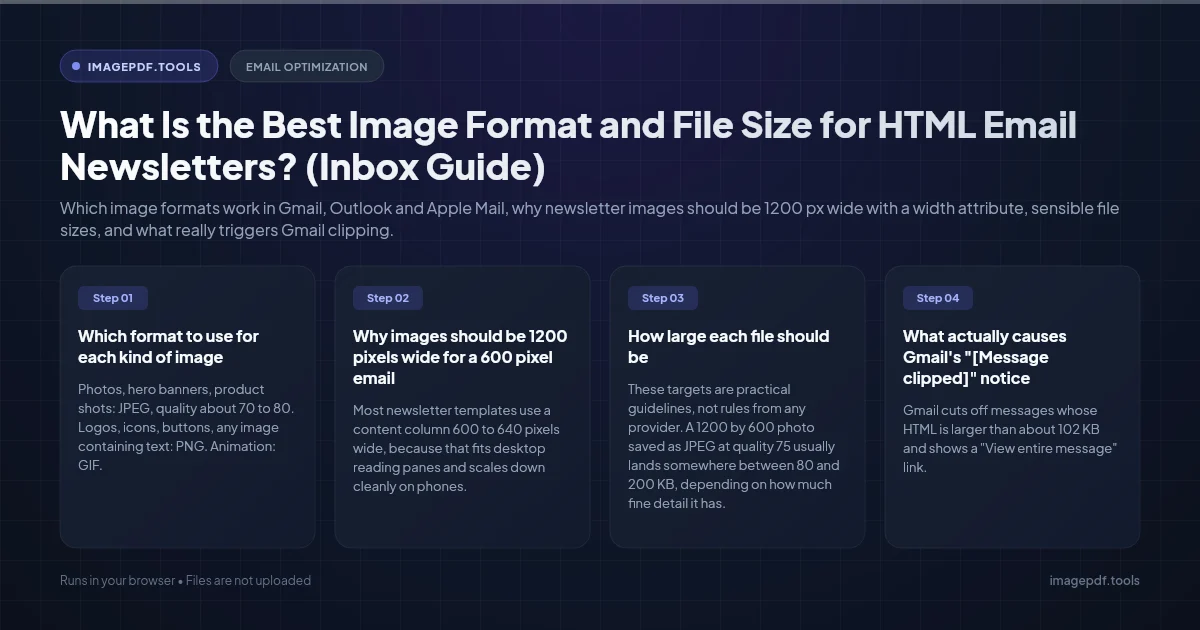
Which format to use for each kind of image
| Image | Format | Why |
|---|---|---|
| Photos, hero banners, product shots | JPEG, quality about 70 to 80 | Smallest file for continuous tone. Photos rarely need transparency. |
| Logos, icons, buttons, any image containing text | PNG | Keeps hard edges without the smudgy halos JPEG puts around lettering, and supports transparency. |
| Animation | GIF | The only animated format with broad support. Some Outlook versions show only the first frame. |
| WebP | Not as the only version | Support is partial. Gmail converts WebP to JPG and drops animation, and webmail support depends on the reader's browser. |
| SVG | Avoid | Many clients rasterize or block it. Gmail turns it into a PNG. |
If your PNG logo has only a few flat colors, save it as an 8-bit (palette) PNG. It looks identical and is often a fraction of the size of a 24-bit PNG. Photos saved as PNG are the most common reason a newsletter image weighs a megabyte or more, so check that your hero banner really is a JPEG.
Transparent logos and dark mode do not always mix. Apple Mail, Outlook and Gmail apps can switch the email background to dark gray while leaving your image untouched, so a black logo on a transparent background can vanish. Either give the logo a light outline or glow, or place it on a solid background color that is part of the image.
Why images should be 1200 pixels wide for a 600 pixel email
Most newsletter templates use a content column 600 to 640 pixels wide, because that fits desktop reading panes and scales down cleanly on phones. Phones and most laptops now have high-density screens that use two or three physical pixels for every pixel in your layout. A 600 pixel image stretched across that space looks soft, especially any text inside it.
Exporting at twice the display width fixes that. A full-width image becomes 1200 pixels wide. An image in a 280 pixel column becomes 560 pixels wide. Going to 3x is rarely worth it: the file has 2.25 times the pixels of the 2x version for a difference few readers can see.
The HTML matters as much as the file. Classic Outlook for Windows renders email with Word's layout engine, which ignores CSS max-width on images and uses the width attribute instead. Leave the attribute out and a 1200 pixel image appears at its full 1200 pixels, breaking the layout. Use both the attribute and the CSS:
<img src="https://cdn.example.com/spring-sale-1200.jpg"
     width="600" alt="Spring sale: 30% off all rain jackets"
     style="display:block; width:100%; max-width:600px; height:auto; border:0;">
The attribute sets the size in Outlook, width:100% and max-width let it shrink on phones, and display:block removes the thin gap that otherwise appears under images inside table cells.
How large each file should be
These targets are practical guidelines, not rules from any provider. A 1200 by 600 photo saved as JPEG at quality 75 usually lands somewhere between 80 and 200 KB, depending on how much fine detail it has.
- ●Full-width hero photo (1200 px): 100 to 200 KB. If it is much larger, lower the JPEG quality a few steps before you reduce the dimensions.
- ●Half-width product photos (about 560 px): 40 to 80 KB each.
- ●Logo or icon PNG: under 30 KB. A palette PNG is usually far smaller.
- ●Animated GIF: under 1 MB, and ideally well under. Every frame is a full image, so length and dimensions add up fast.
- ●Whole email: around 1 MB of images in total keeps load time reasonable on a weak mobile connection.
Keep real text in the HTML too. An email that is one big image fails completely when images are blocked, cannot be read by screen readers, and is a common pattern in spam, which filters notice.
What actually causes Gmail's "[Message clipped]" notice
Gmail cuts off messages whose HTML is larger than about 102 KB and shows a "View entire message" link. Only the code counts: markup, inline styles, link URLs and tracking parameters. A linked image file on a server adds nothing beyond its URL, so a 2 MB photo does not cause clipping by itself.
Embedded images are different. An image written into the HTML as base64 text grows by about a third, so a single 75 KB picture becomes roughly 100 KB of code and can clip the email on its own. Clipping hides whatever comes last, which usually means your footer, the unsubscribe link and any open-tracking pixel. Host images on your email platform or a web server instead, and keep the HTML lean by removing unused styles and long tracking strings.
A preparation routine that works in any email platform
- 1.Check your template's content width in your email builder. It is usually 600 or 640 pixels; note the width of any narrower columns too.
- 2.Export each image at twice the width it will display at. In Figma, choose 2x in the export settings. In Photoshop, use File > Export > Export As and type the pixel width.
- 3.Choose the format from the table above: JPEG for photos, PNG for graphics and text, GIF for animation.
- 4.Compress each file and check it against the size targets. Resize Image sets an exact pixel width and Compress JPEG shows the file size as you move the quality slider. Both run in your browser, so campaign images are not uploaded anywhere before launch.
- 5.Upload the images to your email platform's file manager, or to a server that serves them over HTTPS.
- 6.Add the
widthattribute and meaningful alt text to every image. Use an emptyalt=""for spacers and purely decorative images. - 7.Send a test to a Gmail address, a classic Outlook desktop install if your audience uses it, and an iPhone. Open one copy with images turned off to see how the email reads without them.
Animated GIFs: plan for the first frame
Outlook 2007 through 2019 on Windows shows only the first frame of an animated GIF. Outlook for Microsoft 365 can play animation, but enough people still use older installs that frame one should carry the whole message on its own: the headline, the offer and a clear call to action.
GIF size grows with dimensions, frame count and color count. Animated GIFs are often exported at 1x (600 pixels wide) rather than 2x because the 2x file can be four times heavier. Cutting the frame rate, trimming the loop to a few seconds and reducing the palette to 64 or 128 colors are the quickest savings.
Plan for blocked images
Corporate mail systems and some desktop clients do not show images until the reader allows them. Put the essential information in live text, write alt text that says what the image communicates rather than what it looks like, and give buttons real HTML text instead of baking the words into a picture. Several clients show alt text in the font and color set on the image tag, so styling it is a small extra worth doing.
Frequently asked questions
Do I need separate image files for mobile?
Should I attach images to the email instead of linking them?
Does Gmail change my images?
Why does my PNG logo have a white fringe in dark mode?
Is there a maximum total size for a newsletter?
Sources & references
This article was researched and written by Nikola, drawing on the following primary sources and documentation:
Ready to try it?
All tools run entirely in your browser, no uploads, no account required.
Reduce Image SizeMore in Productivity
What Is the Best YouTube Thumbnail Size, Resolution, and Aspect Ratio? (2026 Specs)
How to Compress Huge Photoshop PSD Files for Client Email Preview (Export Guide)
How to Convert Scanned PNG Receipts to Searchable PDF With OCR (Tax & Expense Guide)