
What's the Professional Way to Name Your Resume?
Summary
Get clear examples of professional resume filenames. Learn the step-by-step formula to name your PDF or Word document for job portals.
When you send a job application, every single detail counts. While job seekers dedicate hours to alignment, font choices, and polishing the bullets of their resume, they often overlook the very first thing a recruiter sees: the file name.
Naming your resume incorrectly is a common friction point that can make your application look generic or disorganised. Recruiters download dozens of files a day. If your resume is saved as resume.pdf or updatedcv.docx, it will quickly get lost in their local directories. Conversely, a clear, descriptive filename presents you as a structured, detail-oriented candidate before anyone opens the document.
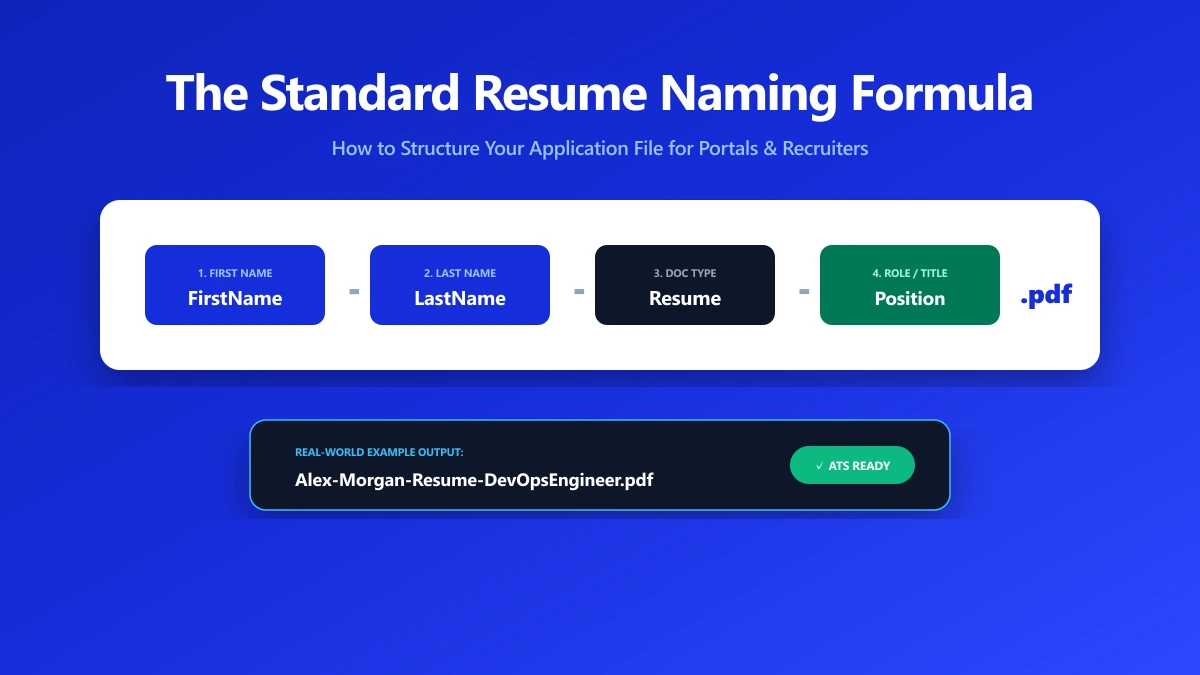
The professional way to name your resume is to use a simple, repeatable formula: FirstName-LastName-Resume-Role.pdf. Here is the exact breakdown of how this formula works, why each component matters, and how to apply it across all your job applications.
The Four-Part Naming Formula
A professional filename should answer two questions immediately for a stranger: whose file is this, and what is it for? To do this effectively, divide your filename into four logical segments:
[First Name] - [Last Name] - [Document Type] - [Target Role] . [Extension]Let\'s look at each segment in detail:
1. Your Full Name
Always start the filename with your name. Recruiters sort their downloads folder alphabetically. Starting with your name ensures your resume, cover letter, and references all group together under your last name. Good: Jane-Doe-Resume... Bad: Resume-Jane-Doe... (this groups under "R" rather than "D" or "J")
2. The Document Type
Clearly state what the document is. Use the word "Resume" or "CV" depending on your location and industry standards. This prevents the recruiter from mistaking your resume for a cover letter or portfolio. Good: ...-Resume-... Bad: ...-File-... or ...-Doc-...
3. The Target Role (Highly Recommended)
Tying the filename to the specific role you are applying for shows that the document is tailored and deliberate. It also helps internal recruiters route your file to the correct department. Good: ...-ProductDesigner.pdf Bad: ...-JobApplication.pdf
4. The Correct File Extension
Always submit your resume in a standard format, preferably PDF. The file extension (.pdf or .docx) should reflect the actual format of the export, not a renamed extension. Good: .pdf Bad: .docx (if the portal specifically requested PDF)
Separators: Hyphens, Underscores, and Spaces
How you separate the words in your filename affects both its readability and its technical compatibility with application portals.
There are three common ways to separate words in a filename:
Hyphens (Recommended)
Jane-Doe-Resume-ProductDesigner.pdf Hyphens are the gold standard for web files. They are highly readable for humans, and search engine algorithms read hyphens as spaces. They are universally compatible with all modern applicant tracking systems.
Underscores (Universal Safe Default)
Jane_Doe_Resume_ProductDesigner.pdf Underscores are equally safe from a technical perspective. They keep words separated cleanly and never cause errors during system uploads.
Spaces (Avoid)
Jane Doe Resume Product Designer.pdf While operating systems like Windows and macOS handle spaces easily, web browsers and database backends do not. When you upload a file with spaces to a website, the browser converts the spaces to %20. A filename like Jane%20Doe%20Resume%20Product%20Designer.pdf looks messy and hard to read.
Recruiter Search Behavior: Naming for Search Engine Optimization
Recruiters don\'t just review files immediately; they search through their local directories and databases months later when new roles open up. To understand how they find candidates, you must understand their search queries.
A recruiter seeking a Python developer will often search their shared local storage or ATS database by typing queries like Python, Developer, or Software Engineer. If your filename is Jane-Doe-Resume.pdf, your document will only show up if the search tool indexes the full-text content of the file. However, if the recruiter’s search tool only scans filenames (which is very common for local desktop search utilities like Windows Search or Mac Spotlight), your file will be ignored.
By adding your core skill or job title directly to the filename (e.g., Jane-Doe-Resume-PythonDeveloper.pdf), you perform a micro-SEO optimization. Your file will rank at the top of their local search results when they filter their downloads folder for that skill. This is a simple, high-yield tactic that helps your application get rediscovered for future openings.
Adding Professional Credentials (CPA, PMP, PhD)
If you hold a recognized professional credential that is highly relevant to your target industry, including it in your filename can provide an immediate boost.
Credentials like CPA (Certified Public Accountant), PMP (Project Management Professional), PE (Professional Engineer), or PhD signal instant qualification.
If you choose to include credentials, place them right after your last name using a hyphen, like this: Jane-Doe-CPA-Resume-FinanceManager.pdf Jane-Doe-PMP-Resume-ITDirector.pdf
Keep this addition concise. Only include credentials that are explicitly listed as required or highly preferred in the job posting. Do not list multiple minor certifications, as this clutters the filename and makes it harder to read in narrow inbox columns.
Handling Multiple Target Roles and Versioning
Many candidates apply for different types of roles simultaneously. For example, a candidate might target both "Data Analyst" and "Business Analyst" positions. In this case, you must tailor your resume content—and your filename—to match each target job description.
If you are applying for a Data Analyst role: * Submit: Jane-Doe-Resume-DataAnalyst.pdf
If you are applying for a Business Analyst role: * Submit: Jane-Doe-Resume-BusinessAnalyst.pdf
This level of detail signals to each employer that you are focused on their specific role, rather than sending a generic, broad application.
Keep your internal version labels (like v2 or draft) saved privately in your folder system. Never send a file with version tags to an employer. It implies the document is still a draft and suggests a lack of final polish.
Examples of Correct and Incorrect Filenames
To illustrate the difference between professional presentation and common mistakes, look at this comparative table:
| Filename | Status | Reason |
|---|---|---|
Jane-Doe-Resume-MarketingManager.pdf | Professional | Clean, lists name, document type, and role. Easy to sort and search. |
Jane_Doe_CV.pdf | Acceptable | Clean, but lacks the target role. Works well for general applications. |
resume.pdf | Incorrect | Generic. Will get overwritten or appended with numbers (e.g., resume(1).pdf) in the recruiter’s folder. |
Jane_Doe_Resume_AcmeCorp.pdf (sent to Globex) | Fatal Error | Shows the candidate sent a file tailored for a competitor. Projects high carelessness. |
Jane-Doe-Resume-v2-final.pdf | Unprofessional | Leaks the candidate\'s internal drafting process. Looks unpolished. |
Scan_0012.pdf | Unprofessional | Suggests a printed paper resume was scanned in a hurry. Contains no name or identifier. |
The Complete Application Package
If you are attaching multiple documents to an application (such as a resume, cover letter, and portfolio), make sure the filenames match. This creates a cohesive "package" that looks professional and keeps your documents together when saved.
Standard Attachment Set:
- ●Resume:
Jane-Doe-Resume-ProjectManager.pdf - ●Cover Letter:
Jane-Doe-CoverLetter-ProjectManager.pdf - ●Portfolio:
Jane-Doe-Portfolio-ProjectManager.pdf - ●References:
Jane-Doe-References-ProjectManager.pdf
Matching names make the pairing obvious even after the files are saved and separated on someone else’s machine. It ensures that if a recruiter forwards only your resume and cover letter to a hiring manager, the manager immediately knows they belong to the same candidate.
Portal Instructions: The One Rule That Overrides Everything
While FirstName-LastName-Resume-Role.pdf is the recommended default, you must always check the job posting for specific portal requirements before exporting.
Some employers, particularly government agencies, universities, and large enterprise firms, enforce strict naming conventions to help their internal systems route files.
For example, a posting might state: > "Please name your file in the format: LastName_FirstName_JobRefID"
If you see an instruction like this, follow it literally. Failing to follow a specific naming directive on an application portal can result in your file being automatically rejected by the database or skipped by recruiters testing your ability to follow simple instructions.
Common Export and Saving Troubleshooting
Many job seekers make formatting errors when saving or converting their files. Here are the main errors and how to solve them:
Renaming the Extension Manually
If you save a file in Word as 13px]">resume.docx and manually change the name to resume.pdf in your file explorer, the file does not convert. It remains a Word document with a misleading name. When a recruiter tries to open it, their PDF reader will report a corruption error. * Fix: Use a real converter. Go to File -> Export -> Create PDF in Word, or convert it in your browser using our [Word to PDF tool.
Image-Only PDFs
If you scan a printed resume to create a PDF, the file becomes a flat image. The text cannot be highlighted or read by search engines. An applicant tracking system will parse this as a blank document. * Fix: Export directly from your word processor (like Google Docs or Word) rather than scanning. Test this by trying to highlight and copy a sentence in your finished PDF; if you cannot select the text, the file needs to be re-exported.
File Size Limits
A resume with embedded headshots, high-resolution logos, or styled graphics can easily exceed 2MB. Most application portals enforce a strict limit (often 2MB or 5MB) and will fail to upload without telling you why. * Fix: Compress your PDF. Our PDF compressor operates entirely in your browser. It does not send files to a server; the compression happens locally on your CPU in seconds.
The Bottom Line
Your filename is the wrapping paper of your application. Naming it professionally costs about five seconds and removes one more potential point of friction from the hiring process.
Stick to the formula: FirstName-LastName-Resume-Role.pdf. Use hyphens, skip the version numbers, match your attachments, and verify the portal rules.
If you are ready to export your resume, convert it securely with our local Word to PDF tool. It locks in your layouts and preserves your custom filename without transmitting your private contact details over the web.
Frequently asked questions
What should I name my resume file?
FirstName-LastName-Resume-Role.pdf, for example Jane-Doe-Resume-ProjectManager.pdf. This convention is clean, easy for recruiters to sort, and compatible with all tracking systems.Should my cover letter name match my resume name?
Jane-Doe-CoverLetter-ProjectManager.pdf). This groups your documents together in downloads folders.Is it better to use hyphens or underscores in a resume filename?
-) are slightly more readable and are the standard format for web URLs. Underscores (_) are equally safe. Avoid spaces, as they translate to %20 on web portals.Should I put the company name in my resume filename?
Jane-Doe-Resume-Google.pdf to Apple is a critical error that can end your application. To be safe, use your target role instead of the company name.Does the resume filename matter to an ATS?
How do I version my resumes if I apply to multiple roles?
v1, v2, or draft in your local computer folders. When exporting the file for submission, save it with a clean name like FirstName-LastName-Resume-Role.pdf so the recruiter only sees the polished, final file.Should I include credentials like CPA or PMP in my resume filename?
Jane-Doe-PMP-Resume.pdf. Avoid listing minor certifications to prevent filename clutter.Sources & references
This article was researched and written by Nikola, drawing on the following primary sources and documentation:
More in Productivity
What Is the Best YouTube Thumbnail Size, Resolution, and Aspect Ratio? (2026 Specs)
How to Compress Huge Photoshop PSD Files for Client Email Preview (Export Guide)
How to Convert Scanned PNG Receipts to Searchable PDF With OCR (Tax & Expense Guide)