How to Batch Rename Hundreds of Images and Scanned PDFs Based on Date or Content
Summary
Rename photos by the date they were taken and scanned PDFs by the text inside them. PowerRename on Windows, Finder on Mac, ExifTool for any system, and a script for invoice numbers.
To rename photos by the date they were taken, use a tool that reads the EXIF capture date: PowerToys PowerRename on Windows or ExifTool on any system. To rename scanned PDFs by what they say, the files first need a text layer from OCR; then a short script can pull an invoice number or a date out of each one and use it as the name.
Whatever you use, aim for names that start with the date as YYYY-MM-DD. That is the ISO 8601 order, and it is the only date format where alphabetical sorting is also chronological, in every file manager and cloud drive.
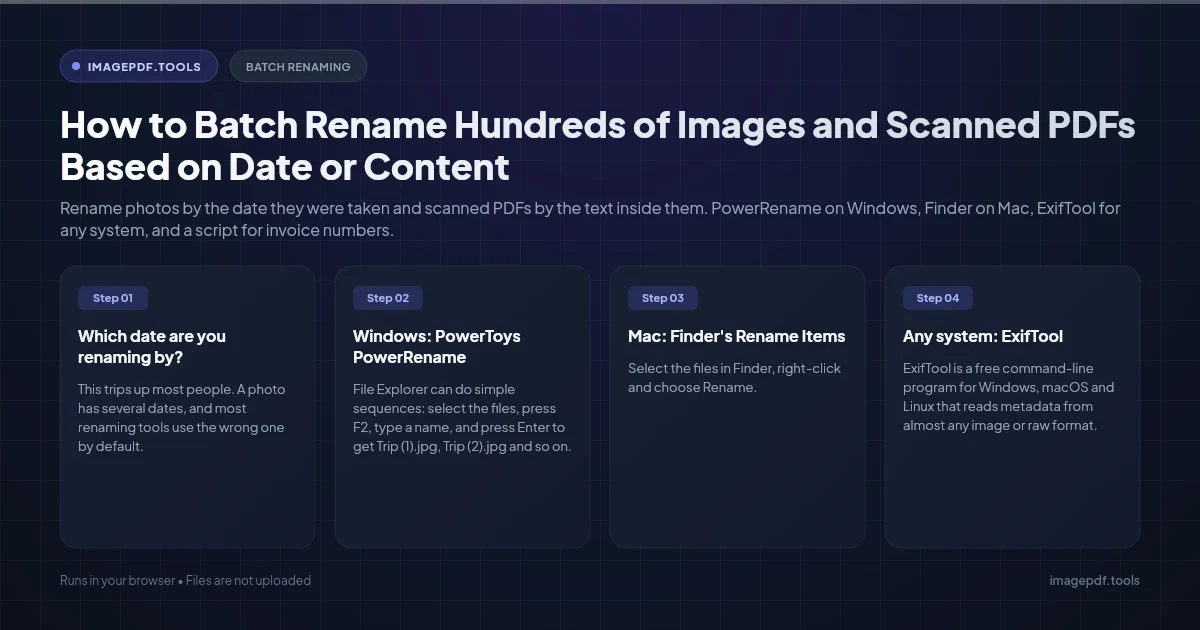
Which date are you renaming by?
This trips up most people. A photo has several dates, and most renaming tools use the wrong one by default.
| Date | Where it lives | Reliable for photos? |
|---|---|---|
| Date taken (DateTimeOriginal) | EXIF inside the image file | Yes, set by the camera when the shutter fired |
| Date created | File system | No, it resets when the file is copied to a new drive |
| Date modified | File system | No, it changes when you edit, rotate or re-save |
| Scan date | PDF properties or file system | Only tells you when it was scanned, not the date on the document |
Screenshots, images saved from messaging apps and files that went through a metadata stripper often have no EXIF date at all. Check a few files first: on Windows, right-click, Properties > Details, and look for Date taken; on a Mac, open the file in Preview and choose Tools > Show Inspector. Our Metadata Editor also shows every EXIF field in your browser without uploading the photo.
Windows: PowerToys PowerRename
File Explorer can do simple sequences: select the files, press F2, type a name, and press Enter to get Trip (1).jpg, Trip (2).jpg and so on. For dates and proper numbering, install Microsoft's free PowerToys and use PowerRename.
- 1.Select the photos in File Explorer, right-click and choose Rename with PowerRename.
- 2.In Search for, enter
.*and tick Use regular expressions, so the whole old name is replaced. Set Apply to to filename only, so the extension stays. - 3.Switch the date patterns from file creation time to photo metadata (EXIF or XMP) in the pattern menu next to Replace with. This is what makes it use the date taken.
- 4.In Replace with, type
$DATE_TAKEN_YYYY-$DATE_TAKEN_MM-$DATE_TAKEN_DD-Lisbon-${padding=3;start=1}and tick Enumerate items. - 5.Check the preview column, then click Apply. If anything is wrong, press Ctrl+Z in File Explorer to undo.
The plain $YYYY, $MM and $DD patterns use the file creation date, which is fine for documents you scanned yourself but wrong for photos copied from a phone.
Mac: Finder's Rename Items
- 1.Select the files in Finder, right-click and choose Rename.
- 2.Change the first menu to Format and pick Name and Index.
- 3.Type a base name in Custom Format, set Start numbers at, and click Rename.
Finder's Name and Date format stamps the date and time of the rename itself, not when each photo was taken, so every file gets the same date. For capture dates on a Mac, use ExifTool or export from Photos with a custom file name.
Any system: ExifTool
ExifTool is a free command-line program for Windows, macOS and Linux that reads metadata from almost any image or raw format. It is the most dependable way to rename thousands of photos by capture date. Always run a dry run first: writing to TestName prints the old and new names without changing anything.
# Preview the result
exiftool -d "%Y-%m-%d_%H%M%S%%-c.%%e" "-TestName<CreateDate" "-TestName<DateTimeOriginal" ./Photos

# Rename for real
exiftool -d "%Y-%m-%d_%H%M%S%%-c.%%e" "-FileName<CreateDate" "-FileName<DateTimeOriginal" ./Photos- ●
-dsets the date format;%%ekeeps the original extension. - ●
%%-cadds-1,-2when two shots share the same second, instead of overwriting one. - ●ExifTool applies the arguments left to right and the last one that has a value wins, so files with DateTimeOriginal use it and videos or edited files fall back to CreateDate.
- ●Add
-rto include subfolders. Files with neither date are left alone, which makes them easy to find afterwards.
Scanned PDFs: rename by what the document says
A scanner names files scan0007.pdf because it knows nothing about the page. To use the invoice number, supplier or document date, you first need the text.
- 1.Add a text layer. For a few files, OCR PDF recognizes the text in your browser and saves a searchable copy, one file at a time. For hundreds, the free command-line tool OCRmyPDF processes a whole folder.
- 2.Find the pattern. Open two or three of the documents and note how the field you want appears, for example "Invoice No. 48213" or "Date: 01/02/2026".
- 3.Run a script that reads the first page of each file, finds that pattern and renames the file. The one below uses Python with the pypdf library.
import re
from pathlib import Path
from pypdf import PdfReader

folder = Path("Scans")
for pdf in folder.glob("*.pdf"):
    text = PdfReader(pdf).pages[0].extract_text() or ""
    number = re.search(r"Invoice\s*(?:No\.?|#)\s*(\d+)", text)
    date = re.search(r"(\d{2})/(\d{2})/(\d{4})", text)
    if not (number and date):
        print("Skipped:", pdf.name)
        continue
    d, m, y = date.groups()  # change the order for US dates
    target = pdf.with_name(f"{y}-{m}-{d}_Invoice-{number.group(1)}.pdf")
    if not target.exists():
        pdf.rename(target)
Test it on a copy of the folder first. OCR misreads are common in small print, so expect a handful of files to be skipped or to need a manual fix. If you would rather not script it, Hazel on macOS can match text inside PDFs and rename them by rule, and the self-hosted Paperless-ngx runs OCR and names files from a template you define.
Naming rules that save trouble later
- ●Pad numbers with zeros (
001,002) so file 10 does not sort before file 2. - ●Use hyphens or underscores instead of spaces. Spaces become
%20in links and break some scripts. - ●Avoid
/ \ : * ? " < > |, which Windows does not allow in names. - ●Work on a duplicate folder until you trust the result, especially with ExifTool or a script, which have no undo.
Frequently asked questions
Can I undo a batch rename?
Why do some phone photos get the wrong date after renaming?
Can I rename HEIC and raw files the same way?
Does renaming a PDF change its title?
Sources & references
This article was researched and written by Nikola, drawing on the following primary sources and documentation: