How to Combine Multiple Scanned Receipts Into a Single-Page Tax PDF
Summary
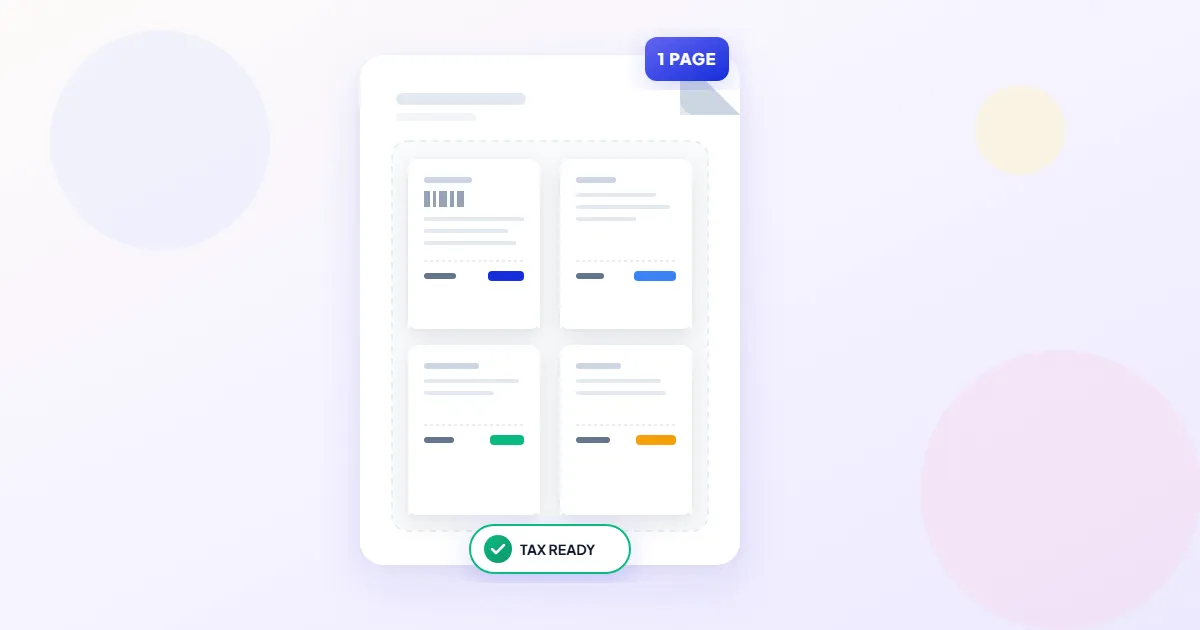
Put 4 to 6 receipts on one PDF page for your accountant or expense report: with a flatbed scanner, or from phone photos tiled into a grid. Keep it legible and small.
There are two practical ways to get several receipts onto one PDF page. If you have a flatbed scanner, lay four to six receipts on the glass and scan them together as one page. If you only have phone photos, turn the photos into a PDF with one receipt per page, then tile those pages into a grid of 4 or 6 per sheet.
Either way, finish by checking that every total, date and vendor name is readable at 100 percent zoom. A neat page that nobody can read is worse than a stack of separate files.
First, check what the recipient wants
A single summary page suits an accountant, a bookkeeper or your own tax folder. Expense systems are different: many match one receipt to one expense line, so a page of six receipts may have to be attached six times or rejected. If you submit through an expense app, keep the individual receipt images as well and use the combined page as your archive copy.
For US taxes, the IRS lets you keep records electronically as long as the copies are legible and you can retrieve and reproduce them. Your records, taken together, should show what you paid and that it was a business expense. A clear scan of the receipt does that; a blurry thumbnail does not.
Method 1: Scan several receipts at once on a flatbed
- 1.Smooth each receipt flat. Thermal paper curls, so a book on the scanner lid helps.
- 2.Place four to six receipts on the glass with a finger width of space between them, all facing the same way.
- 3.Scan at 300 dpi in grayscale. Color adds size without helping you read black print.
- 4.Save straight to PDF if your scanner software offers it. If it saves JPG, turn that image into a PDF with Image to PDF.
- 5.Zoom to 100 percent and read the smallest line on each receipt before you throw anything away.
This gives the cleanest result because every receipt is captured at the same scale, and long receipts can sit side by side down the full height of the glass.
Method 2: Tile phone photos into a grid
Step 1: Photograph each receipt
Lay the receipt on a dark, plain surface, hold the phone straight above it so the receipt fills most of the frame, and avoid your own shadow. A scanner app does better than the plain camera because it straightens and crops for you. On iPhone, open Notes, tap the attachment button (a paperclip on iOS 18, a camera icon on older versions) and choose Scan Documents. On Android, the Google Drive app has a Scan button.
Step 2: Make a PDF with one receipt per page
- 1.Open Image to PDF and add all your receipt photos (JPEG, PNG or WebP).
- 2.Drag the thumbnails into the order you want, usually by date. Rotate any that came out sideways.
- 3.Set the page size to Fit, so each page matches the shape of its receipt with no white border.
- 4.Create the PDF and save it.
Fit matters for the next step. A receipt sitting in the middle of a blank A4 page shrinks along with all that white space when the page is tiled. A page cut to the receipt's own shape fills its cell instead.
Step 3: Put several pages on each sheet
- 1.Open Multiple Pages Per Sheet and add the PDF from step 2.
- 2.Choose how many per sheet: 2 (2 x 1), 4 (2 x 2), 6 (3 x 2), 9 (3 x 3) or 16 (4 x 4). The layout preview shows where each receipt lands.
- 3.Pick Letter or A4 for the sheet, and leave orientation on auto unless the preview suggests the other one fits better.
- 4.Set a small margin and gap, and turn on borders if you want a line around each receipt.
- 5.Save the new PDF. Everything runs in your browser, so your receipts are not uploaded anywhere.
| Per sheet | Works for | Watch out for |
|---|---|---|
| 2 | Long grocery or pharmacy receipts | Uses more pages, but nothing gets small |
| 4 | Restaurant bills, taxi and hotel receipts | Good default for most mixed batches |
| 6 | Card terminal slips and short shop receipts | Check the fine print at 100 percent zoom |
| 9 or 16 | Parking stubs and tickets only | Long receipts become unreadable |
Group receipts by shape before tiling. Every cell on a sheet is the same size, so a 40 centimeter grocery receipt squeezed into a cell meant for a parking ticket shrinks to a thin strip. Run long receipts as a separate batch at 2 per sheet.
Make the file smaller and easier to read
- ●Drop the color. Grayscale PDF turns yellowed paper and colored logos gray, which usually reads better and prints cleaner.
- ●Shrink the photos inside. Phone photos are large. Compress PDF re-encodes the images inside the PDF at the quality you choose. Compare a total line before and after.
- ●Scan faded receipts now. Thermal paper darkens or fades with heat, light and time. A receipt that is crisp in March can be blank by the following spring.
- ●Name files so you can find them. Something like 2026-Q1-travel-receipts.pdf sorts by date and tells your accountant what is inside.
Keep the one-receipt-per-page PDF from step 2 as well as the tiled version. If an auditor or expense system asks for a single receipt, you can pull that page out instead of cropping it from a grid.
How long to keep the PDFs
In the US, the IRS generally expects you to keep records for 3 years from filing. The period is 6 years if you underreported income by more than 25 percent of gross income, and 7 years if you claimed a loss from worthless securities or a bad debt deduction. In the UK, self-employed people must keep records for at least 5 years after the 31 January filing deadline. Store a copy outside your phone, such as on cloud storage or an external drive, so one lost device does not take your records with it.
Frequently asked questions
Does the IRS accept scanned or photographed receipts?
Will tiling make the text too small to read?
Should I add notes such as the project or client to each receipt?
Can I tile receipts that are already in a PDF from my bank or email?
Sources & references
This article was researched and written by Nikola, drawing on the following primary sources and documentation:
Ready to try it?
All tools run entirely in your browser, no uploads, no account required.
Multiple Pages Per Sheet