How to Convert WebP Animated Stickers to Transparent APNG or MP4 Video
Summary
Convert animated WebP stickers, such as WhatsApp's, into APNG with transparency, an MP4 for sharing, or a transparent video for Premiere, Final Cut and Resolve.
FFmpeg is the simplest tool for this, with one catch: only FFmpeg 9.0 (released in August 2026) and later can read animated WebP files. With a current build, ffmpeg -i sticker.webp -plays 0 sticker.apng gives you a looping APNG with its transparency intact. With an older build, split the sticker into frames with ImageMagick first, then assemble them with FFmpeg. Both routes are below.
Decide on the target before you convert, because "transparent MP4" mostly does not exist. The H.264 MP4 files that phones, browsers and chat apps play have no alpha channel. If you need transparency in a video editor, you want a ProRes 4444 .mov or a VP9 WebM instead.
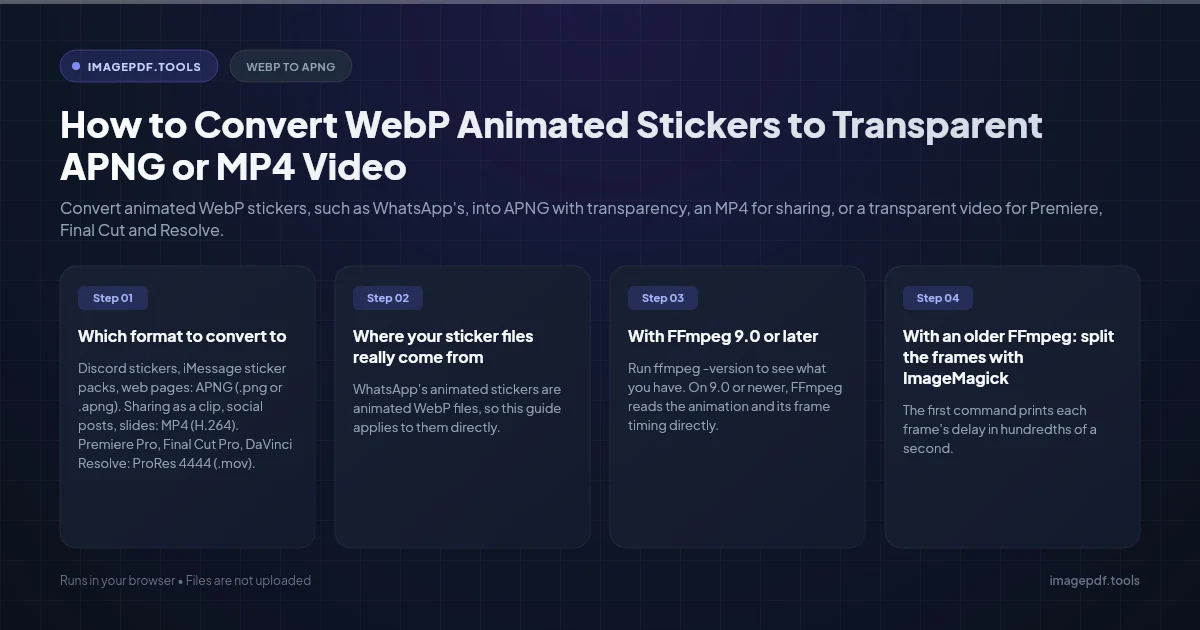
Which format to convert to
| Where it is going | Format | Keeps transparency? |
|---|---|---|
| Discord stickers, iMessage sticker packs, web pages | APNG (.png or .apng) | Yes, with smooth edges |
| Sharing as a clip, social posts, slides | MP4 (H.264) | No, needs a solid background |
| Premiere Pro, Final Cut Pro, DaVinci Resolve | ProRes 4444 (.mov) | Yes |
| Web video with transparency in Chrome and Firefox | WebM (VP9 with alpha) | Yes |
| Old chat apps and forums | GIF | Only fully on or off, so soft edges get jagged |
Where your sticker files really come from
WhatsApp's animated stickers are animated WebP files, so this guide applies to them directly. Telegram is different: its animated stickers are .tgs files (compressed Lottie vector animations) and its video stickers are WebM. Only Telegram's static stickers are WebP. If your file ends in .tgs, you need a Lottie converter, not a WebP one.
To check whether a .webp file is animated, open it in Chrome or Firefox. If it moves, it is animated. Most image viewers and editors that are not browsers show only the first frame, or refuse to open it.
With FFmpeg 9.0 or later
Run ffmpeg -version to see what you have. On 9.0 or newer, FFmpeg reads the animation and its frame timing directly.
Looping APNG with transparency:
ffmpeg -i sticker.webp -plays 0 sticker.apng-plays 0 makes it loop forever. Rename the result to .png if a site will not accept the .apng extension; APNG is a valid PNG file, and apps without APNG support show the first frame.
ProRes 4444 with alpha, for video editors:
ffmpeg -i sticker.webp -c:v prores_ks -profile:v 4444 -pix_fmt yuva444p10le sticker.movVP9 WebM with alpha, for transparent video on the web:
ffmpeg -i sticker.webp -c:v libvpx-vp9 -pix_fmt yuva420p -crf 30 -b:v 0 sticker.webmMP4 for sharing, placed on a white background so transparent areas do not turn black:
ffmpeg -i sticker.webp -vf "split[a][b];[a]drawbox=c=white:t=fill[bg];[bg][b]overlay,format=yuv420p" -c:v libx264 -crf 18 -movflags +faststart sticker.mp4Change white to any color, or a hex value such as 0x1e293b. H.264 in yuv420p needs even width and height. Stickers are usually 512 by 512, so that is rarely a problem; if FFmpeg complains, add scale=trunc(iw/2)*2:trunc(ih/2)*2, at the start of the filter.
With an older FFmpeg: split the frames with ImageMagick
Older FFmpeg builds fail on animated WebP with errors such as "image data not found" or "Could not find codec parameters". This was a known limitation for years. ImageMagick can read the animation, so let it do the decoding:
magick identify -format "%T " sticker.webp
magick sticker.webp -coalesce frame_%03d.png
ffmpeg -framerate 25 -i frame_%03d.png -plays 0 sticker.apng
The first command prints each frame's delay in hundredths of a second. A delay of 4 means 25 frames per second, so use that value in -framerate. The -coalesce step matters: animated WebP often stores only the part of each frame that changed, and coalescing rebuilds every frame in full so nothing flickers. Feed the same frames into the ProRes or WebM commands above to get a video.
If the frame delays printed by identify are not all the same, a fixed frame rate will speed up some parts and slow down others. Upgrade to FFmpeg 9.0 or later, which keeps each frame's own timing.
Getting it into a video editor
Premiere Pro, Final Cut Pro and DaVinci Resolve do not import animated WebP. Import the ProRes 4444 .mov instead and place it on a track above your footage; the transparent areas let the video show through. After Effects also accepts the PNG frames directly as an image sequence: choose the first file and tick the sequence option in the import dialog.
Need just one still frame?
For a thumbnail, a profile picture or a print, a single frame is often enough. Our WebP to PNG converter turns a WebP into a lossless PNG with its transparency, in your browser and without uploading the file. Give it an animated WebP and you get one still frame, not the animation. For the animation itself, use the FFmpeg commands above.
Frequently asked questions
Is APNG bigger than the original animated WebP?
Can an MP4 file have a transparent background?
Can I convert the sticker to a GIF?
Will the converted file still loop?
Sources & references
This article was researched and written by Nikola, drawing on the following primary sources and documentation: