
No-Upload PDF Converter: A Capability Checklist for What You Can Do Locally
Summary
A capability checklist for no-upload PDF conversion: exactly which tasks run entirely in your browser, and which still need something else.
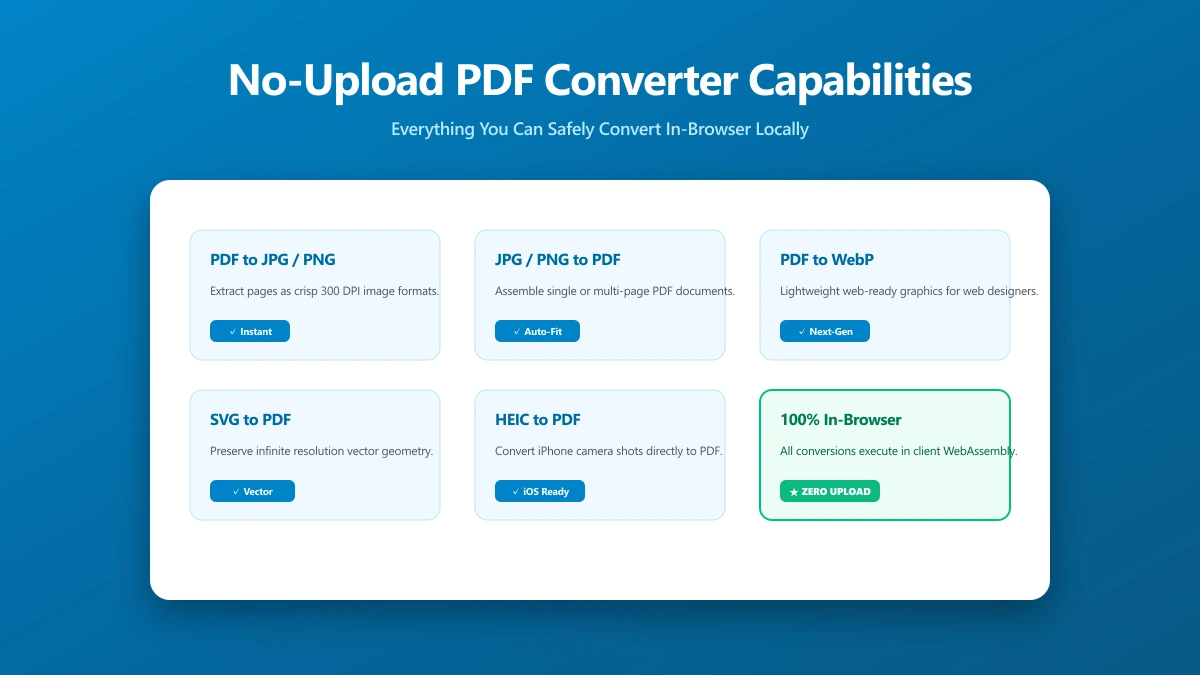
"No-upload PDF converter" is a specific ask: not just a private tool in general, but confirmation that a given PDF task can be done without a file ever leaving your device. Here is a direct checklist, task by task, of what runs entirely in your browser with ImagePDF.Tools, and what still relies on server infrastructure elsewhere.
The Capability Checklist
| Task | Runs without upload? | Tool |
|---|---|---|
| Merge PDFs | Yes | Merge PDF |
| Split a PDF | Yes | Split PDF |
| Compress a PDF | Yes | Compress PDF |
| Convert PDF to Word | Yes | PDF to Word |
| Convert Word to PDF | Yes | Word to PDF |
| Convert PDF to JPG or images | Yes | PDF to JPG |
| Convert images to PDF | Yes | Image to PDF |
| Add or remove a password | Yes | Protect PDF |
| Add a watermark | Yes | Watermark PDF |
| Reorder, rotate, or delete pages | Yes | Organize PDF |
| Edit text and add annotations | Yes | Edit PDF |
| OCR a scanned document | Yes | OCR PDF |
| Large-batch OCR across hundreds of pages | Not yet, browser memory and time limits apply | — |
| E-signature collection with a legal audit trail | Not offered | — |
The last two rows are an honest limit, not a hidden one. Large-batch OCR and legally-binding e-signature workflows are areas where server-side infrastructure still has a genuine edge, and we would rather tell you that directly than pretend otherwise.
How to Confirm It Yourself, for Any Task
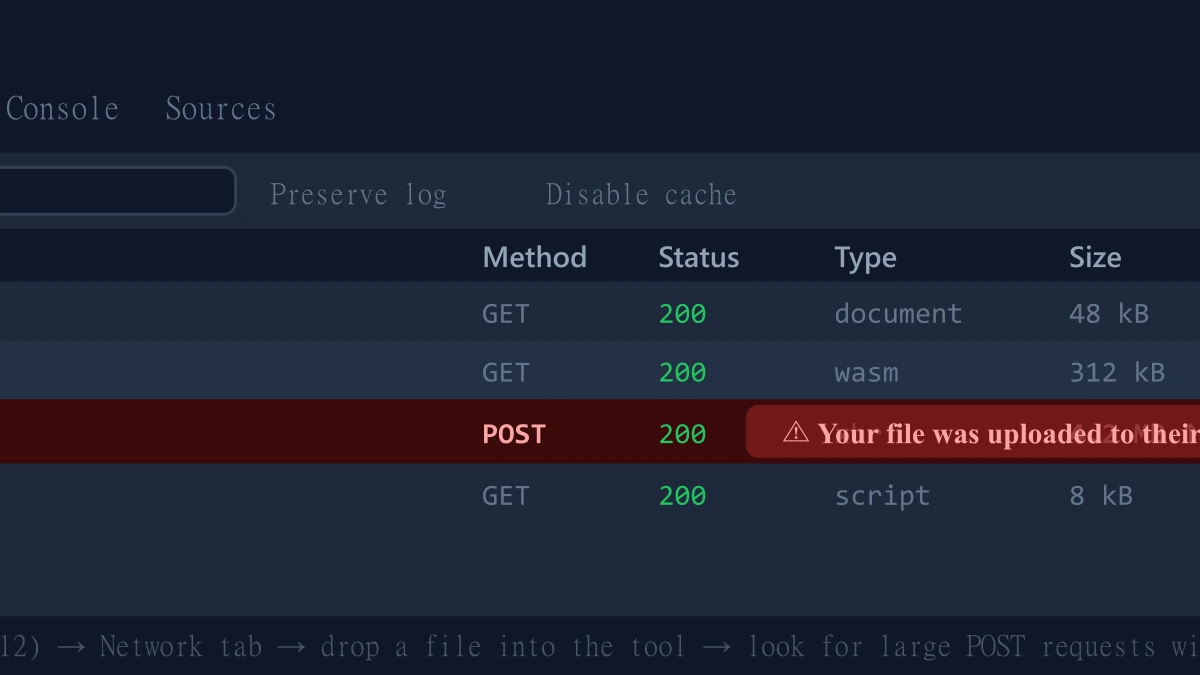
- 1.Open the relevant tool, press F12, and click the Network tab in DevTools.
- 2.Tick "Preserve log" so nothing clears between steps.
- 3.Run the task on a test PDF.
- 4.Look for a large outbound
POSTrequest the size of your file. There is not one, for anything on the "yes" list above.
The Bottom Line
Most everyday PDF tasks, merging, splitting, compressing, converting, editing, protecting, run entirely without an upload on ImagePDF.Tools. The few that do not are named directly above, not buried in fine print.
Try it now: merge a PDF or convert one to Word, then check DevTools yourself.
Frequently asked questions
What is a no-upload PDF converter?
Which PDF tasks can be done without uploading?
Which PDF tasks still require uploading a file somewhere?
Is a no-upload PDF converter free?
How do I verify a specific PDF task does not upload my file?
Sources & references
This article was researched and written by Nikola, drawing on the following primary sources and documentation:
Ready to try it?
All tools run entirely in your browser, no uploads, no account required.
Watermark PDFMore in Privacy & Security
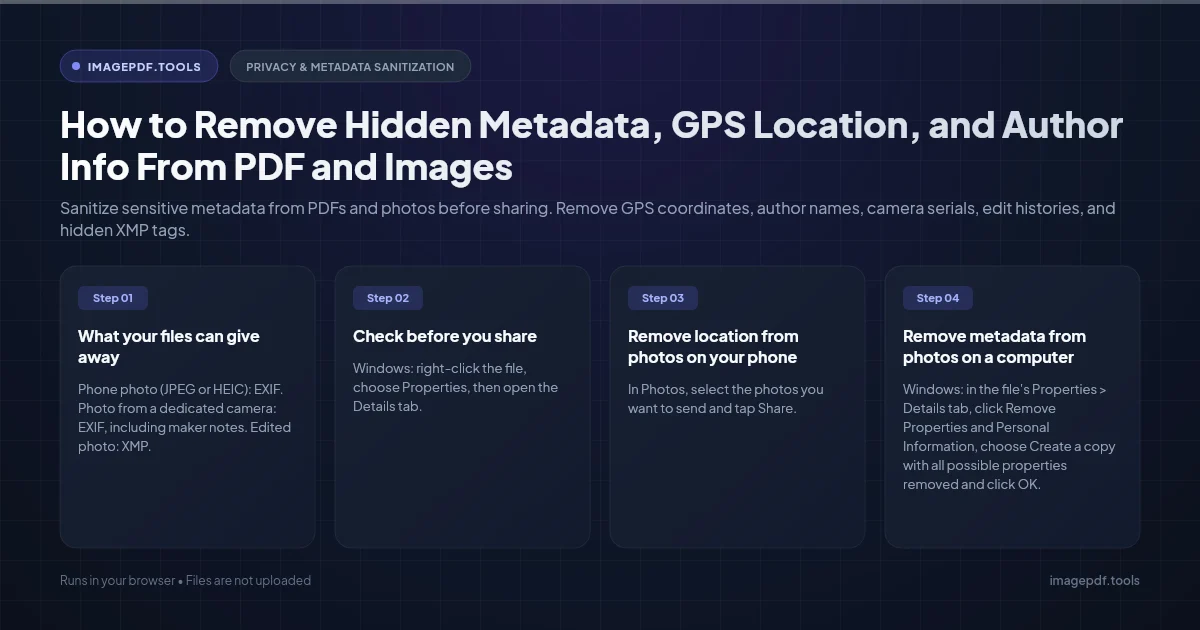
How to Remove Hidden Metadata, GPS Location, and Author Info From PDF and Images
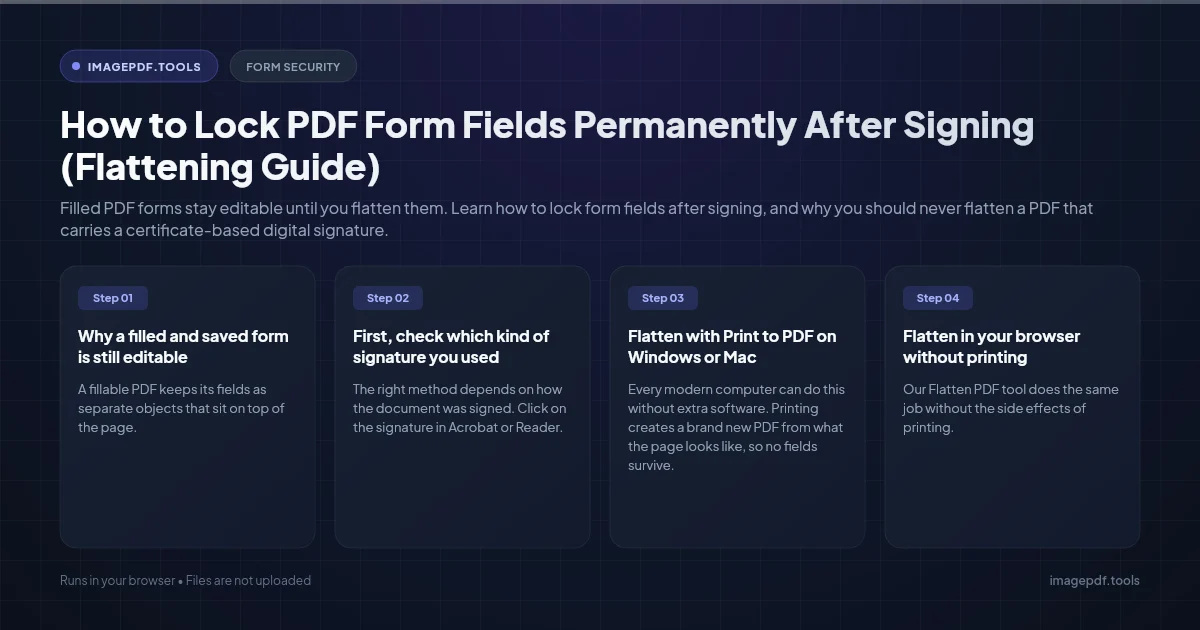
How to Lock PDF Form Fields Permanently After Signing (Flattening Guide)
How to Fix "At Least One Signature Has Problems" Error in Adobe Acrobat