Why Does Canva Rasterize My SVG Vector Logo When Exporting to PDF? (Vector Fix)
Summary
Why a vector SVG logo can come out of Canva's PDF export as pixels: Flatten PDF, an SVG that was never vector, effects that do not translate, and how to check and fix each one.
Canva normally keeps a clean SVG logo as vector artwork when you export a PDF. When it comes out as pixels, one of four things is usually responsible: Flatten PDF was switched on, which Canva says turns the file into a static image; the "SVG" was really a PNG or JPEG inside an SVG wrapper; the logo was placed in the design as a PNG or JPEG rather than the SVG; or the SVG or the Canva element uses a feature that Canva cannot express as vector shapes.
Canva does not publish a list of which effects force rasterization, so the reliable approach is to check the exported PDF, then remove likely causes one at a time. That takes about ten minutes.
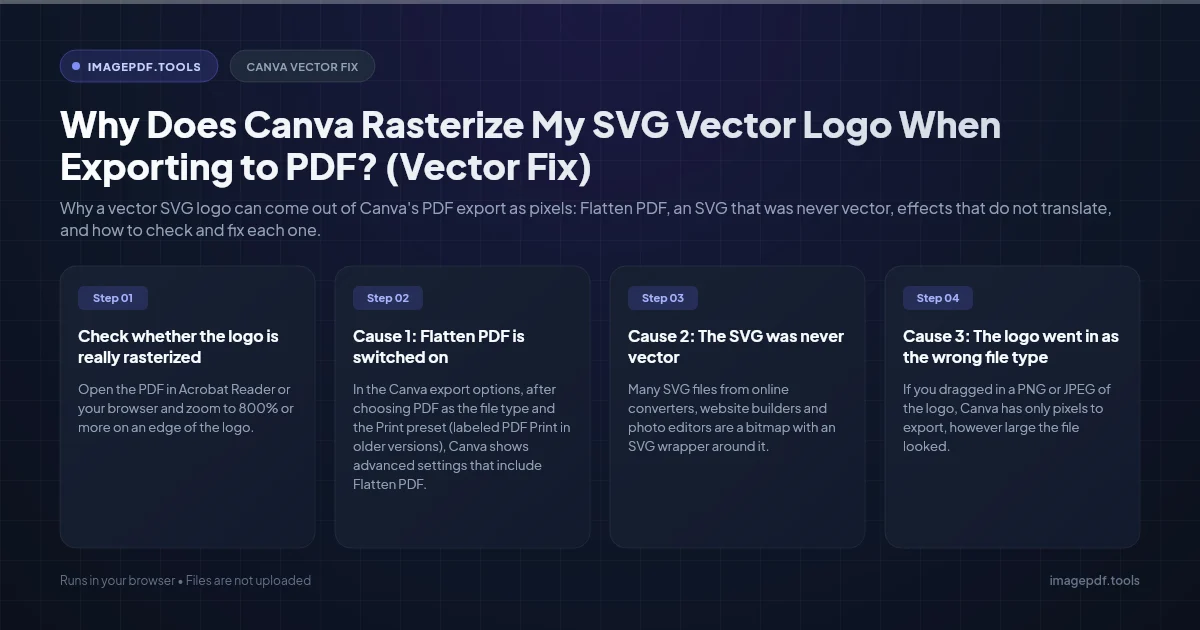
Check whether the logo is really rasterized
- 1.Open the PDF in Acrobat Reader or your browser and zoom to 800% or more on an edge of the logo. Vector edges stay smooth; a raster logo shows square steps. Judge at high zoom, because any logo looks a little soft at low zoom on screen.
- 2.For a definite answer, load the PDF into Extract Images from PDF. It saves every picture embedded in the file. If your logo turns up among them, Canva placed it as an image. If you get one image per page showing the whole design, the entire PDF was flattened. If the logo is not among the extracted pictures, it is still vector. The check runs in your browser, so client artwork is not uploaded.
- 3.If you have Inkscape, you can also open the PDF there and click the logo. The status bar says whether you selected an image or a group of paths.
Cause 1: Flatten PDF is switched on
In the Canva export options, after choosing PDF as the file type and the Print preset (labeled PDF Print in older versions), Canva shows advanced settings that include Flatten PDF. Canva's help page explains that flattening merges the layers and converts the file into a static image. Every page, including your logo and all text, becomes a picture.
Switch it off unless your printer has specifically asked for a flattened file, for example because of font problems on their side. If they have, ask whether outlined fonts or a higher resolution would solve the same problem.
Cause 2: The SVG was never vector
Many SVG files from online converters, website builders and photo editors are a bitmap with an SVG wrapper around it. Canva treats it as vector, but there are no shapes inside to keep sharp. To check, open the .svg file in a plain text editor such as Notepad or TextEdit and search for <image or data:image/png;base64. If either appears, the logo is a picture.
The fix is to get the real vector source: an AI, EPS or PDF from whoever designed the logo, or an SVG exported from that source. Automatic tracing, such as Inkscape's Path > Trace Bitmap, can rebuild a simple flat logo, but it rarely reproduces lettering and curves faithfully.
Cause 3: The logo went in as the wrong file type
If you dragged in a PNG or JPEG of the logo, Canva has only pixels to export, however large the file looked. Check the uploads panel: re-upload the SVG and swap it into the design. Replace every copy, including ones on other pages and in brand kit templates.
Cause 4: Features that do not survive as vectors
Canva's guide to preparing SVG uploads hints at what it handles badly. It asks for files saved with the SVG 1.1 profile, under 3 MB, with strokes and text expanded into outlines, shapes grouped by color, hidden objects and stray points removed, and textures and gradients avoided. Illustrator users are told to save styling as presentation attributes rather than CSS.
Anything outside that advice is worth testing: filters such as blurs and drop shadows written into the SVG, masks, embedded fonts and CSS style blocks. Inside Canva, try the logo without any photo-style edits, filters, transparency or shadow effect you applied to it. The test method is simple:
- 1.Duplicate the page with the logo several times.
- 2.On each copy, remove one suspect: the shadow on one, the transparency on another, the effect or group on a third.
- 3.Export all pages with Flatten PDF off.
- 4.Run the PDF through the image extraction check above. The pages where the logo no longer appears as an image tell you which setting caused it.
Prepare the SVG so Canva keeps it vector
In Adobe Illustrator:
- 1.Select all text and choose Type > Create Outlines.
- 2.Choose Object > Expand Appearance, then Object > Expand to turn strokes into filled shapes.
- 3.Choose File > Save As, pick SVG, and set the SVG Profile to SVG 1.1. Under More Options, set CSS Properties to Presentation Attributes.
In Inkscape, use Path > Object to Path on text, Path > Stroke to Path on outlines, then File > Save As and choose Plain SVG. A cleanup tool such as SVGOMG can remove leftover editor data before you upload.
If the design needs a soft shadow behind the logo, place the shadow as its own element underneath and keep the logo itself free of effects. If anything is rasterized, it is only the shadow, and the logo's edges stay sharp.
Frequently asked questions
Does it matter if I choose the Digital or Print preset?
Why does the logo look sharp in the Canva editor but blurry in the PDF?
Will merging my Canva PDF with other files rasterize it?
Can I get the vector logo back out of a Canva PDF?
Sources & references
This article was researched and written by Nikola, drawing on the following primary sources and documentation:
Ready to try it?
All tools run entirely in your browser, no uploads, no account required.
Extract Images from PDF