How to Fix Printer Cutting Off the Bottom Margin or Footer of PDF Pages
Summary
Missing page numbers or a clipped footer on printed PDFs usually mean an A4 and Letter mismatch or a footer inside the printer's unprintable edge. How to fix both.
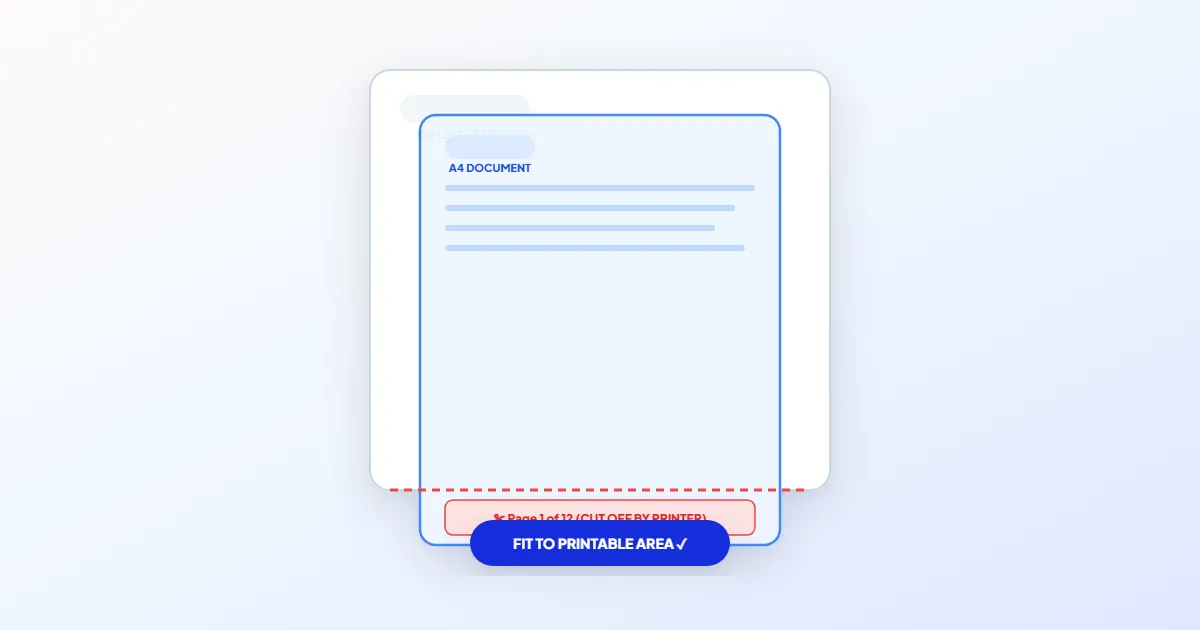
When the bottom of a printed PDF goes missing, one of two things is almost always happening. Either the PDF is A4 and your printer is loaded with US Letter, so the page is taller than the sheet, or the footer sits closer to the edge than your printer can physically print.
The quick fix is the same for both: in the print dialog, change the scaling from Actual size to Fit (Acrobat) or Fit to printable area (Chrome), and check the preview before you print. The lasting fix depends on which cause you have, so it is worth a minute to find out.
Find Out Which Problem You Have
Check the PDF's page size first. In Acrobat Reader it is under File > Properties, on the Description tab. On a Mac, Preview shows it in Tools > Show Inspector. Then compare it with the paper in your tray.
A4 measures 210 x 297 mm. US Letter is 8.5 x 11 inches, or 215.9 x 279.4 mm. An A4 page is 17.6 mm, about 0.69 inch, taller than a Letter sheet. Print it at actual size with the page aligned to the top, and that whole strip comes off the bottom, which is exactly where footers, page numbers and signature lines live.
If the PDF and the paper are the same size, look at how far the missing text sits from the bottom edge of the page on screen. If it is within a few millimeters of the edge, it is inside the strip your printer cannot reach. Every office printer has one, because the paper has to be gripped as it passes through.
| What you see on paper | Likely cause | Fix |
|---|---|---|
| About two thirds of an inch missing at the bottom, slightly wider side margins | A4 PDF on Letter paper at actual size | Fit in the print dialog, or resize the PDF to Letter |
| Only the page number or last line clipped, by a few millimeters | Footer inside the printer's unprintable strip | Fit in the print dialog, or raise the footer in the source document |
| Fine on one printer, clipped on another | The second printer has a wider unprintable strip, or a different paper size set in its driver | Check that printer's paper size setting, then use Fit |
| Top margin looks fine but content is shifted and the bottom is lost | Driver paper size does not match the paper in the tray | Set the paper size in the printer properties to what is loaded |
Fix It in the Print Dialog
Adobe Acrobat Reader
- 1.Press Ctrl+P (Cmd+P on a Mac).
- 2.Under Page Sizing & Handling, click Size and choose Fit. Fit scales each page to the printable area of the selected paper.
- 3.Untick Choose paper source by PDF page size if your printer only holds Letter, so it does not go looking for an A4 tray.
- 4.Check that the preview shows white space on all four sides, then print.
Do not rely on Shrink oversized pages for the second cause. It only reduces pages that are bigger than the paper, so a Letter page with a tight footer, printed on Letter paper, may come out exactly as clipped as before.
Chrome and Edge
Open the print dialog, expand More settings, and set Paper size to the paper you have loaded. Then change Scale to Fit to printable area. Edge is built on the same engine and has a similar scale setting in the same place.
Preview on a Mac
Choose File > Print, click Show Details if the dialog is compact, set the paper size, and pick Scale to Fit with Print Entire Image. The other option, Fill Entire Paper, enlarges the page and crops it, which is the opposite of what you want here.
Fit makes everything slightly smaller, roughly 94% when an A4 page goes onto Letter. That does not matter for letters and reports, but it does for anything printed to an exact scale, such as label sheets, sewing patterns or drawings with a scale bar. For those, fix the page size and print at actual size.
Fix the PDF So It Prints Right Everywhere
Changing the print dialog every time gets old, especially if you print the same A4 documents onto Letter paper week after week. Converting the PDF itself is a one-time fix.
- 1.Open Resize PDF and add the file. It works in your browser, so nothing is uploaded.
- 2.Pick Letter as the new page size and keep the Scale to fit option selected.
- 3.Save the resized PDF. The content is scaled and centered on the new page, and text stays sharp because it is still vector.
- 4.Print at actual size. If the footer was already very close to the edge of the A4 page, it can still land in the printer's strip, so use Fit for that file as well.
If you made the document yourself, the cleaner fix is in the source. In Word, open Layout > Margins > Custom Margins to set the paper size and bottom margin, and double-click the footer to reach the Footer from Bottom setting on the Header & Footer tab. When a margin is closer to the edge than the selected printer allows, Word warns you that it is set outside the printable area, and its Fix button moves it in to the printer's minimum. In Google Docs, the same settings live in File > Page setup.
How Close to the Edge Can a Printer Print?
It depends on the model. Most office laser printers keep a strip of a few millimeters on every side, and some inkjets need a wider one along the edge that leaves the printer last. Your printer's specification sheet lists it, usually under printable area or print margins. Photo inkjets with borderless printing can print to the edge, but usually only on photo paper sizes.
If you have the opposite problem, with content shrunk and surrounded by wide white borders, see why a PDF prints with huge margins. That one is usually Fit doing its job too well.
Frequently asked questions
Why are only my page numbers cut off?
Why does the same PDF print fine from Acrobat but not from my browser?
Should I change the paper size in the printer driver too?
Does Fit to printable area change the size of everything?
Sources & references
This article was researched and written by Nikola, drawing on the following primary sources and documentation: