Why Does PNG Compression Sometimes Increase File Size?
Summary
Why compressing or re-saving a PNG can make it bigger: a lost color palette, weaker encoder settings, added metadata or a photo in the wrong format, and the fix for each.
PNG is a lossless format, so a compressor has only two ways to shrink it. It can store exactly the same pixels more efficiently, or it can throw some color information away. If your file was already stored efficiently, and nothing is thrown away, there is nothing left to gain. A tool that decodes the image and writes it again with ordinary settings will often produce a bigger file than the one you started with.
Five things cause nearly every case: a palette image saved back as full color, an encoder working less hard than the one that made the original, metadata added on save, a higher bit depth or an alpha channel the image does not need, and a photograph stored as PNG at all. Each has a quick test and a fix.
How a PNG Is Packed in the First Place
A PNG encoder works in two stages. First it runs a filter over each row of pixels. The five filters (None, Sub, Up, Average and Paeth) each predict a byte from its neighbors to the left, above or diagonally, and store only the difference. On a flat logo most of those differences are zero. Then the filtered rows go through DEFLATE, the same algorithm ZIP uses, which replaces repeated byte runs with short references.
The encoder chooses a filter for every row and a strategy for DEFLATE. Dedicated optimizers try many combinations and keep the smallest result. A quick save from an image editor or a browser tries one or two. That difference alone can be substantial on identical pixels, and it is the first reason a re-save can grow.
Five Reasons a Compressed PNG Comes Out Bigger
1. A palette image was saved back as full color
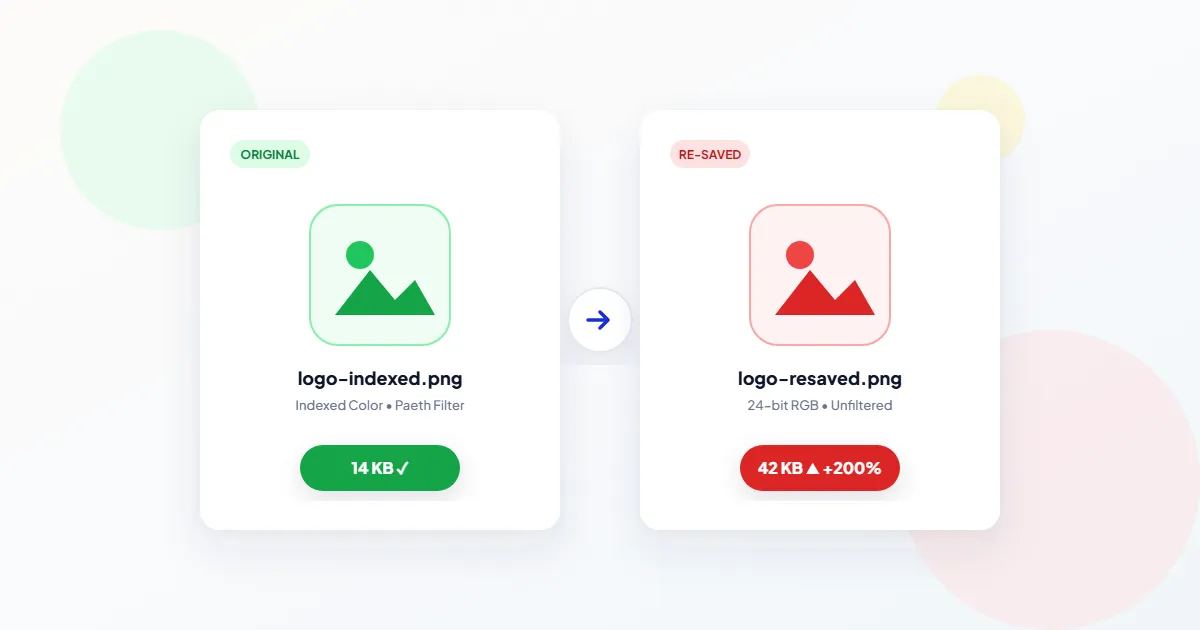
An indexed PNG, often called PNG-8, stores one byte per pixel plus a palette of up to 256 colors. Full color with transparency stores four bytes per pixel. Most editors, and every browser canvas, work in full color. Open a palette PNG, save it, and the raw data has quadrupled before DEFLATE starts. Compression wins some of that back, but rarely all of it.
This catches browser-based compressors too, ours included. Our Compress PNG tool reads the image through a canvas, so at quality 100 it writes lossless full color. Feed it a PNG that TinyPNG or pngquant already reduced to a palette and the result can be larger. Lower the quality instead, which rebuilds a palette, and compare the two sizes it shows you.
2. The original was made by a stronger encoder
Files from oxipng, pngquant, ImageOptim or a build pipeline have already had the heavy optimization done. Your editor's save dialog will not match it. In GIMP the export dialog exposes this as a Compression level from 0 to 9. A low level writes faster and bigger files, and it never changes the pixels.
3. Metadata was added on save
Editors like to embed an ICC color profile, XMP data, creation software notes and timestamps. On a large screenshot nobody notices. On a 3 KB icon, a color profile of a few kilobytes can double the file.
4. Higher bit depth or an alpha channel nobody needs
Images that passed through a 16-bit workflow, common with scanners, RAW photo editors and Photoshop's 16 Bits/Channel mode, store two bytes per channel instead of one. Screens show 8 bits per channel, so the extra precision is usually invisible. Similarly, an alpha channel on an image with no transparent pixels adds a byte to every pixel for nothing.
5. The image is a photograph
Filters and DEFLATE work by finding repetition. Camera noise and fine texture mean almost no two neighboring pixels match, so there is little to find. Converting a JPEG to PNG is the extreme case: PNG preserves every JPEG artifact exactly, and the file often ends up several times larger than the JPEG. No PNG setting fixes a photo. The format is the problem.
Find Out Which One You Have
Start by checking the color type of the original and the new file. On Windows, right-click the file, choose Properties, open the Details tab and read Bit depth: 8 usually means a palette or grayscale image, 24 is full color, 32 is full color with alpha. On a Mac or Linux terminal, file logo.png prints a line such as 8-bit colormap or 8-bit/color RGBA.
| What you see | Likely cause | Fix |
|---|---|---|
| Original says colormap or 8 bit, new file says RGBA or 32 bit | Palette lost | Re-quantize, or keep the original |
| Same color type, file grew after a quick save | Weaker encoder settings | Run a lossless optimizer |
| Small icon grew by a few kilobytes | Profile or text metadata added | Strip non-essential chunks |
| 16-bit or 48/64 bit depth | Excess precision | Convert to 8 bits per channel |
| Large PNG of a photo or a converted JPEG | Wrong format | Save as JPEG or WebP |
How to Actually Make the PNG Smaller
Without changing a single pixel
oxipng is a free command-line optimizer that rewrites the file with better filter and DEFLATE choices:
oxipng -o 4 --strip safe logo.pngThe -o level runs from 0 to 6, with 2 as the default. Higher levels are slower and usually, though not always, smaller. --strip safe removes only metadata that cannot change how the image renders.
By reducing the number of colors
Logos, icons, charts and screenshots rarely use more than a few hundred distinct colors, so converting them to a palette costs little visible quality and often removes well over half the file. Options:
- ●pngquant:
pngquant --quality=65-80 --skip-if-larger logo.pngwriteslogo-fs8.png, and--skip-if-largermeans it never saves a result bigger than the input. - ●Photoshop: File > Export > Export As, choose PNG and tick Smaller File (8-bit). Check soft shadows afterwards, since semi-transparent edges can suffer.
- ●GIMP: Image > Mode > Indexed, pick a maximum number of colors, then export with compression level 9.
- ●In the browser: the quality slider in Compress PNG sets the palette size, and the file never leaves your device.
Dithering, which scatters dots to fake missing colors, makes gradients look smoother but adds exactly the kind of noise DEFLATE handles badly. If a quantized file is bigger than you expected, try it with dithering turned off.
By changing format
For photos, use JPEG if you need no transparency, or WebP if you do. A photo with a transparent background, such as a product cut-out, is the case where WebP shines, since JPEG cannot store transparency at all. Whatever route you take, compare the before and after sizes and keep whichever file is smaller. A larger output is a sign the original was already well packed, not that you did something wrong.
Frequently asked questions
Does re-saving a PNG lower its quality?
Why did converting my JPEG to PNG make it so much bigger?
Do interlaced PNGs take more space?
Is it safe to strip the color profile from a PNG?
Sources & references
This article was researched and written by Nikola, drawing on the following primary sources and documentation:
Ready to try it?
All tools run entirely in your browser, no uploads, no account required.
Compress PNG