How to Safely Merge Signed PDF Contracts Without Invalidating Digital Certificates
Summary
Why merging digitally signed PDFs breaks their signatures, and the ways to bundle signed contracts so every signature still verifies in Acrobat.
The honest answer first: you cannot merge the pages of several separately signed PDFs into one document and keep those digital signatures valid. A digital signature vouches for the exact bytes of the file it was applied to. Merging writes a new file, so there is nothing left for the signature to vouch for.
What you can do is bundle the signed files without changing them, keep the originals as proof and make a merged copy for reading, or merge before anyone signs next time. Which one fits depends on who needs the bundle and what they will do with it.
First, Check What Kind of Signature You Have
Many signed contracts carry no certificate at all. A drawn signature, a typed name or a pasted image of a signature is an electronic signature: it shows intent, but there is no cryptography in the file to break. Merging those PDFs is no different from merging any other document.
A digital signature is different. Open the file in Acrobat Reader and look for a blue bar at the top reading something like Signed and all signatures are valid, or open the Signatures panel. Contracts finished on an e-signature platform such as DocuSign or Acrobat Sign usually carry a certificate-based seal from the platform, even though the people involved only clicked a button. Treat those as digitally signed.
Why a Merge Breaks a Digital Signature
When a PDF is signed, the software records a byte range covering the whole file except a small gap where the signature itself is stored. It hashes those bytes and seals the hash with the signer's private key. When you open the file later, the reader hashes the same byte range again and compares. One changed byte and the values no longer match.
PDF does allow changes after signing, through incremental updates. New content is appended to the end of the file and the signed bytes stay exactly as they were. That is how a second person signs a contract the first person already signed, and how a reader can show you the version each signer saw.
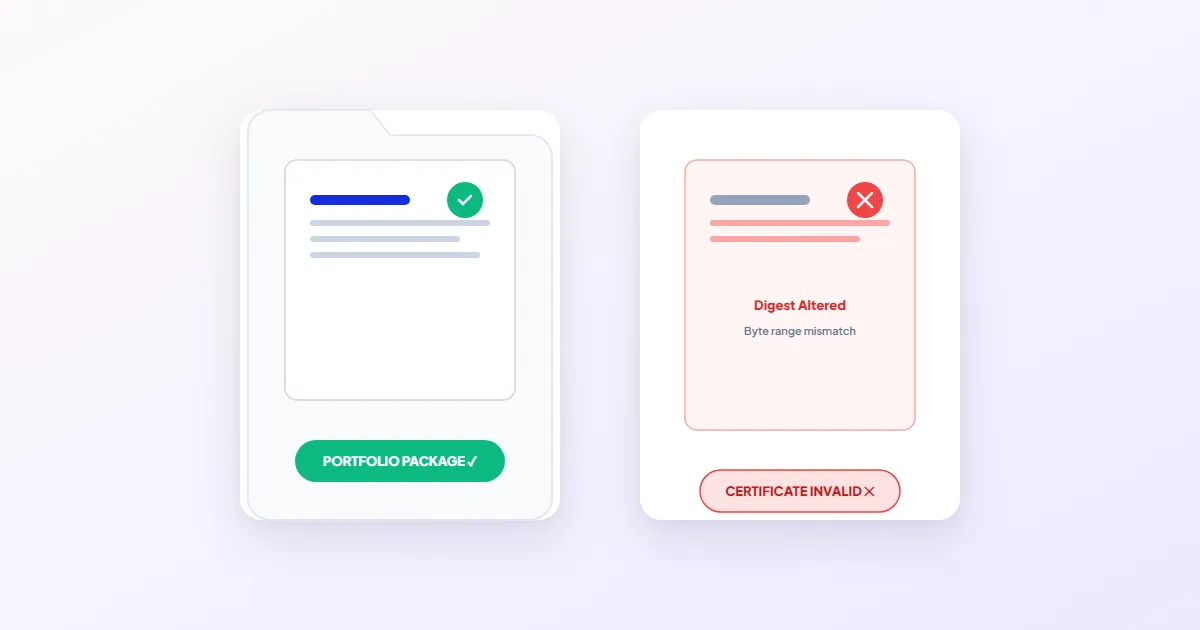
Merging is not an incremental update. A merge tool reads pages out of several files and writes a brand-new one, with new object numbers and new byte positions. The original byte ranges simply do not exist in the result. Most merge tools also leave out the signature fields, so the merged file may show a signature's appearance, or a blank box, with no signature behind it to verify. Acrobat treats a merge of signed files as an edit, and depending on the file it either blocks the action, removes the signatures, or reports that the document has been altered or corrupted since the signature was applied.
If you are already looking at that warning on a file you did not merge, our guide to the At least one signature has problems error covers the other causes.
Your Options, Side by Side
| Approach | Do the signatures still verify? | Best for |
|---|---|---|
| PDF Portfolio in Acrobat Pro | Yes, inside each component file | Recipients who use Acrobat or Acrobat Reader |
| Cover PDF with the signed files attached | Yes, inside each attachment | A single file with a readable index page |
| ZIP folder of the original files | Yes | Email and document management systems |
| Merged reading copy plus the originals | Only in the originals | Printing, review, binders that must be one file |
| Merge first, then sign once | Yes, in the one file | Any agreement you have not sent for signing yet |
Option 1: Bundle the Signed Files Without Touching Them
A PDF Portfolio is an envelope: one PDF that carries other files inside it, each stored byte for byte. Open a component and its signature verifies exactly as it did before.
- 1.In Acrobat Pro, start a new PDF Portfolio. In classic versions this is File > Create > PDF Portfolio; in the newer interface, search the tools for Portfolio.
- 2.Add each signed contract, plus any certificates of completion or audit reports from the e-signature platform.
- 3.Save the portfolio and send it.
- 4.Before you send, open one component from inside the portfolio and confirm its signature still shows as valid.
Portfolios have limits. Browser PDF viewers and many phone apps show only the cover, so the recipient needs Acrobat or Acrobat Reader. If you sign the portfolio itself, editing any file inside it later breaks that outer signature.
A simpler variant works in more viewers: make a one-page index listing each contract, its parties and its date, then add the signed PDFs as file attachments using the paperclip Attachments panel in Acrobat. The index reads anywhere, and anyone who needs proof opens the attachment.
Option 2: A Merged Copy for Reading, the Originals for Proof
Sometimes one continuous PDF is the requirement, for a printed binder, a board pack or a reviewer who will not open attachments. Make that file, but treat it as a convenience copy and keep the signed originals as the record.
- 1.Keep the signed originals unchanged in a folder you will not edit, with clear file names.
- 2.If the signature blocks are form fields or stamps, flatten a copy of each file first with Flatten PDF, so the visible signature becomes ordinary page content and survives the merge.
- 3.Combine the copies, together with any certificates of completion, using Merge PDF. It runs in your browser, so confidential contracts are never uploaded.
- 4.Add a first page that says this is a compiled copy and names where the signed originals are kept.
Flattening and merging both rewrite the file, so the signatures in this copy no longer verify. Whether a compiled copy is acceptable is up to whoever relies on it, such as a court, an auditor or the other party. Many court e-filing systems accept only plain PDFs and reject portfolios and attachments, so check the filing rules first.
Option 3: Merge First, Then Sign
The clean fix is to change the order next time. Assemble the master agreement, schedules and addenda into one PDF before anyone signs, then route that single file to every signer. Each signature is added as an incremental update, so the earlier ones stay valid and the reader can show who signed what, in which order.
Once a file is signed, open it only in software that saves incrementally, such as Acrobat. Re-saving it in another editor, compressing it with an online service, or sending it through a print-to-PDF driver rewrites the whole file and invalidates every signature in it.
Frequently asked questions
What is the difference between an electronic and a digital signature?
Can I add a page to a signed PDF without breaking the signature?
Does flattening a signed PDF keep the signature valid?
Why did the signatures disappear completely after I merged?
Sources & references
This article was researched and written by Nikola, drawing on the following primary sources and documentation: