Why Does Copying Text From a PDF Paste With Spaces Between Every Letter? (Fix)
Summary
Text copied from a PDF pastes as "l i k e t h i s" because the PDF stores letter positions, not words. Why it happens and how to clean it up in Word, Google Docs or a text editor.
You copy a paragraph from a PDF, paste it, and get T h e q u a r t e r l y r e p o r t. The PDF is not broken. It simply does not store words. It stores characters and the exact spot on the page where each one is drawn, and the app you copied from had to guess where the spaces go. When the letters sit further apart than usual, it guesses a space after every one.
The quick fix is a three-step find and replace, shown below for Word, Google Docs and code editors. If the text came from a scan, or the letters themselves are wrong, you need OCR instead.
Why the PDF has no idea where your words are
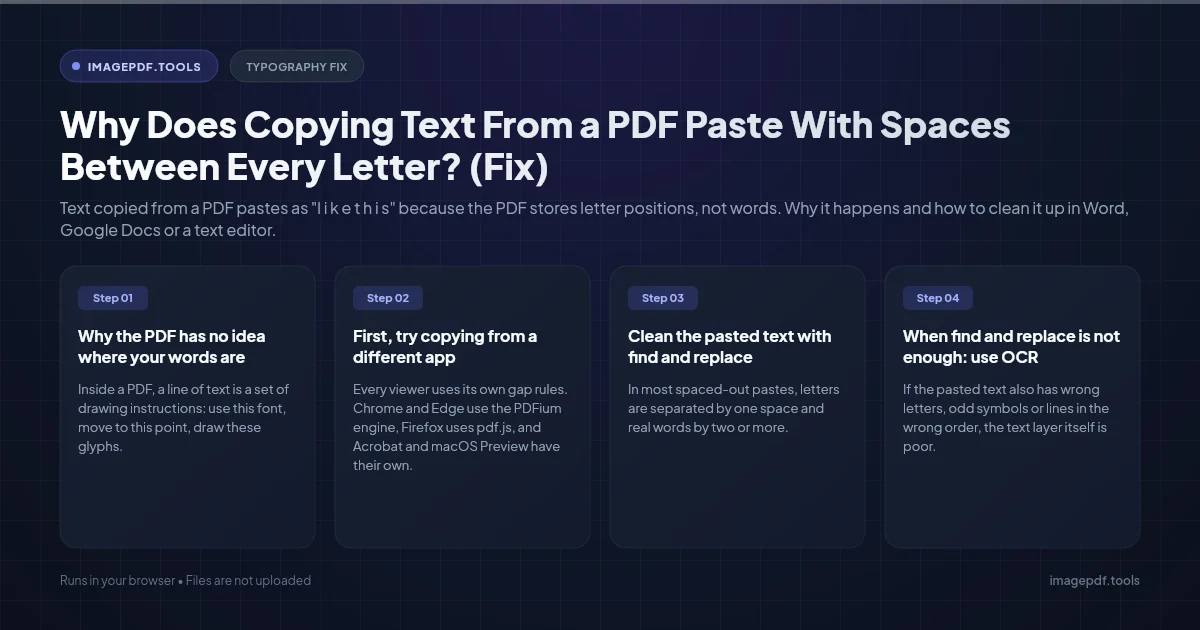
Inside a PDF, a line of text is a set of drawing instructions: use this font, move to this point, draw these glyphs. A real space character is optional. Many apps that make PDFs leave spaces out and just move the next word along. Any program that copies text, whether Acrobat, Preview, Chrome or a converter, has to rebuild words by measuring the gaps. A gap wider than some threshold becomes a space; a narrower one does not.
That guess goes wrong in a few predictable situations:
- ●Letter-spaced headings and design text. Titles, logos and small caps are often set with extra tracking. The PDF standard has a character spacing setting for exactly this, and every gap it widens can cross the threshold.
- ●Fully justified text. To fill each line, some apps widen the space between letters rather than between words.
- ●One letter per instruction. Some PDF printers, form generators and older design apps place every glyph separately. Each tiny jump can be read as a word break.
- ●Old OCR text layers. Some scanning software drew a separate invisible box for each recognised letter, which copies out as single characters separated by spaces.
The opposite symptom, words running together with no spaces, comes from the same cause with the guess going the other way: the gaps were too narrow to count.
First, try copying from a different app
Every viewer uses its own gap rules. Chrome and Edge use the PDFium engine, Firefox uses pdf.js, and Acrobat and macOS Preview have their own. A heading that comes out spaced in one often copies cleanly in another, so open the file in a second viewer before you start cleaning text.
For longer documents, our Extract Text from PDF tool rebuilds lines from the position of each run of text and only adds a space where the gap is wider than about a fifth of the font size. That handles files where every letter was placed separately at normal spacing. It will still put spaces into a heading whose letters are deliberately far apart, because on the page those gaps really are wide.
Clean the pasted text with find and replace
In most spaced-out pastes, letters are separated by one space and real words by two or more. The trick is to protect the double spaces with a placeholder, delete the single ones, then turn the placeholder back into a space. Pick a placeholder that does not appear in your text, such as ~.
In Microsoft Word
- 1.Paste the text, select it, and press Ctrl+H to open Find and Replace (on a Mac, Edit > Find > Advanced Find and Replace). Click More if needed and tick Use wildcards.
- 2.Find what:
[ ]{2,}(a space inside the square brackets). Replace with:~. Click Replace All. - 3.Untick Use wildcards. Find what: a single space. Replace with: nothing. Replace All.
- 4.Find what:
~. Replace with: a single space. Replace All.
In Google Docs
Open Edit > Find and replace and tick Match using regular expressions. Run the same three passes: find [ ]{2,} and replace with ~, then replace a single space with nothing, then ~ with a space.
Many guides give Google Docs patterns with lookaheads such as (?=\w) and a $1 in the replace box. Neither works there. Docs uses Google's RE2 engine, which has no lookahead, and Google's help page says regex in the Replace field is inserted as literal text. The placeholder method avoids both.
In VS Code, Notepad++ or another regex editor
Editors with lookaround support can do it in one pass when the word gaps are doubled. Turn on regular expressions (Alt+R in the VS Code replace box, Search Mode: Regular expression in Notepad++) and use:
Find:    (?<=\S) (?=\S)
Replace: (leave empty)

then

Find:    [ ]{2,}
Replace: a single space
The first pattern deletes any single space that has a visible character on both sides, which leaves the double spaces between words alone. The second collapses those doubles into one.
When words are separated by a single space too
Sometimes there is no difference at all: t h e r e p o r t arrived as t h e r e p o r t. No pattern can tell where one word ends, because that information was lost in the copy. You can remove every space and fix the word breaks by hand, which is fine for a heading, or go back to the PDF and use a different extraction method for anything longer.
When find and replace is not enough: use OCR
If the pasted text also has wrong letters, odd symbols or lines in the wrong order, the text layer itself is poor. Optical character recognition ignores it and reads the letter shapes instead, rebuilding words from what is visible.
- ●For a paragraph or two, take a screenshot and drop it into Image to Text, which reads it with Tesseract in your browser.
- ●For a whole scanned document, run it through OCR PDF to add a fresh searchable text layer, then copy or extract from that.
- ●On a Mac, Live Text in Preview and Photos lets you select text in images directly. On Windows, the Snipping Tool's Text Actions button does the same for a screen capture.
If you are the one making the PDF
- ●Avoid letter-spacing body text. In Word it lives under Font > Advanced > Spacing; in InDesign it is the tracking field. Keep it for short headings.
- ●Do not convert text to outlines or curves unless a printer demands it. Outlined text cannot be copied at all.
- ●Export with tags. In Word for Windows, File > Save As > PDF > Options has Document structure tags for accessibility. The PDF standard requires a tagged file to contain real space characters between words, so readers do not have to guess.
Frequently asked questions
Why do only the headings paste with spaces while the body text is fine?
Why does the text paste with no spaces at all between words?
Does converting the PDF to Word fix the spacing?
Why does copied text come out as random symbols instead?
Sources & references
This article was researched and written by Nikola, drawing on the following primary sources and documentation:
Ready to try it?
All tools run entirely in your browser, no uploads, no account required.
Extract Text from PDF