
How to Remove Sensitive EXIF Metadata and GPS Coordinates Before Sharing Photos
Summary
Strip GPS coordinates, camera details and timestamps from your photos before you share them, on iPhone, Android, Windows, Mac or in the browser.
If your phone had location access when you took a photo, the file usually carries the latitude and longitude of where you stood. Anyone who gets the original file can read it with a free viewer. To share safely, either turn location off in the share options, remove the metadata from the file first, or stop the camera from recording location at all.
The quickest routes: on iPhone, tap Options in the share sheet and switch off Location. On Windows, use Properties > Details > Remove Properties and Personal Information. On a Mac, use the GPS tab of the Preview inspector. The rest of this guide explains what is in the file, which apps already clean it for you, and how to check your work.

What a photo file can reveal
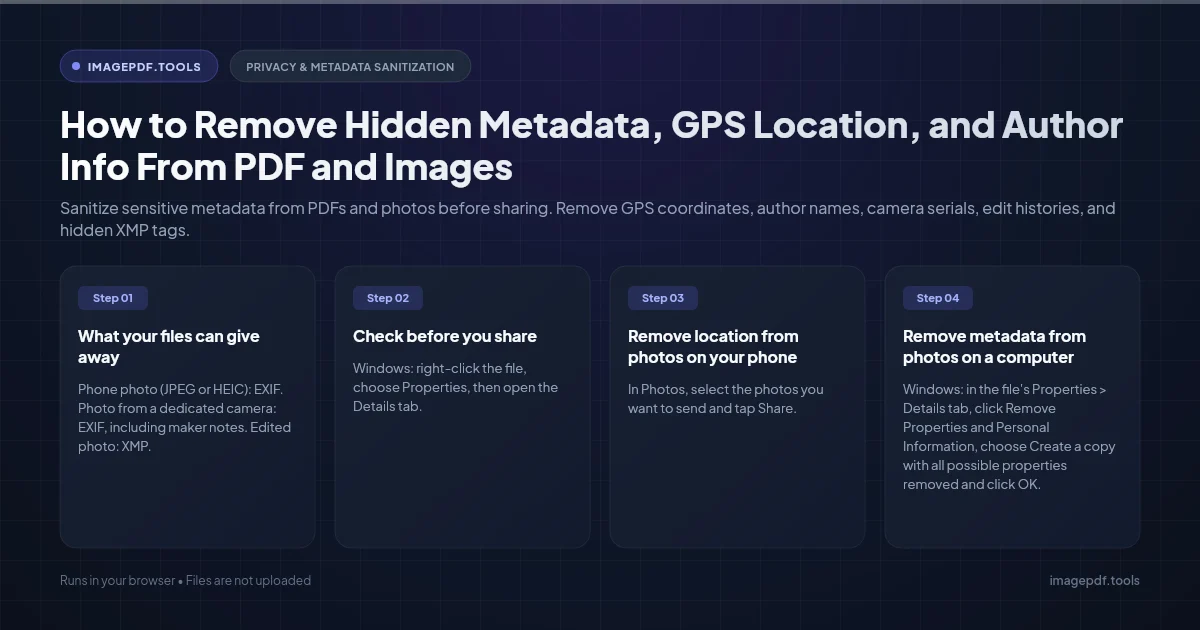
Phones and cameras write EXIF data into JPEG and HEIC files at the moment of capture. Editors and photo apps may add XMP and IPTC blocks later. Together they can include:
- ●Location: GPS latitude, longitude and altitude, and on some phones the direction the camera was facing.
- ●Time: the date and time of capture to the second, often with the time zone offset.
- ●Device: camera or phone make and model, lens, and on many dedicated cameras a body serial number that links photos from the same camera.
- ●Software and people: the editing app, and sometimes an author name or copyright line copied from your settings.
- ●A preview image: a small embedded thumbnail. Some older editors failed to update it after cropping, so it could still show the uncropped scene.
The file name can leak too. A name like PXL_20261012_183455.jpg tells anyone the date and time even after the metadata is gone, so rename files you post publicly.
Where your location survives and where it does not
Whether you need to clean a file depends on how it travels. The safe rule: if the other person receives the original file, assume every field arrives with it.
| Sharing method | Location in the received file? |
|---|---|
| Public posts on large social networks such as Facebook and Instagram | Usually removed from the copy others can see, though the service may keep it |
| Messaging apps sending a compressed photo | Often removed, but behavior varies by app and setting |
| Messaging apps sending the photo as a file or document | Kept |
| Email attachments, AirDrop, iMessage | Kept, unless you turn location off before sending |
| Cloud links (Google Drive, Dropbox, OneDrive) and USB copies | Kept, because the original file is shared |
| Marketplaces, forums and personal websites | Depends on the site; many keep the file as uploaded |
Check a photo before you share it
- ●Windows: right-click the file, choose Properties, open the Details tab and scroll to the GPS section.
- ●Mac: open it in Preview and choose Tools > Show Location Info. If that item is grayed out, the image has no location data.
- ●iPhone: in the Photos app, view the picture full screen and swipe up on it. If a small map appears under the details, the location is stored in the file.
- ●Any browser: Metadata Editor lists every EXIF field, including GPS, timestamps and camera details, without uploading the file.
Remove location on iPhone
For a single share, without changing the photo in your library:
- 1.Select one or more photos in Photos and tap the Share button.
- 2.Tap Options near the top of the share sheet.
- 3.Switch off Location and tap Done, then share as usual.
iOS does not remember this choice, so you have to switch it off each time. To strip location from the photo itself, open it, swipe up, tap Adjust next to the location and choose No Location. To stop recording location on future photos, go to Settings > Privacy & Security > Location Services > Camera and choose Never.
Remove location on Android
Menu names differ between phone makers, but there are two reliable switches:
- ●In the Camera app's settings, turn off the option called Location tags, Save location or similar.
- ●Or remove the permission at the system level: Settings > Apps > Camera > Permissions > Location > Don't allow.
Neither removes location from photos you already took. In Google Photos, the setting Remove geo location in items shared by link under Sharing in your Photos settings covers shared links only, not files sent another way.
Remove metadata on Windows
- 1.Select one or more JPEG photos in File Explorer, right-click and choose Properties.
- 2.Open the Details tab and click Remove Properties and Personal Information at the bottom.
- 3.Choose Create a copy with all possible properties removed to keep your originals, or pick individual fields such as Latitude and Longitude to remove from the file itself.
- 4.Click OK, then open the copy's Details tab to confirm the GPS section is empty.
This works best on JPEG. For PNG and other formats, Windows may show fewer fields it can remove.
Remove location on a Mac
In Preview, choose Tools > Show Inspector, open the More Info tab, then the GPS tab. Click the button at the bottom to remove location info and save the file. When exporting from the Photos app with File > Export, leave the Location Information option unticked and the exported copies will not contain it.
Remove everything at once in the browser
Remove Metadata handles JPEG, PNG and WebP files in your browser, so the photos are never uploaded. It cuts the metadata blocks out of the file without re-encoding the image, which means the pixels are identical and the file stays in its original format. Add several photos, then save them one by one or together as a ZIP. If you only want to drop GPS and keep the capture date, use Metadata Editor instead and remove the fields you choose.
HEIC files from an iPhone are not supported by these browser tools. Use the iPhone share options above, or convert to JPEG first.
Removing all metadata also removes the Orientation tag and the embedded color profile. A portrait photo whose pixels were stored sideways can then display rotated, and wide gamut iPhone photos can look a little less saturated. Check the result, and rotate it with Rotate Image if needed.
Batches with ExifTool
For whole folders, the free command line tool ExifTool is the standard choice. By default it keeps a backup of each file with _original added to the name.
# Remove only GPS fields, keep everything else
exiftool -gps:all= *.jpg

# Remove all metadata but copy the Orientation tag back
exiftool -all= -tagsfromfile @ -orientation photo.jpg
What stripping cannot hide
Metadata is only part of the risk. A house number, a street sign, a school logo or a reflection in a window can pin down a location just as well. Look at the picture itself before posting it, and remember that the service you share through may keep its own record of when and where you uploaded.
Frequently asked questions
Does removing metadata lower image quality?
If I turn off location for the camera, are my old photos cleaned?
Are screenshots safe to share?
Can someone recover the metadata after I remove it?
Sources & references
This article was researched and written by Nikola, drawing on the following primary sources and documentation:
- ●CIPA, Exif 2.3 standard (DC-008-2012) defining the tags stored in photos
- ●ExifTool by Phil Harvey, reading and removing image metadata
- ●ExifTool documentation, deleting tags and restoring selected tags
- ●Apple Support, see where a photo was taken in Preview on Mac
- ●Google Maps Help, remove geo location from photos shared by link
Ready to try it?
All tools run entirely in your browser, no uploads, no account required.
Remove MetadataMore in Privacy & Security
How to Remove Hidden Metadata, GPS Location, and Author Info From PDF and Images

How to Lock PDF Form Fields Permanently After Signing (Flattening Guide)

How to Fix "At Least One Signature Has Problems" Error in Adobe Acrobat