
How to Reduce a PDF to 200KB or Under, Fast
Summary
Need to reduce a PDF to 200KB or under right now? Here is the fastest method, what actually shrinks file size, and what to do if it still will not fit.
Some upload portal just told you your PDF needs to be under 200KB, and yours is nowhere close. This happens constantly on job applications, visa forms, and government portals with strict, non-negotiable size caps.
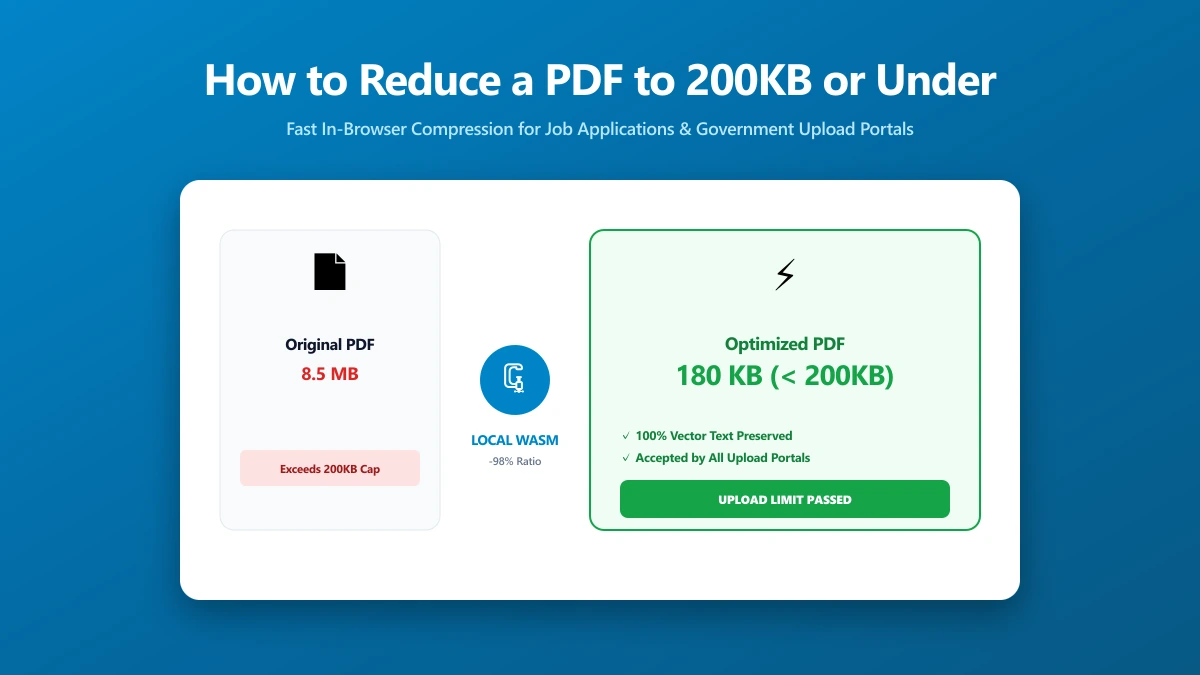
Getting there is usually fast. Here is exactly what drives PDF file size down, a step-by-step method using ImagePDF.Tools' compressor, and what to do on the rare occasion a text-heavy PDF still will not fit.
Caps like this are rarely arbitrary. Portals set them to keep storage costs predictable and page load times fast, especially on forms built for high volumes of public traffic rather than a single upload.
What Actually Makes a PDF Shrink
PDF size overwhelmingly comes from embedded images, scanned pages, photos, and graphics, not from text. A few specific mechanisms do almost all the work of shrinking it.
- ●Image re-encoding, embedded photos and scans are resized to a lower resolution and recompressed as JPEG at a reduced quality
- ●Font subsetting, only the specific characters actually used in the document are kept, instead of an entire embedded font file
- ●Metadata and overhead removal, unused colour profiles, hidden layers, and document metadata are stripped out
For a scanned or image-heavy PDF, image re-encoding alone typically accounts for 80% or more of the size reduction. For a text-only document, font subsetting and overhead removal do most of the work, and the ceiling is lower.
How much any single PDF can shrink also depends on what is already inside it. A PDF exported directly from a scanner at high resolution has far more room to compress than one already optimized by its source application.
A Few Things That Will Not Help Much
Renaming the file or changing its extension does nothing to its actual size, obviously, but it is a common first instinct. Saving it inside a ZIP folder rarely helps either, PDFs are already compressed internally.
Lowering your screen resolution or your printer's DPI setting before saving does not help either. Those settings affect display and printing, not the resolution already baked into the PDF's embedded images.
Step-by-Step: Get to 200KB
- 1.Open the Compress PDF tool and drop in your file.
- 2.Start with the highest compression setting available, it targets the lowest image DPI and JPEG quality, and gets you closest to 200KB in one pass.
- 3.Check the resulting file size. If it is already under 200KB, save it and you are done.
- 4.If it is still over, look at what is inside the PDF, heavy photos usually mean you can compress further; mostly text means you are already close to the practical floor.
Always compress from the original source file, not from a PDF you already compressed once. Recompressing an already-compressed file adds visible artefacts without meaningfully reducing size further.
If the First Pass Does Not Get You There
For image-heavy PDFs still over 200KB, a second pass at an even lower quality setting usually finishes the job. Most photos tolerate significant compression before quality loss becomes obvious at normal zoom.
If your PDF started as a Word document or slide deck, re-export it from the source application first. You will be compressing the original layout instead of a PDF that already carries some conversion overhead.
For a photo-heavy PDF where maximum compression looks noticeably degraded, try a middle setting first, then check the size. Landing at 210KB with acceptable quality is often a better outcome than 180KB that looks visibly blurred.
A Quick Reference for What to Expect
These figures are starting points from typical documents, not guarantees, your exact result depends on how many images your PDF contains and how high their original resolution was.
| Original PDF type | Typical size after aggressive compression |
|---|---|
| Single-page scanned form | 50-150KB |
| Multi-page scanned document (5-10 pages) | 150-400KB, may need a second pass |
| Text-only resume or letter | 20-80KB, usually easy |
| Slide deck with photos | Often stays above 200KB, consider splitting |
For the full breakdown of what each compression level actually changes, from the /screen preset up to /prepress, see our guide to PDF compression levels.
When a Text-Heavy PDF Still Will Not Get Under 200KB
This is rare, but it happens. A document with several embedded, non-subsetted fonts, complex vector graphics, or many small images can sit stubbornly above 200KB, because there is very little image data left to shrink.
In that situation, check for embedded fonts you do not need, switch to a standard system font where the portal allows it, and remove any decorative images or logos that are not required by the form.
Converting colour scans to grayscale, where the form does not require colour, is another lever worth trying. Grayscale images compress meaningfully smaller than colour ones at the same visual resolution, sometimes enough to cross the 200KB line alone.
If the document must retain specific images, consider whether the receiving portal accepts multiple smaller files instead of one, splitting a document is sometimes the more practical fix. Our guide to shrinking PDFs for email covers additional techniques, including stripping hidden metadata, that apply here too.
Once you are under the cap, save the file under a new name before uploading it anywhere. Keeping the original alongside the compressed version means you always have an uncompressed copy if you need to redo the job later.
Verify Nothing Was Uploaded
Many 200KB caps come from sensitive forms, visa applications, background checks, job portals. Press F12, open the Network tab, and compress a test file. There is no outbound request matching your file size, because nothing left your device.
For a deeper look at handling sensitive PDFs safely, see our guide on compressing sensitive PDF documents safely.
The Bottom Line
Most PDFs reach 200KB in a single pass through an aggressive compression setting, image-heavy documents shrink the most. If a text-heavy file resists, font subsetting and splitting usually close the gap.
Try it now: compress a PDF, free, with no upload, and check the result against your 200KB target immediately.
Frequently asked questions
How do I reduce a PDF to under 200KB?
Why is my text-only PDF still over 200KB after compression?
Will compressing a PDF to 200KB ruin the quality?
Can I compress a PDF to an exact file size like 200KB?
Is it safe to compress a sensitive PDF, like a visa or job application, online?
Sources & references
This article was researched and written by Nikola, drawing on the following primary sources and documentation:
Ready to try it?
All tools run entirely in your browser, no uploads, no account required.
Compress PDFMore in Productivity
What Is the Best YouTube Thumbnail Size, Resolution, and Aspect Ratio? (2026 Specs)
How to Compress Huge Photoshop PSD Files for Client Email Preview (Export Guide)
How to Convert Scanned PNG Receipts to Searchable PDF With OCR (Tax & Expense Guide)