Why Does My Signature Disappear When Printing or Flattening a PDF? (Fix)
Summary
Fix a PDF signature that shows on screen but vanishes when you print, save as PDF or flatten: print settings, non-printing annotations and form fields, and how to make it permanent.
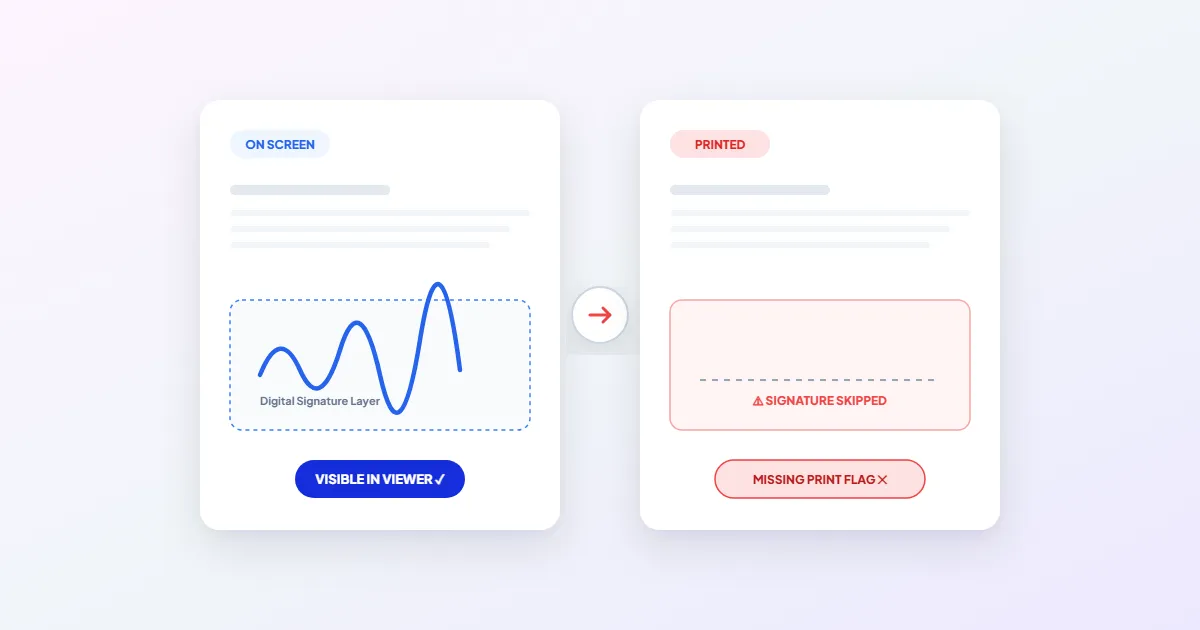
A signature that shows on screen but not on paper is almost never deleted. It is stored as a layer on top of the page, an annotation or a form field, and that layer is either set not to print or excluded by your print settings. In Acrobat or Acrobat Reader, the first thing to try is the Comments & Forms menu in the Print dialog: set it to Document and Markups.
If that works, you know the cause. To stop it happening on other people's printers and viewers, flatten the file so the signature becomes part of the page itself.
Where a signature lives inside a PDF
How a signature behaves depends on how it was added:
- ●Drawn into the page content. The signature image is part of the page, like the text. It prints everywhere and cannot vanish. Scanned signed documents work this way.
- ●An annotation. Stamps, ink drawings and many "add signature" tools place the signature as an annotation that floats above the page. Each annotation has flags, and one of them, the Print flag, decides whether it is sent to the printer.
- ●A form field. Signature fields, including certificate based digital signatures, show their appearance through a field widget. In Acrobat, a field can be set to Visible, Hidden, Visible but doesn't print, or Hidden but printable.
The second and third kinds are the ones that disappear. The viewer draws them on screen, but printing, saving to PDF through a print driver, or a flattening step that ignores them can leave them out.
The usual reasons it disappears
| What you see | Likely cause | Fix |
|---|---|---|
| Missing only when printing from Acrobat | Comments & Forms is set to Document | Choose Document and Markups |
| A stamp style signature is missing | Stamps are annotations, excluded by Document | Choose Document and Stamps or Document and Markups |
| Missing in every app's printout | The annotation has no Print flag, or the field is set to Visible but doesn't print | Change the field property, or flatten |
| Missing after "Save as PDF" or "Microsoft Print to PDF" | Printing to PDF follows the same print rules, so non-printing layers are dropped | Flatten instead of printing to PDF |
| Missing after flattening in some tool | The tool flattened form fields only, or skipped annotations | Flatten comments and markup too |
| Black box instead of a signature | The printer driver mishandles the image's transparency | Try Print As Image under Advanced |
Fix 1: Change the Acrobat print setting
- 1.Open the signed PDF in Adobe Acrobat or Acrobat Reader and press Ctrl+P (Cmd+P on a Mac).
- 2.Find the Comments & Forms drop-down in the Print dialog.
- 3.Choose Document and Markups. This prints the page, form fields and comments, including signatures added as annotations.
- 4.Check the preview in the dialog. When the signature appears there, click Print.
The other options explain the problem: Document prints page content and form fields but no comments, Document and Stamps adds stamps but no other markups, and Form fields only prints just the entered data. If the preview still lacks the signature with Document and Markups, the annotation or field itself is set not to print.
If the black box problem appears
Some printer drivers cannot handle a signature image with a transparent background and print a solid box or nothing. In the Acrobat Print dialog, click Advanced and tick Print As Image. The whole page is sent as a picture, which sidesteps the driver issue at the cost of a slower print.
Fix 2: Change the field so it prints
If you prepared the form yourself in Acrobat Pro, open the form editing tool, right-click the signature field and choose Properties. On the General tab, set Form field to Visible. A field set to Visible but doesn't print shows on screen forever and never reaches paper, which is easy to set by accident on a template.
Fix 3: Flatten the signature into the page
Flattening turns form fields and annotations into ordinary page content. After that, every viewer and printer sees the same thing, and there is no layer left to skip. This is also the fix when a recipient says the signature is missing on their phone or in their email preview.
- 1.Open Flatten PDF. The file is processed in your browser and is not uploaded.
- 2.Choose Standard to turn fields and markup into page content with text that stays selectable, or Image-only to turn each page into a picture that cannot be edited.
- 3.Leave both Form fields (which include signature fields) and Comments and markup (stamps and drawings) switched on.
- 4.Save the flattened copy, then open it and use print preview to confirm the signature is there.
Our flatten tool draws every annotation that is visible on screen, including ones that were not marked for printing, so it also rescues signatures with a missing Print flag. One limit: an annotation needs a saved appearance to be drawn. If a signature only appears in one specific app and nowhere else, open it there and use that app's own flatten or print option.
Do not flatten a PDF that carries a certificate based digital signature you need to keep valid. That signature protects the exact bytes of the file, and flattening rewrites them, so the proof of who signed and that nothing changed is lost. Send the signed original and print it with Document and Markups instead.
Signing so it never disappears
For everyday agreements that only need a visual signature, add it in a way that writes it into the page content. Sign PDF lets you draw, type or photograph your signature, and everything you place is written into the page when you save, so there is no separate layer to lose. Whatever tool you use, check the print preview or open the file in a second viewer before you send it.
Frequently asked questions
Why does the signature show for me but not for the person I sent it to?
How can I tell if my signature is an annotation?
Is a flattened signature still legally valid?
Can I undo flattening?
Sources & references
This article was researched and written by Nikola, drawing on the following primary sources and documentation: